



A common bottleneck in molecular modeling is not coming up with a new idea—it is preparing a consistent set of molecules to examine. Editing SMILES one at a time is easy to get wrong, and a long list of candidates is hard to review as strings alone. Fragment replacement offers a structured way to explore alternatives: define a starting molecule, mark the part to change, and supply a set of replacement fragments.
SAMSON’s SMILES Manager uses RDKit for this workflow. It generates a results table with SMILES codes, names, and 2D depictions, helping you check the candidates before exporting selected molecules as 3D structures. The table is useful not just for collecting outputs, but for spotting invalid SMILES and comparing the changes visually.
Set up the transformation clearly
The replacement operation depends on three inputs: an initial molecule, a fragment to replace, and one or more fragments to insert. In the tutorial’s example, the starting molecule is COc1cc(CNC(=O)CCCC/C=C/C(C)C)ccc1O. The target is specified as [*:1]C(=O)NC[*:2], and each replacement fragment uses the same numbered attachment markers.
Those markers are important. In the RDKit syntax used here, [*:1] and [*:2] indicate the two ends of the fragment pattern. Make sure the target and replacement fragments are written with the attachment points at the ends, as in the documented example. This gives the replacement operation the information it needs to connect the new fragment to the rest of the molecule.
A practical, staged workflow
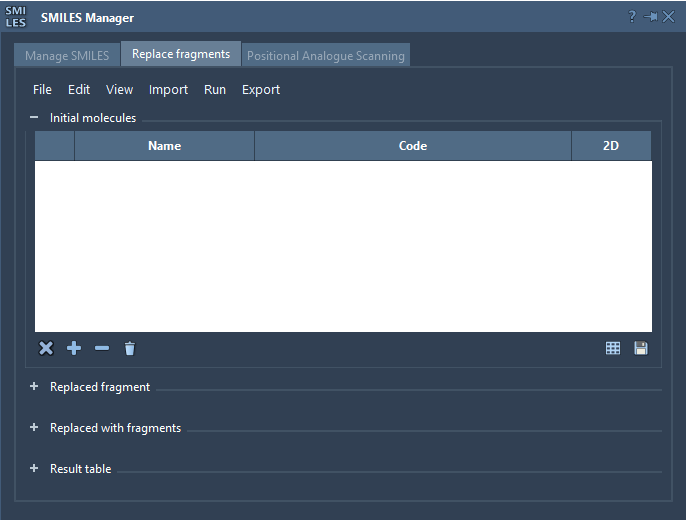
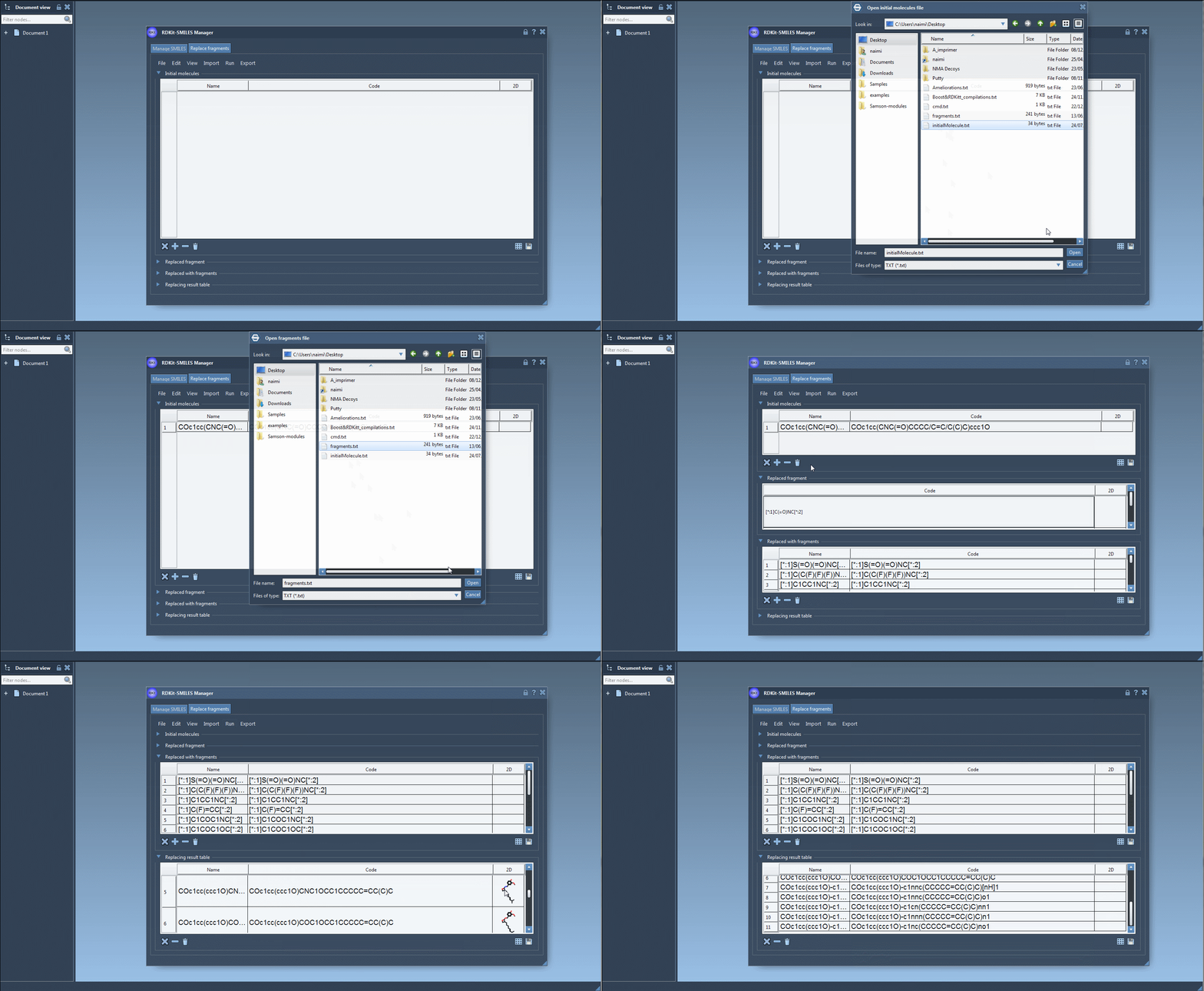
- Load the starting molecule. Open a file of initial molecules, add one manually, or import a selection from the active SAMSON Document. Starting with a single molecule can make it easier to verify that the target fragment is specified as intended.
- Define the part to replace. Enter the target fragment directly or import it from the active document. Check that its attachment markers represent the two connections to the surrounding molecule.
- Prepare a focused set of replacements. Add fragments manually or open a fragment file. The tutorial demonstrates alternatives such as sulfonamide, ring-containing, and nitrogen-rich fragments. Keeping the input set organized makes it easier to interpret which choice produced each result.
- Run the replacement. Choose Replace fragments from the Run menu. The generated molecules appear in the Results table.
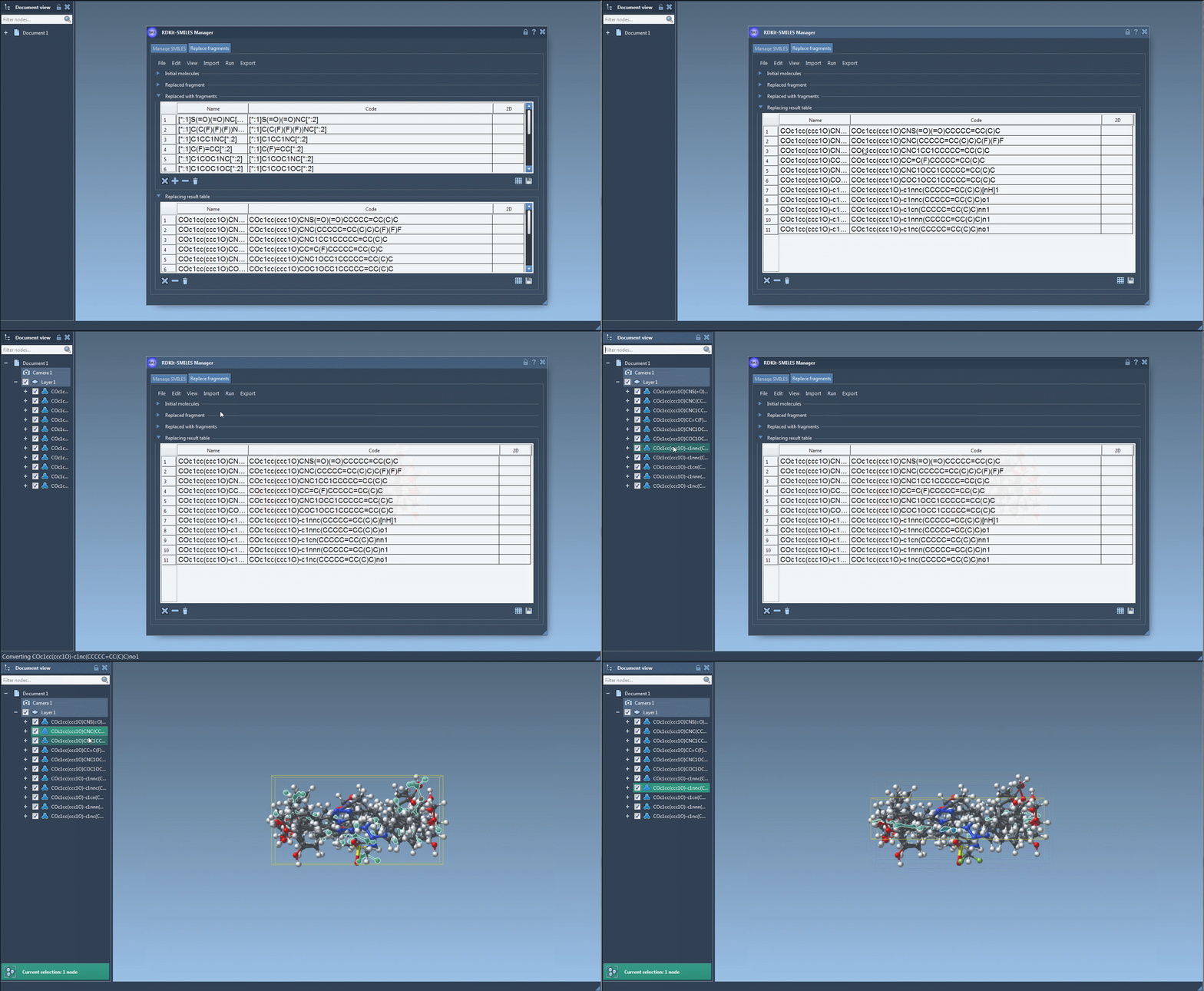
- Review before exporting. Inspect the SMILES and 2D depictions in the table. If a SMILES is invalid, the manager highlights the corresponding line and shows an error image rather than a normal depiction. You can then edit the code cell and review the updated depiction.
Keep the review step useful
When a table contains many candidates, compare them in a way that makes differences easy to see. The SMILES Manager can open larger 2D views, and it can save all or selected depictions as a grid image. A grid is a convenient visual summary to share with collaborators or keep alongside the input set. You can also select candidate rows and export the selected SMILES strings to the active document as 3D structures, or generate a 3D structure for an individual entry.
These steps help organize and inspect a set of structural alternatives; they do not, by themselves, establish which molecule will have the desired properties. Treat the generated structures as candidates for the next stages of your modeling and analysis workflow.
For the full interface walkthrough and additional SMILES Manager features, read the original documentation.
Note: SAMSON and all SAMSON Extensions are free for non-commercial use. Get SAMSON.