



A familiar challenge in molecular design is deciding what to change next. A promising molecule may have several positions where a substituent could be modified, but manually editing each structure takes time—and makes it harder to compare the results consistently. Positional analogue scanning offers a practical way to explore these local changes: define a pattern in a starting molecule, choose an edit, and generate a set of corresponding analogues in SAMSON.
The key idea is to make a controlled change at matching positions rather than redesigning the whole molecule at once. This helps you build a more interpretable set of candidates: you can see which position was modified and then investigate how that change affects properties or interactions. It is a useful starting point for exploration, not a substitute for evaluating whether an analogue is chemically appropriate or performs well against a target.
Start with a molecule you can inspect
In the SMILES Manager’s Positional Analogue Scanning tab, provide a starting structure either by entering its SMILES string or by selecting a molecule already present in the SAMSON document and choosing Use selection. The example in the tutorial uses a molecule from a published positional-scanning study.
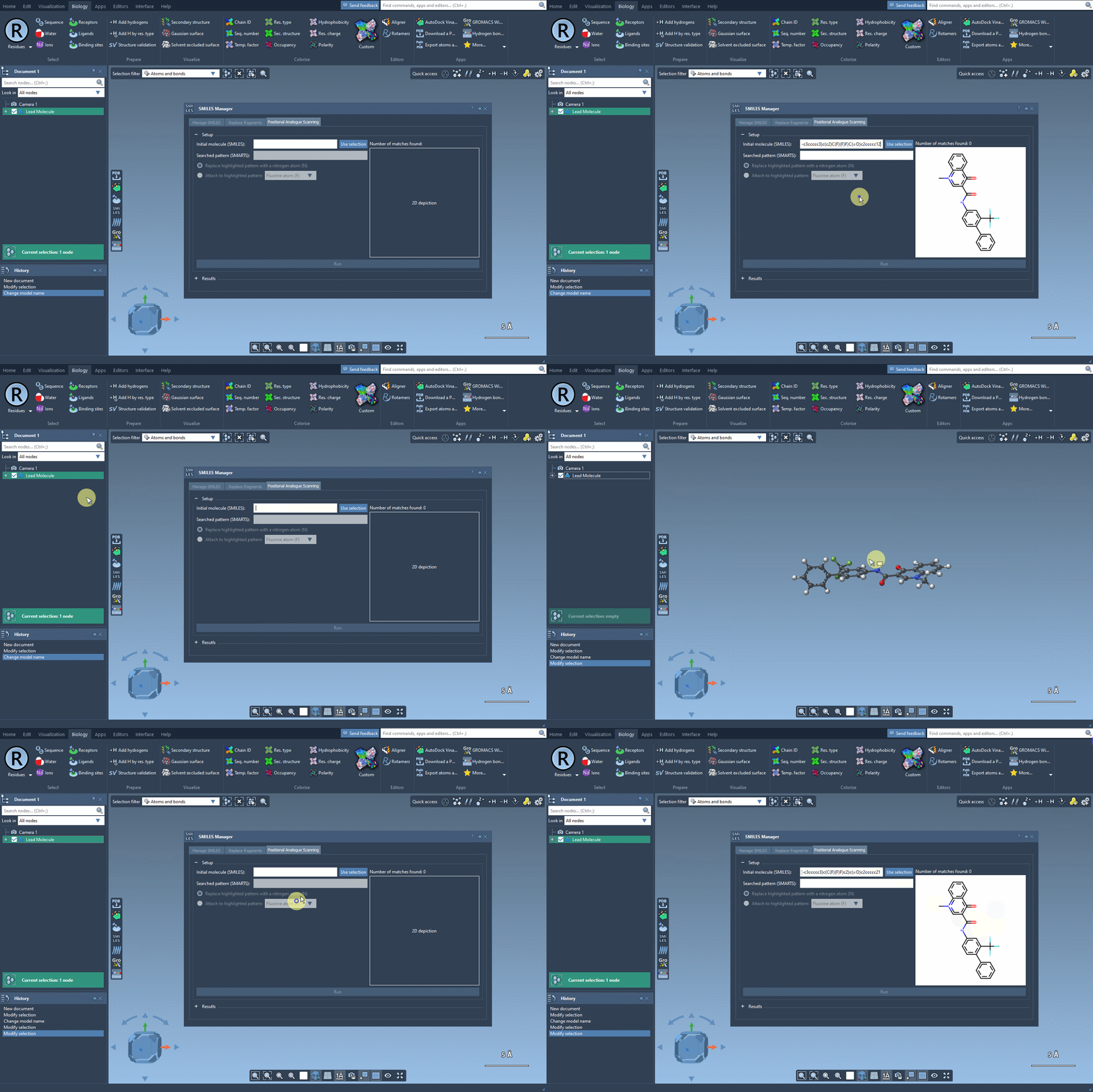
Starting from a known structure makes the scope of the scan clear. Before generating anything, check that the molecule is the one you intend to modify and that it is represented as expected. If you need help importing or organizing SMILES data first, see the SMILES Manager tutorial.
Use SMARTS to describe the positions
A SMARTS pattern tells the tool what to search for in the starting structure. In the tutorial, the pattern [cH] is used to find aromatic carbon atoms that bear a hydrogen. The matching locations are highlighted in the molecule, giving you a visual check before you run the scan.
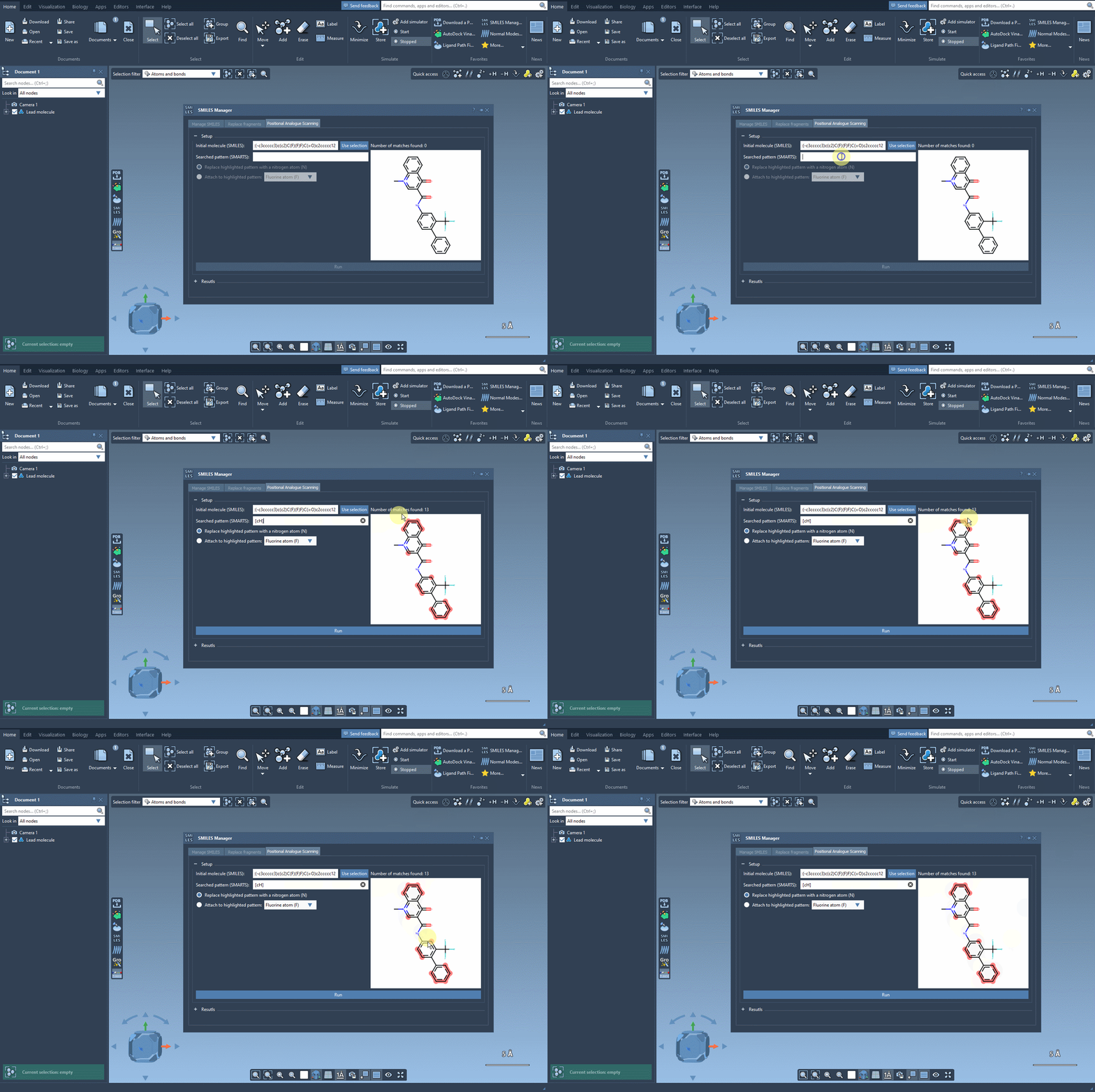
This check matters: the pattern determines where the requested modification can be applied. A broad or unintended pattern may identify positions you did not mean to include. Confirm the highlighted matches before continuing, and adjust the pattern if they do not represent the positions you want to explore.
Choose the edit that fits the question
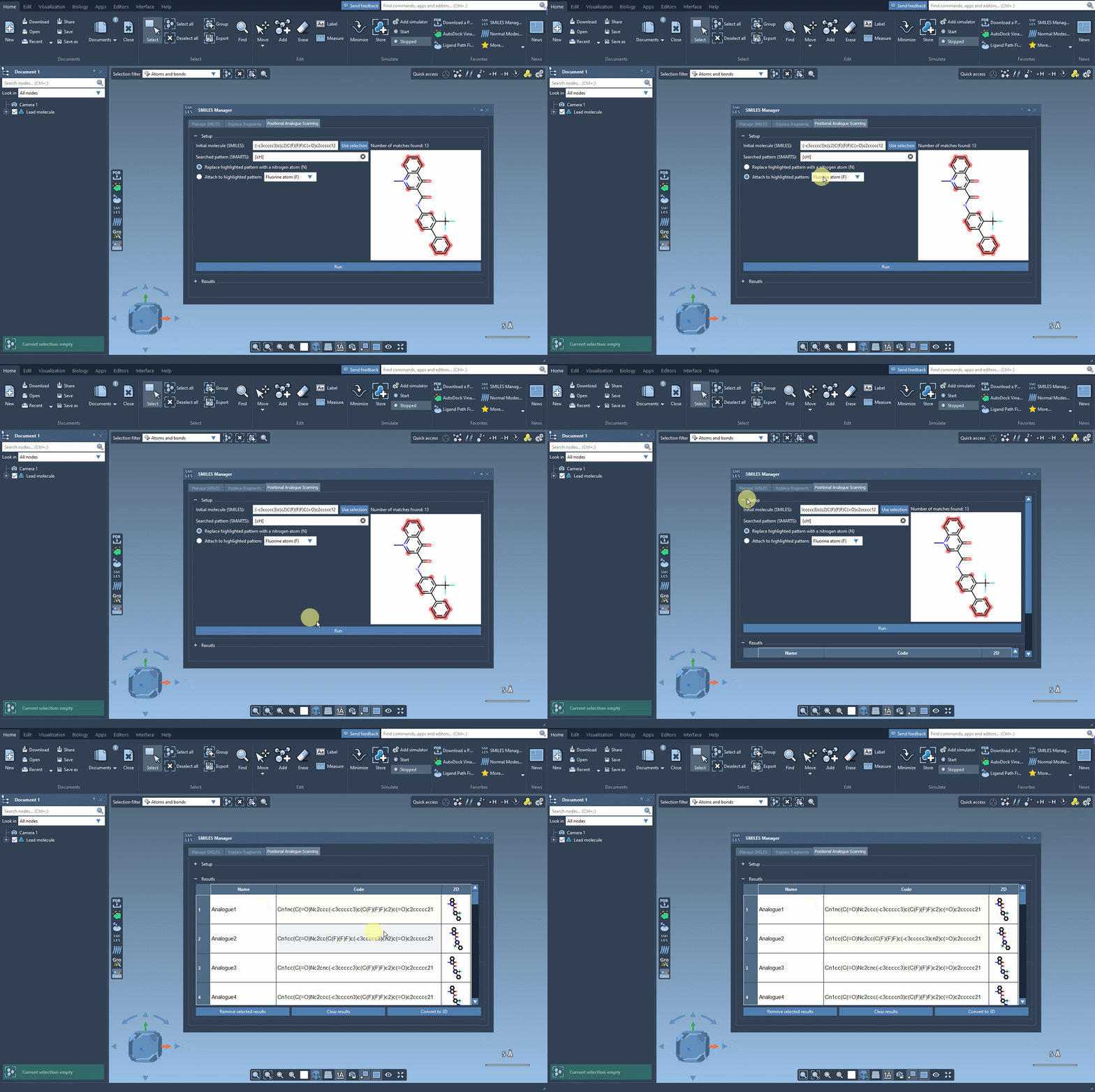
Once the pattern is set, choose whether to replace the matched pattern or attach a new atom or group to it. The example replaces the matched site with nitrogen; the tutorial also demonstrates attaching fluorine or a methyl group. These are different design questions. Replacement changes what occupies a position, while attachment adds a group at the selected site. Pick the operation that matches the hypothesis you want to test.
Click Run to generate the analogues. The results appear in the interface with SMILES codes and 2D depictions, so you can quickly review the structures rather than opening each one separately.
Review before moving to 3D
Generated structures are a starting point for analysis. In the results table, you can edit an analogue’s name or SMILES by double-clicking the relevant cell, open a larger depiction, and hide or show the 2D images using the table’s 2D header. You can also remove selected rows or clear the results table. These small review steps help keep a working set manageable as you compare candidates.
When you are ready to inspect a structure in three dimensions, generate a 3D structure for an individual analogue from its context menu, or use Convert to 3D for the generated analogues. Then continue with the analysis suited to your project. For example, the documentation describes docking with AutoDock Vina Extended and examining whether changes preserve or create interactions with a target protein. Docking and interaction analysis can help prioritize structures, but they do not by themselves establish that an analogue will succeed experimentally.
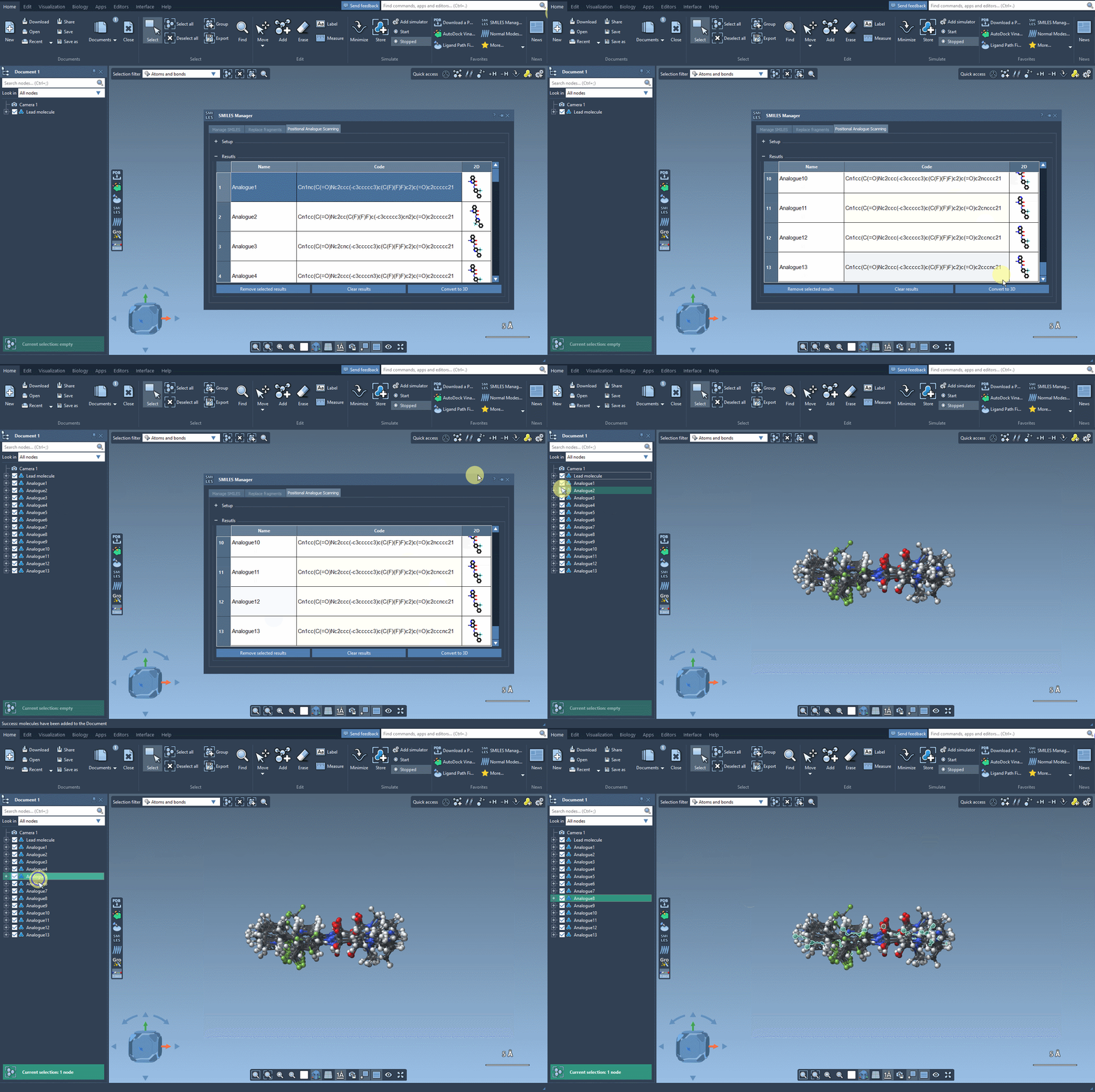
The practical benefit of this workflow is a clearer path from a single starting molecule to a set of position-specific ideas. Define the pattern carefully, inspect the matches, choose a deliberate edit, and treat the generated series as candidates to evaluate—not conclusions.
For the complete walkthrough, visit the positional analogue scanning documentation.
Note: SAMSON and all SAMSON Extensions are free for non-commercial use. Get SAMSON.