



A common molecular-modeling task sounds simple: keep the atoms inside a region and hide or exclude everything else. In practice, selecting a useful shape can be tedious when the structure contains thousands of atoms. Clicking them individually is slow, and repeating the process by hand makes it difficult to apply the same geometric rule consistently.
SAMSON’s Atoms Selector and Simple Script Extensions offer a more direct approach: describe the region using atom coordinates and a mathematical expression. This is useful for cutting a crystal, isolating part of a sheet, or selecting atoms around a point without manually tracing the shape.
Start with a geometric rule
Atoms Selector evaluates an expression for atoms in the active document. The expression can use coordinates such as a.x, a.y, and a.z, along with mathematical operators and functions. For example, to select atoms inside a sphere of radius 10 centered at (0, 0, 2), use the squared-distance test:
(a.x^2 + a.y^2 + (a.z - 2)^2) < 100
The expression is based on the sphere equation: the sum of the squared coordinate offsets must be less than the squared radius. Using squared distances avoids needing a square-root calculation. The coordinates and radius must use the same length units; SAMSON’s example describes the radius in the selected length units.
Adapt the rule to the shape you need
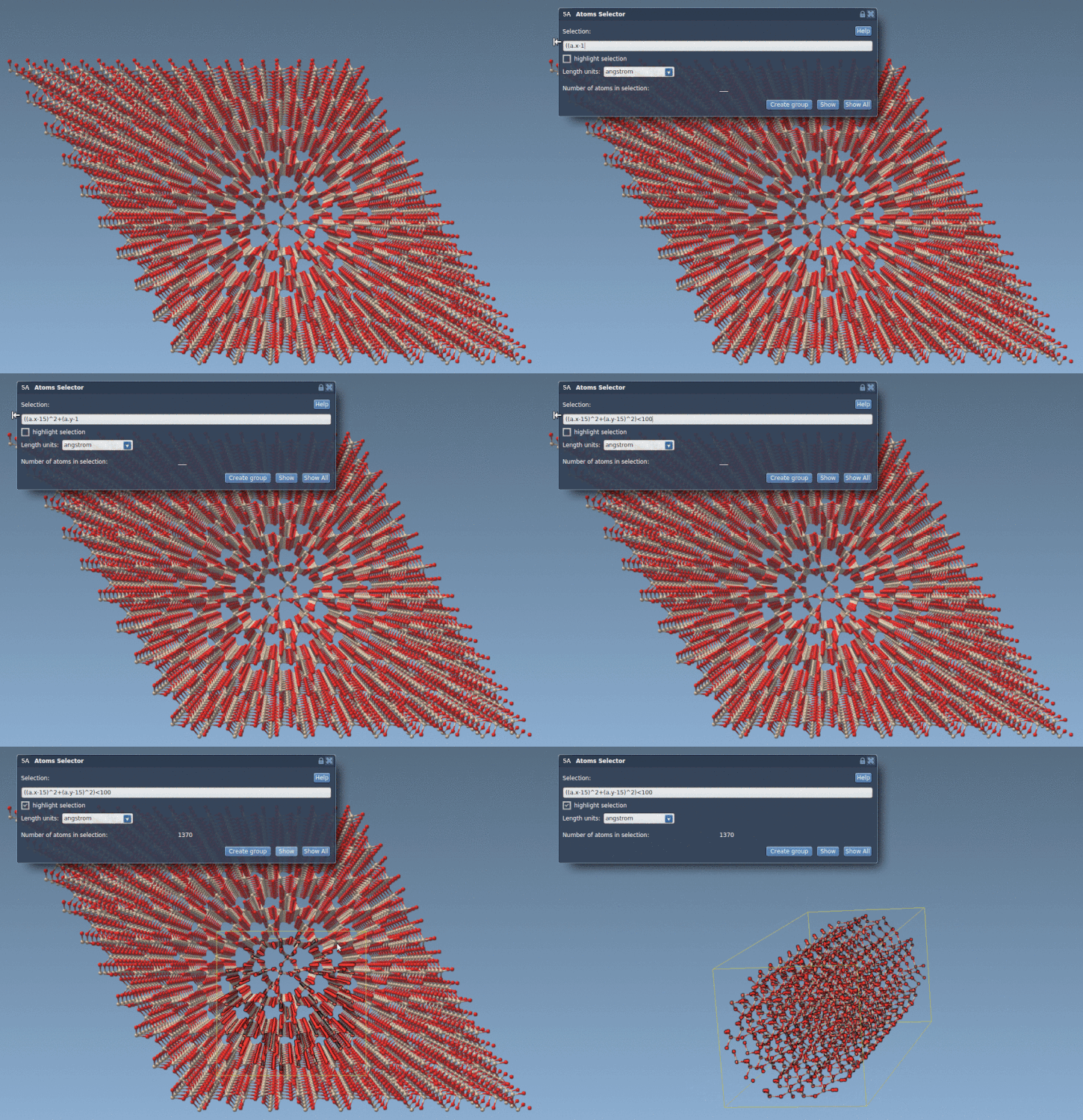
A useful way to build more complex selections is to combine simple conditions. For instance, a cylinder centered at (15, 15) in the x-y plane, with radius 10 and no limit along z, can be described by:
((a.x - 15)^2 + (a.y - 15)^2) < 100
This selects atoms within a circular footprint, regardless of their z-coordinate. To restrict that cylinder to a finite height, add lower and upper limits for z:
((a.x - 15)^2 + (a.y - 15)^2) < 100 and a.z > 0 and a.z < 20
The added comparisons make a bounded cylindrical region. Adjust the center, radius, and z limits to match the structure and the intended cut. These examples illustrate the general method: use coordinate offsets to describe the shape, then combine conditions with and or or.
Choose the right tool for the job
If the goal is only to select atoms, Atoms Selector is the simpler fit: provide the condition that should identify the atoms. The extension supports the same variables, operators, and functions as Simple Script, and it also provides the keyword all to select every atom in the active document.
Use Simple Script when selection is only one part of the task. It can also change supported atom properties, including coordinates and visibility. For example, a script can set the selection flag according to a coordinate condition, or make atoms outside a chosen region invisible. This distinction matters: selection identifies atoms, while visibility controls whether they are shown. A script can update either property, but the expression should match the outcome you actually want.
Simple Script also supports more involved logic, including variables, conditionals, and loops. That makes it possible to describe custom outlines rather than only familiar shapes. The graphene nano-tile example below shows how coordinate-based rules can be used to retain a shaped region from a larger sheet.

A few checks before applying a selection
- Confirm that the coordinates in your expression refer to the intended center and orientation.
- Keep dimensions consistent: a radius of 10 produces a different region depending on the coordinate units.
- Use parentheses to make compound conditions easier to read and reduce ambiguity.
- Test a simple region first, then add bounds or additional conditions gradually.
- Decide whether you need to select atoms, change their visibility, or modify another supported property.
These habits make coordinate-based selections easier to inspect, adjust, and reuse. For the complete syntax reference and additional examples—including a scripted graphene batarang—see the original SAMSON tutorial.
Note: SAMSON and all SAMSON Extensions are free for non-commercial use. Get SAMSON.