



Changing one part of a molecule across a series of candidates is a familiar modeling task—and a tedious one when every SMILES string has to be edited by hand. A misplaced bond, inconsistent attachment point, or overlooked entry can make a small edit hard to reproduce across a library.
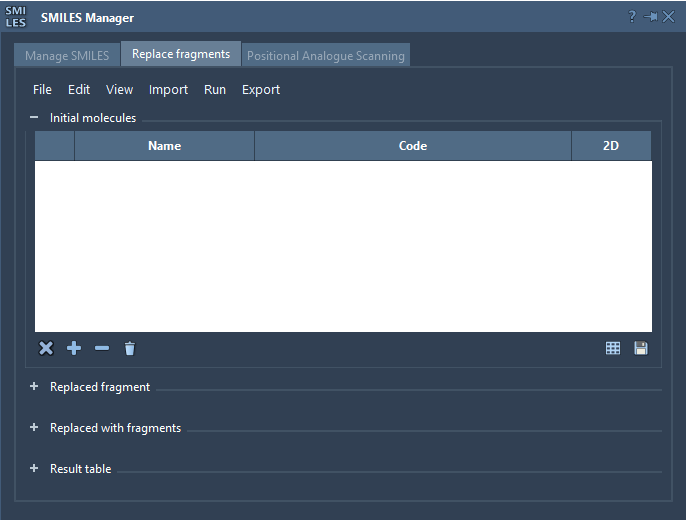
The SMILES Manager in SAMSON offers a more structured workflow: define an initial molecule, mark the fragment to replace, provide replacement fragments, and run the transformation. The result is a table of candidate SMILES that you can review before moving on to 3D structures or downstream analysis. This is useful for exploring alternatives around a shared scaffold without losing track of which part of the molecule is being changed.
Make the attachment points explicit
The key to a reliable replacement is not just the fragment itself, but where it connects to the rest of the molecule. In the tutorial example, the initial molecule is COc1cc(CNC(=O)CCCC/C=C/C(C)C)ccc1O, and the portion selected for replacement is [*:1]C(=O)NC[*:2].
The labels [*:1] and [*:2] mark the two ends of the fragment pattern. Replacement fragments use the same kind of labeled endpoints, allowing the transformation to preserve the points where the new fragment joins the surrounding structure. For example, the amide-containing section can be exchanged for alternatives such as [*:1]S(=O)(=O)NC[*:2] or [*:1]C1CC1NC[*:2].
That shared endpoint convention is a small detail with a practical payoff: it makes the intended connection pattern visible in the input, rather than leaving it implicit in a sequence of manual edits. Before running a replacement, check that your target pattern and replacement fragments have the required endpoint labels and that those labels are at the two extremities of each pattern.
A careful workflow for building the set
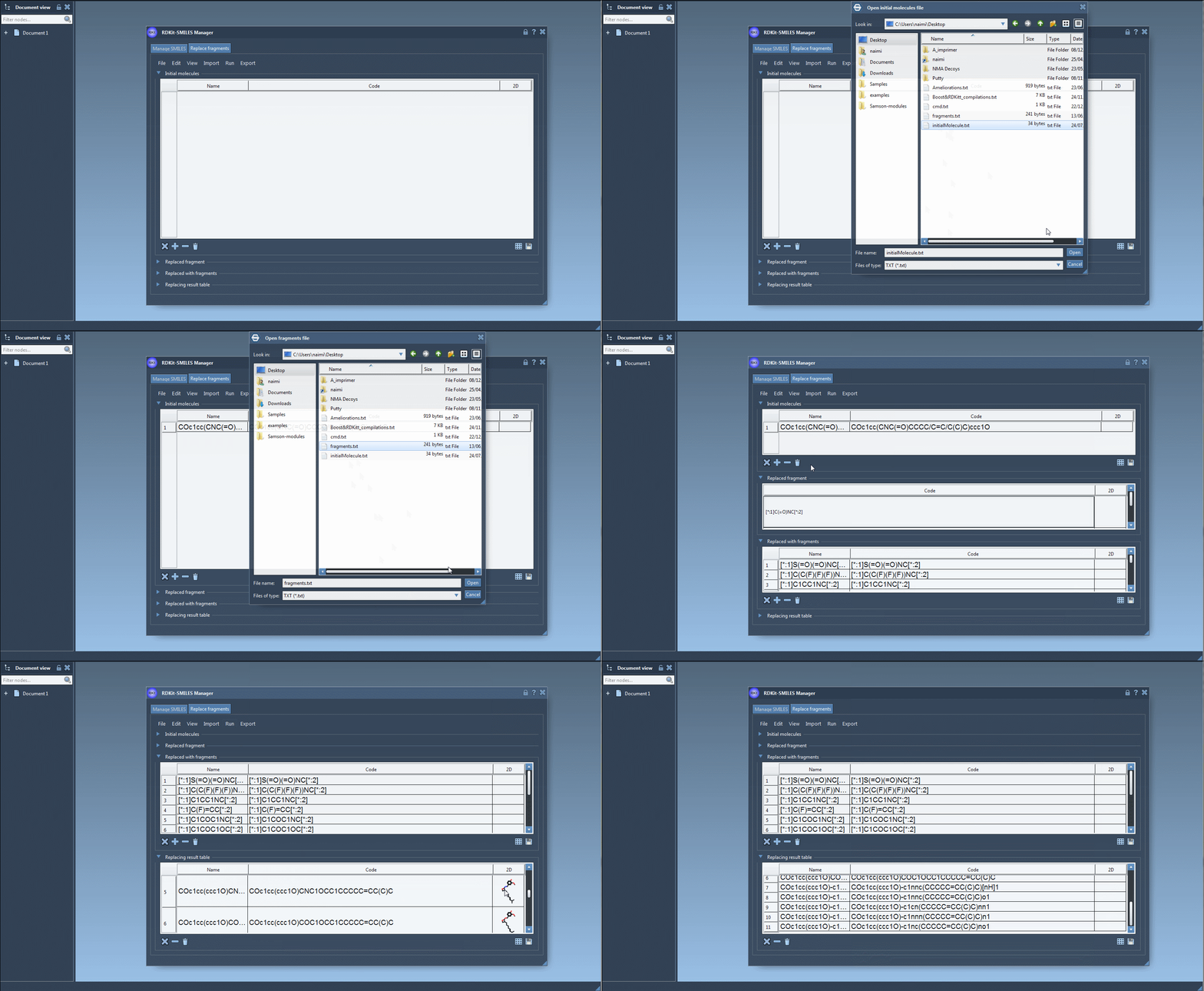
- Load the starting molecule. Import it from a file, add it manually, or use a selection from the active SAMSON Document. Keep the initial structure identifiable so you can compare the output against it.
- Specify the target fragment. Enter the fragment pattern to replace, or import it from a SAMSON selection. Confirm that the pattern captures the intended portion of the molecule and its two attachment points.
- Add replacement fragments. Import a fragment file or enter alternatives in the table. A list can include chemically distinct options, but each needs compatible labeled endpoints for the replacement workflow.
- Run the transformation. Choose Replace fragments from the Run menu. The generated candidates appear in the Results table.
- Review before exporting. Inspect the resulting SMILES and 2D depictions, then select the candidates you want to send to the active document or save. A generated structure is a starting point for evaluation, not a conclusion about its properties.
Keep the exploration manageable
When you supply several starting molecules and several replacement fragments, the result can grow quickly. A useful habit is to begin with one starting molecule and a short, clearly named set of alternatives. Check that the outputs reflect the intended edit, then expand the set if needed. Names also make a difference when you revisit candidates: the SMILES Manager lets you assign names, and those names help distinguish entries in tables and exported structures.
The Manager can show 2D depictions, open larger views, and save individual images or a grid. These views are helpful for spotting unexpected changes in connectivity before generating 3D structures. Once the candidates look appropriate, you can export selected results to the active document and continue with modeling or analysis.
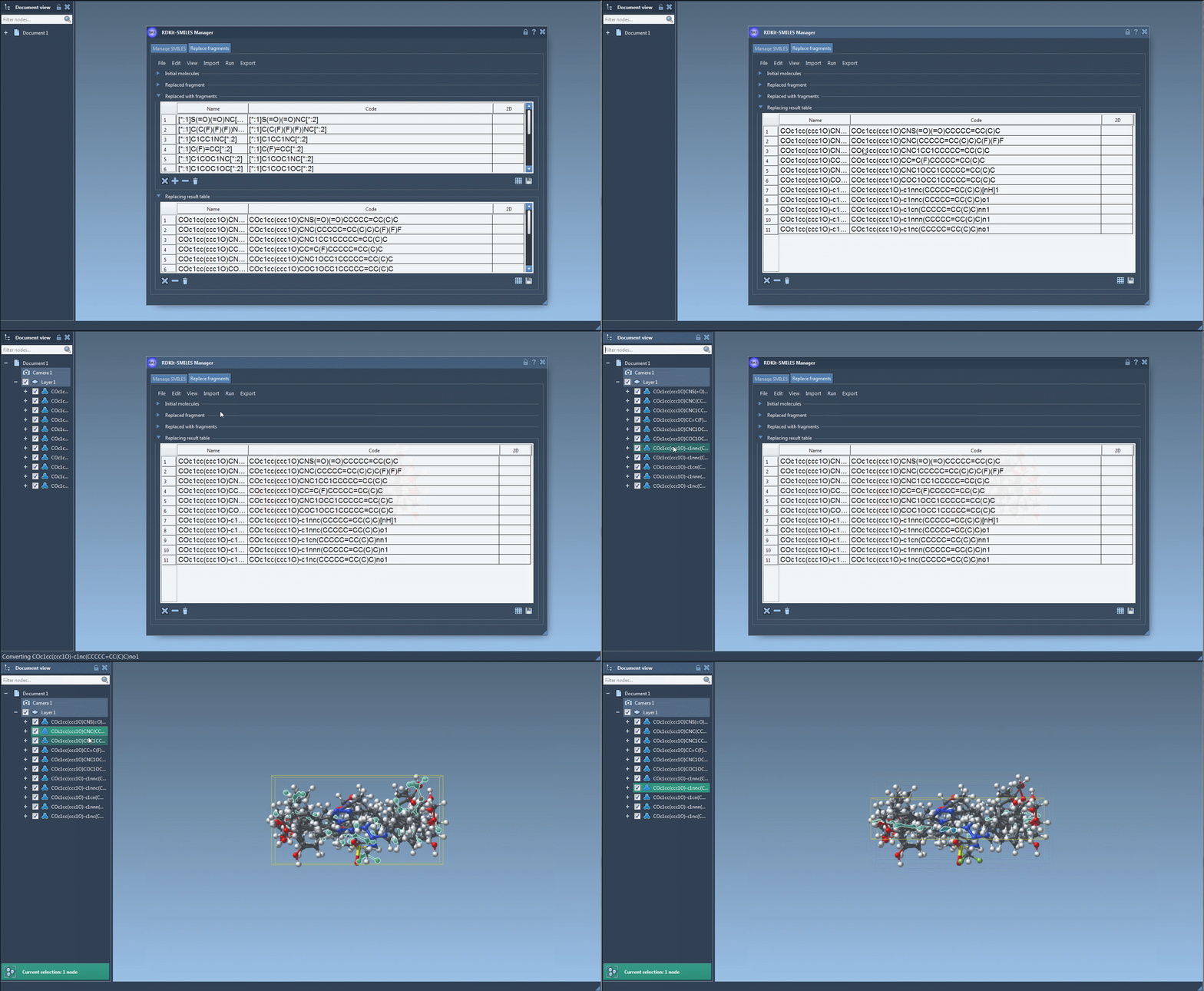
This workflow turns fragment replacement into a traceable set of steps: define the scaffold context, specify both connection points, generate alternatives, and inspect the results. For the complete interface walkthrough and additional SMILES Manager features, see the original documentation page.
Note: SAMSON and all SAMSON Extensions are free for non-commercial use. Get SAMSON.