



Building a carbon nanotube model can involve more than making a tube-shaped object. For a useful molecular model, you need to control its direction, length, and structure—and, for a multi-walled nanotube, repeat the setup consistently for each concentric tube. Guessing these values by eye can make it harder to create a model that matches your intended design.
SAMSON’s Nanotube Creator offers two ways to build carbon nanotubes (CNTs): an interactive viewport workflow for quick construction, and a graphical interface (GUI) for setting parameters directly. The GUI is especially useful when you want to specify a tube’s endpoints and build multiple walls with planned values.
Choose the workflow that fits the task
For a quick, mouse-driven model, activate the Nanotube Creator from the viewport’s left-side menu under … > Materials > Nanotube Creator. You can also press Shift+E to open Find everything… and search for the editor. SAMSON allows only one editor to be active at a time.
In the viewport, press and drag the left mouse button to set the nanotube axis and length. Release the button, move the mouse to adjust the radius, then click again to confirm. Keep an eye on the status bar while building: it gives live feedback on the axis orientation and tube length, and helps you choose the n and m parameters.

This interactive approach is convenient for exploration. When exact endpoints or a repeatable multi-wall setup matter more, use the GUI. Activate the editor to open its interface; if it is hidden, reselect the editor to toggle its visibility.
Use endpoints to keep the geometry deliberate
The GUI lets you define the nanotube’s start and end positions in 3D space, as well as its n and m values. The positions specify the tube axis and its extent; the n and m values define the chiral vector, which determines the structure and radius. Once the parameters are set, click Build.
For example, setting the endpoints to (0, 0, 0) and (40, 0, 0) creates a tube 40 Å long along the x-axis. Using the same endpoints for each wall gives all the tubes a shared axis and length, providing a straightforward starting point for a concentric model.
A three-wall example
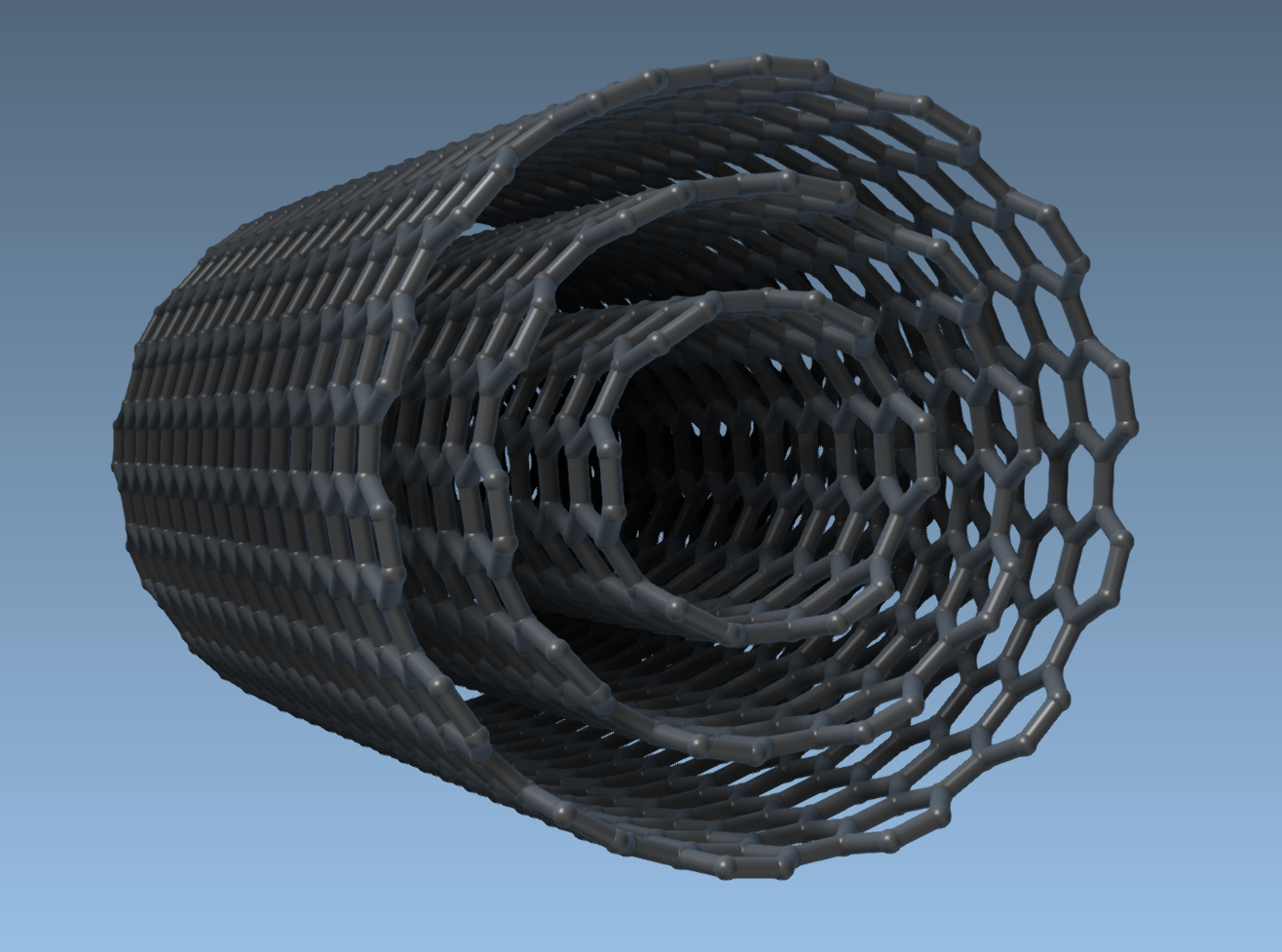
To create a multi-walled nanotube, build three CNTs in sequence using those same start and end positions:
- Set the endpoints to
(0, 0, 0)and(40, 0, 0). Entern = 6andm = 6, then click Build. - Keep the endpoints unchanged. Set
n = 10andm = 10, then click Build again. - Keep the endpoints unchanged once more. Set
n = 14andm = 14, then click Build.
The result is three concentric carbon nanotubes. The example illustrates a useful modeling habit: change the wall’s structural values while keeping its axis and length consistent.
What to do next
After creating the model, you can make an image using the visualization guide, combine CNTs with other molecules to explore hybrid nanostructures, or continue to the guide on building and modeling a carbon nanopore. These models can also serve as starting structures for exploring applications such as molecular channels, transport systems, or material simulations.
For more details on both construction methods, see the original carbon nanotube modeling tutorial.
Note: SAMSON and all SAMSON Extensions are free for non-commercial use. Get SAMSON.