



A molecular path can be easy to inspect on screen and surprisingly awkward to use in the next stage of a workflow. If you need coordinates for a reaction-coordinate analysis, a free-energy calculation, or a closer look at ligand motion, you need to get the path’s atomic positions into files that other tools can use. Exporting every atom when you only need a ligand can also leave you with more data than your analysis requires.
SAMSON’s Export Along Paths extension addresses both needs: it can export coordinates along selected paths as PDB files, either for all atoms in the path or for a chosen subset. The key is to treat path selection, atom selection, and output format as separate decisions.
First, know what you are exporting
In SAMSON, a path is a node that stores atomic trajectories for a group of atoms. Double-clicking a path in the Document view starts or stops the atoms moving along it. Exporting does not calculate a new path; it writes coordinates from an existing path to files.
The tutorial’s sample system contains lactose permease (1PV7), the ligand thiodigalactosid (TDG), and two ligand unbinding paths. It is a useful example of a common analysis question: perhaps you want the ligand’s changing positions, not a PDB of every atom represented in the path.

Choose the output that fits the next step
There are two export modes:
- All frames in a single PDB file: keep the frames together in one output file.
- Each frame as a separate PDB file: write the frames as individual files.
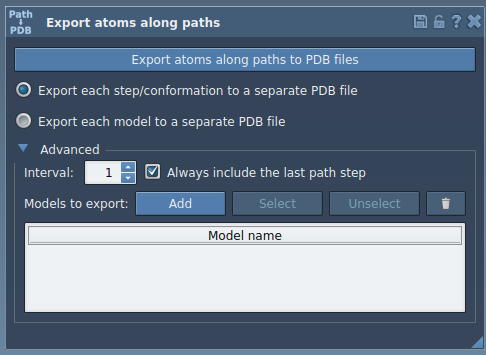
The right choice depends on what your downstream workflow expects. Before exporting a large set of frames, check which arrangement is convenient for the software or analysis you plan to use. The app also provides an Advanced section where you can change the frame export interval. If you adjust it, make a note of that choice so you can interpret the exported sequence later.
Export only the atoms relevant to your question
For a focused ligand-motion analysis, select the ligand in the Document view rather than exporting all atoms. In the Export Along Paths app, open the Advanced panel, select the atom group you want—for example, TDG—and click Add. This defines the selected atoms as a named model in the export list.
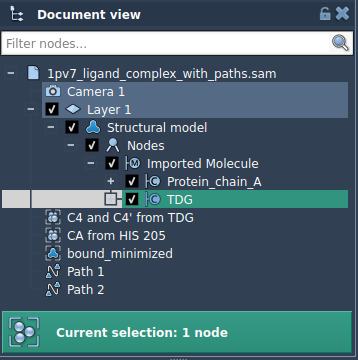
You can add multiple atom sets and rename each model by double-clicking its name. The Select and Unselect controls help you see which atoms belong to a listed model; Reset lets you redefine it. These options are useful when you want to keep, for instance, a ligand and a binding-site group as distinct export selections rather than treating the entire system as one unit.
A practical export sequence
- Open the document containing the paths and the atoms of interest.
- Open Home > Apps > All > Export Along Paths.
- If exporting a subset, add the desired atom group or groups in the Advanced panel.
- Choose single-file or separate-file output, and optionally set the frame export interval.
- Select the relevant path or paths in the Document view.
- Click Export atoms along paths to PDB files, then choose a destination folder and file prefix.
Separating these decisions helps avoid a common source of frustration: exporting the right path but the wrong atoms, or producing a file layout that is inconvenient for the next analysis. A quick check of the selected path, the model list, and the output mode before export can save a round trip.
Exported coordinates can support reaction-coordinate preparation, ligand entry or exit trajectory analysis, and visualization of intermediate states. For more details and the full walkthrough, see the Export atom trajectories along paths tutorial.
Note: SAMSON and all SAMSON Extensions are free for non-commercial use. Get SAMSON at samson-connect.net.