



Preparing a molecular environment often means solving a practical packing problem: how can you place many copies of a molecule in a defined space without arranging them one by one? The task becomes more delicate around a protein, where lipids need to occupy available space while the protein remains in the box. Molecular Box Builder in SAMSON can help with both jobs.
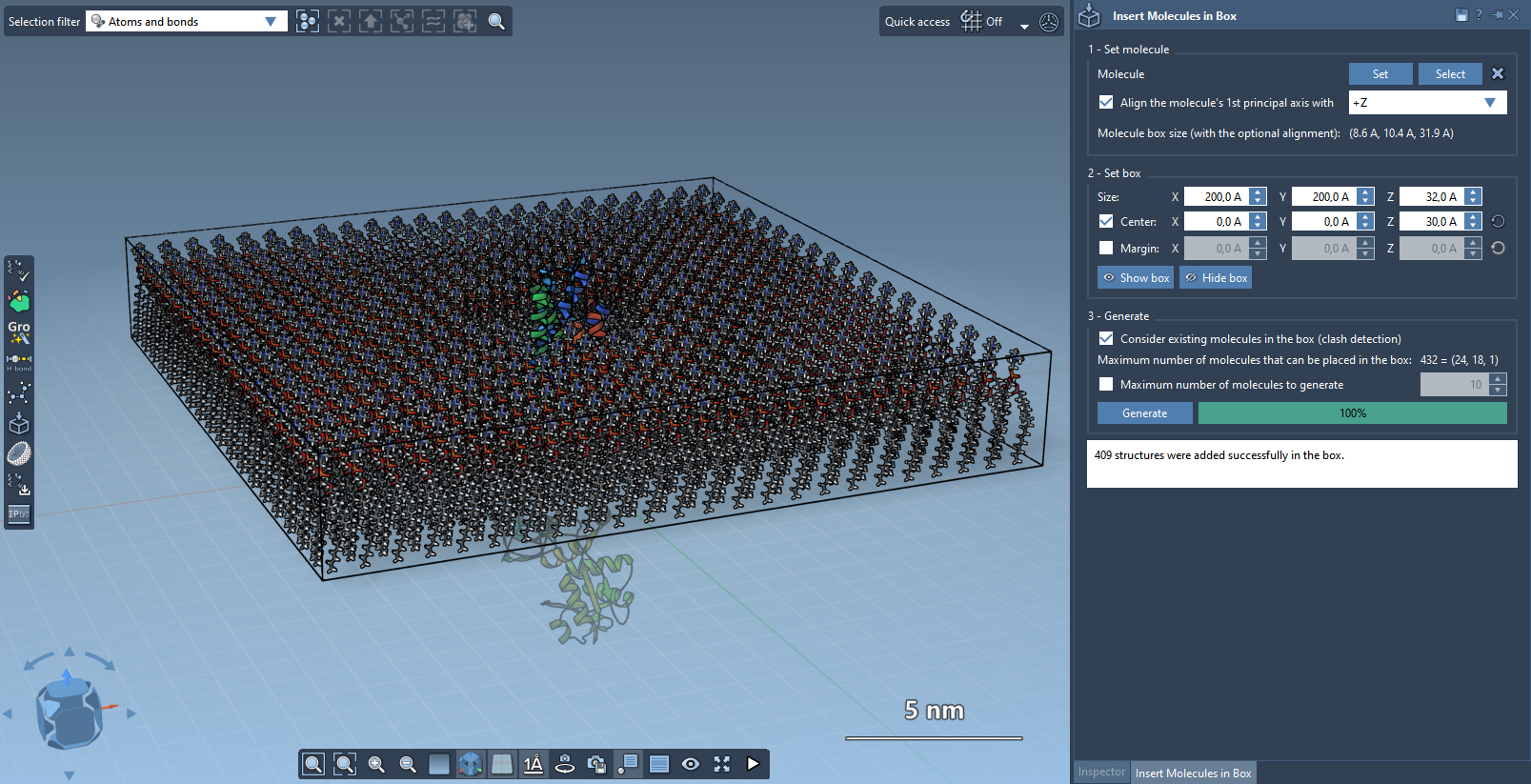
This guide focuses on a useful example: building a single lipid layer around a protein. The same workflow also applies to filling a box with repeated molecules, such as when creating a simple solvent-like environment. The key is to set the molecule’s orientation and box dimensions deliberately, then account for structures that are already present.
Start with the protein’s orientation
For the example in the documentation, the protein is copper-transporting PIB-ATPase structure 4BBJ. Before placing lipids, orient the protein so the membrane direction is easy to describe: in SAMSON’s Document view, right-click the protein, choose Move selection > Align with Z axis, then choose Move selection > Center on the origin.
This alignment gives you a practical reference for the box and lipid orientation. It does not create the lipid layer by itself; it simply makes the next steps easier to specify consistently.
Choose and orient the lipid
Import the lipid molecule you want to use, select it in the Document view or Viewport, and open Molecular Box Builder from Home > Apps > Assembly. You can also find it with Find everything… using Shift + E. Click Set in the app to use your selection as the molecule to insert.
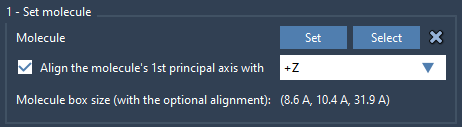
For a lipid layer around the aligned protein, set the lipid’s principal axis to +Z. The app’s alignment options use the molecule’s first principal axis—the first eigenvector of its moment of inertia—and calculate its bounding box based on the chosen orientation. If you are building another kind of molecular box, you can instead keep the original orientation or align to one of the other positive or negative axes.
Size the box around the system
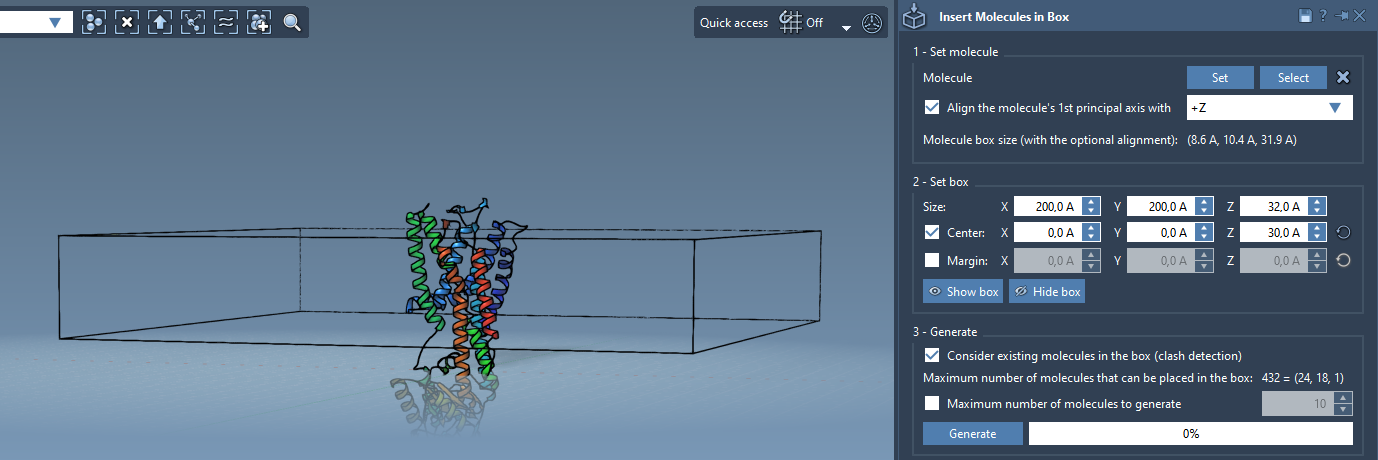
Enter the box dimensions along X, Y, and Z. Enable Center and adjust the center coordinates to place the box around the protein. If you leave this option off, the box corner is aligned with the origin by default.
Next, consider the margin between inserted molecules. The default arrangement leaves no clashes between the copies; you can also set a positive or negative margin when appropriate for your setup. Molecular Box Builder predicts how many molecules fit along each axis and gives a total in the Generate section. This estimate updates when you change the box dimensions or margin, so you can use it to check whether the current box is likely to hold the intended number of molecules before generating the system.
Make room for the protein
The important setting for this example is Consider existing molecules in the box. Enable it before generating. This tells the app to place lipids only in available space, taking the protein already in the box into account. Without this step, the box dimensions alone do not express that the protein should be left in place as an obstacle to lipid placement.
Click Generate to create the layer. If you want to limit the total number of copies, enable Maximum number of molecules to generate and enter a limit. Otherwise, the app places as many molecules as possible in the box, corresponding to its prediction.
Building a bilayer
A bilayer can be made as two successive layers: generate the first with the lipid aligned to +Z, shift the box center in the Z direction, then generate the second layer with the lipid aligned to -Z. The change in orientation and box center is the essential distinction between the two passes.
Once the structure is generated, it can be prepared for further work. For example, the GROMACS Wizard can be used to minimize, equilibrate, and simulate a system; its tutorials explain the workflow.
For the full Molecular Box Builder walkthrough and its other options, see the original documentation.
Note: SAMSON and all SAMSON Extensions are free for non-commercial use. Get SAMSON.