



A crystal structure can look deceptively simple in a CIF file: a few cell parameters, atom positions, and perhaps occupancy values. But turning that description into a useful model raises practical questions. Are the coordinates fractional or measured in ångströms? How many unit cells should you build? And if a site is only partly occupied, how can you check that the model reflects it?
Crystal Creator in SAMSON brings these steps into one workflow. The key is to treat the unit cell as a recipe: define its geometry and contents, choose how many cells to generate, then inspect the resulting structure and its properties.
Start with a CIF—or build from scratch
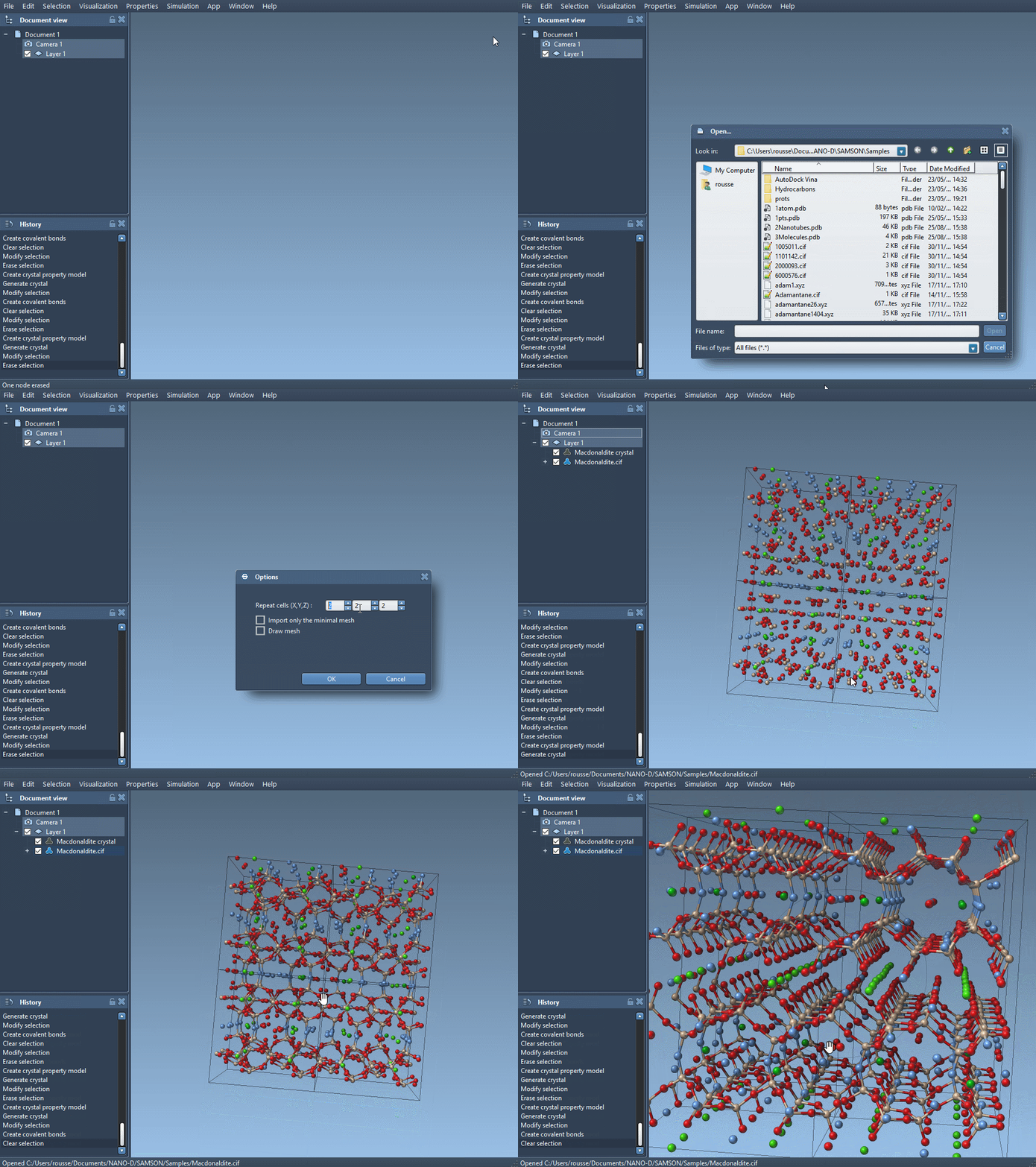
If you already have a crystal structure, open its CIF file in SAMSON. During import, choose the number of unit cells and whether to include the symmetries and display the mesh. The imported structural model and its property model appear in the data graph.
For practice, the documentation points to crystal structures in the American Mineralogist Crystal Structure Database and the RRUFF Project Database. Quartz, Macdonaldite, and Zorite are suggested examples. A useful habit is to begin with a structure you can recognize, so that inspecting the generated model feels less like debugging an unknown file.
Know what your coordinates mean
When creating a crystal yourself, open Crystal Creator from Home > Apps > Materials > Crystal Creator, or search for it with Shift+E. Define the unit-cell shape either with cell parameters or with unit-cell vectors. The Write Matrix and Write Vectors controls let you switch between those ways of describing the cell.
Then enter the atoms and their coordinates. This is where a common source of errors can creep in: coordinates are interpreted according to the tab you are using. In the relative-position tab, each coordinate is a proportion of a unit-cell vector. In the absolute-position tab, coordinates are in ångströms. Keep the chosen convention in mind when copying values from another source.
Each line contains an atom symbol followed by its x, y, and z coordinates. The symbol must begin with the element symbol; extra characters can identify individual sites. For example, the labels C0 and C1 are both carbon sites, with distinct identifiers.
A compact example: diamond
For a diamond crystal, the tutorial uses a cubic unit cell with a lattice parameter of 3.60 Å. In relative coordinates, its eight carbon sites are:
|
1 2 3 4 5 6 7 8 |
C0 0 0 0 C1 0.25 0.25 0.25 C2 0 0.5 0.5 C3 0.5 0 0.5 C4 0.5 0.5 0 C5 0.25 0.75 0.75 C6 0.75 0.25 0.75 C7 0.75 0.75 0.25 |
After entering the cell and choosing how many unit cells to generate, you have a periodic model to work with. For comparison, the tutorial also gives an FCC aluminum example: a cubic cell with a 4.05 Å lattice parameter and four aluminum sites at (0, 0, 0), (0, 0.5, 0.5), (0.5, 0, 0.5), and (0.5, 0.5, 0).
Inspect before you move on
For an imported crystal, right-click its property model and choose properties. The first tab lets you locate the crystal, show its mesh, cut it, or generate another crystal. A cut is specified using three Miller indices for the direction and a fourth value for the distance from position 0. The second tab provides an atom-ratio check for defects and substitutions.
That check matters when a CIF describes partial occupancy. For example, the tutorial demonstrates adding an occupancy of 0.95 to a carbon site. This expresses a 95% probability that the site is occupied; it is not simply another coordinate. After loading a crystal with occupancy information, use check atoms ratio to inspect whether the generated model respects the specified presence or absence ratios.
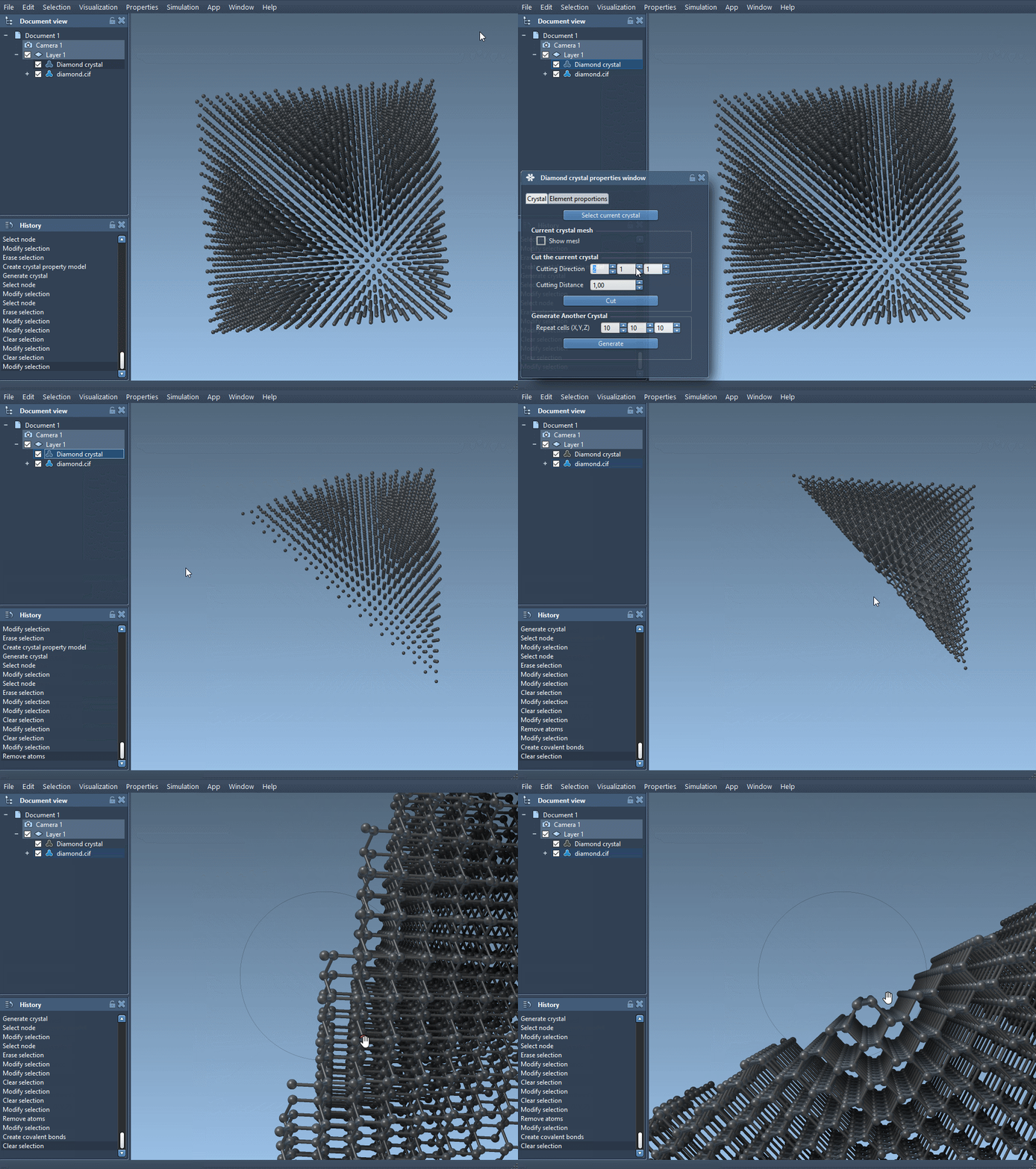
For a quick visual exercise, the documentation suggests cutting diamond in the [111] direction to reveal its compact hexagonal structure. You can also save and reload crystal settings from the property window, which is helpful when you want to revisit a model without re-entering its parameters.
The practical takeaway: check the coordinate convention, make sure the unit-cell geometry and atom list agree, and inspect occupancy information rather than treating every listed site as fully present. For the complete workflow and additional examples, see the Crystal Creator tutorial.
Note: SAMSON and all SAMSON Extensions are free for non-commercial use. Get SAMSON.