



Building a membrane around a protein can be fiddly: the lipids need a consistent orientation, the box needs to be sized around the protein, and existing atoms must be taken into account so the generated layer occupies available space. Molecular Box Builder brings these steps together in SAMSON. Here is a focused workflow for creating a single lipid layer around a protein, plus a few checks that help make the setup easier to reason about.
The example in the documentation uses the copper-transporting PIB-ATPase structure 4BBJ. The same sequence of steps can be applied to another protein and a lipid molecule you have available.
1. Put the protein in a useful orientation
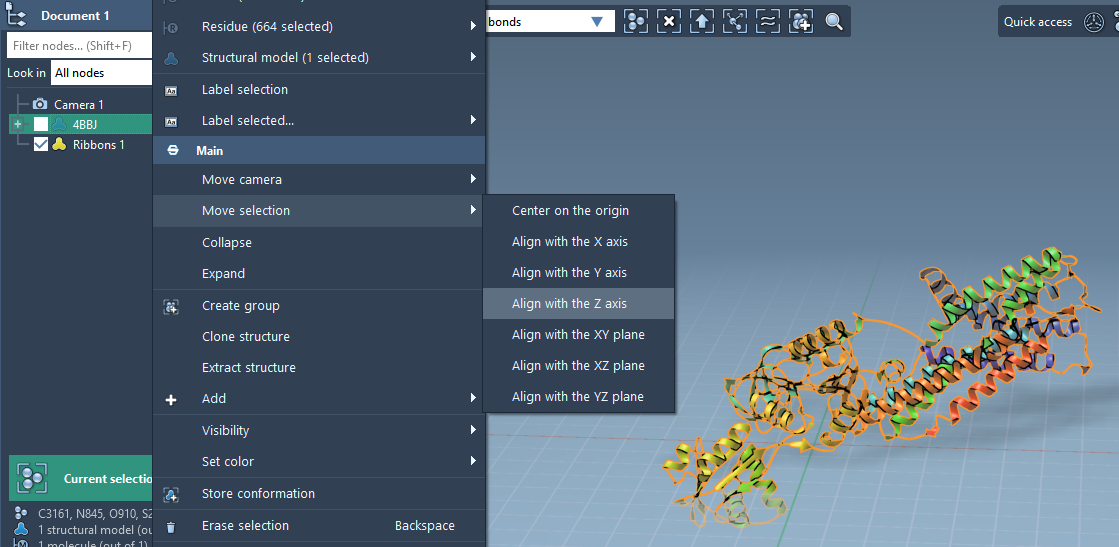
Start by aligning the protein with the Z axis and centering it on the origin. In Document view, right-click the protein and choose Move selection > Align with Z axis, then choose Move selection > Center on the origin.
This gives you a clear reference frame for positioning the lipid layer: the protein is centered, and its orientation is aligned with an axis. That makes it easier to define the box and later place lipid layers on opposite sides of the protein.
2. Set the lipid and its orientation
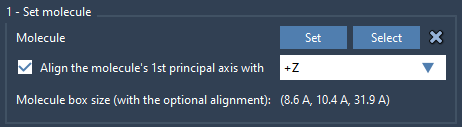
Import a lipid molecule, select it, and click Set in Molecular Box Builder. Choose the +Z alignment option. The app aligns the molecule’s first principal axis—the first eigenvector of its moment of inertia—with the chosen direction. Its bounding box is calculated based on that alignment.
Orientation matters because the builder uses the molecule’s dimensions to estimate how many copies fit along each axis. If you change the orientation, the bounding box and the predicted count can change too. You can inspect the molecule’s size in the app before defining the box.
3. Define a box around the protein
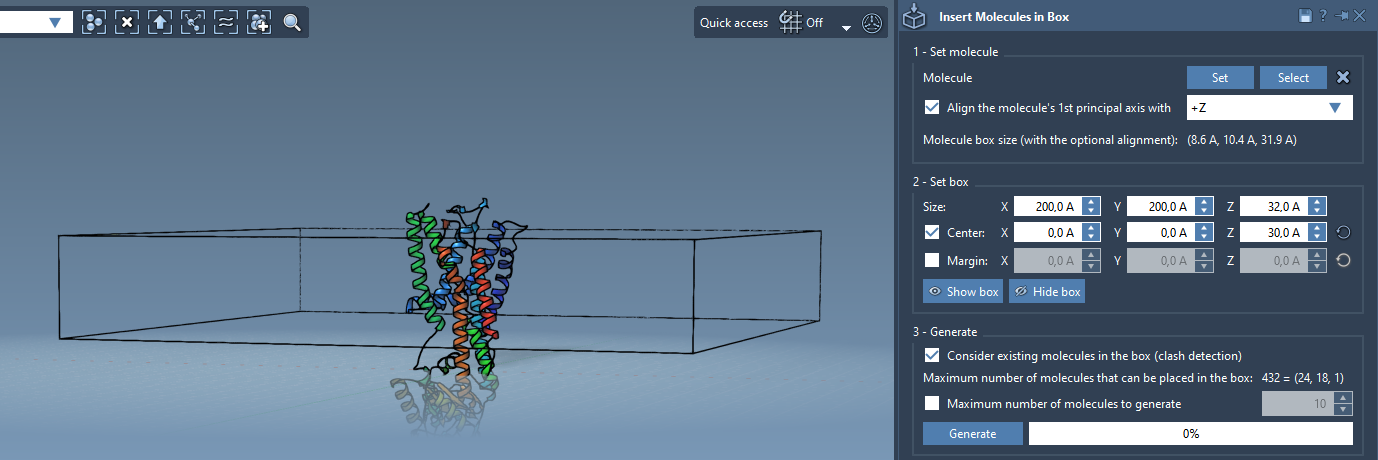
Enter the box dimensions in X, Y, and Z. Enable Center and adjust the center coordinates so that the box is centered around the protein. By default, the box corner is aligned with the origin; centering is an optional setting, not an automatic consequence of centering the protein.
You can also set the margin between inserted molecules. The default is intended to place molecules without clashes with one another; a positive or negative margin lets you adjust their spacing. As you change the box dimensions or margin, Molecular Box Builder updates its estimate of the number of molecules that fit along each axis and in total. Treat this estimate as a planning aid, then check the generated structure in the viewport.
4. Generate only in available space
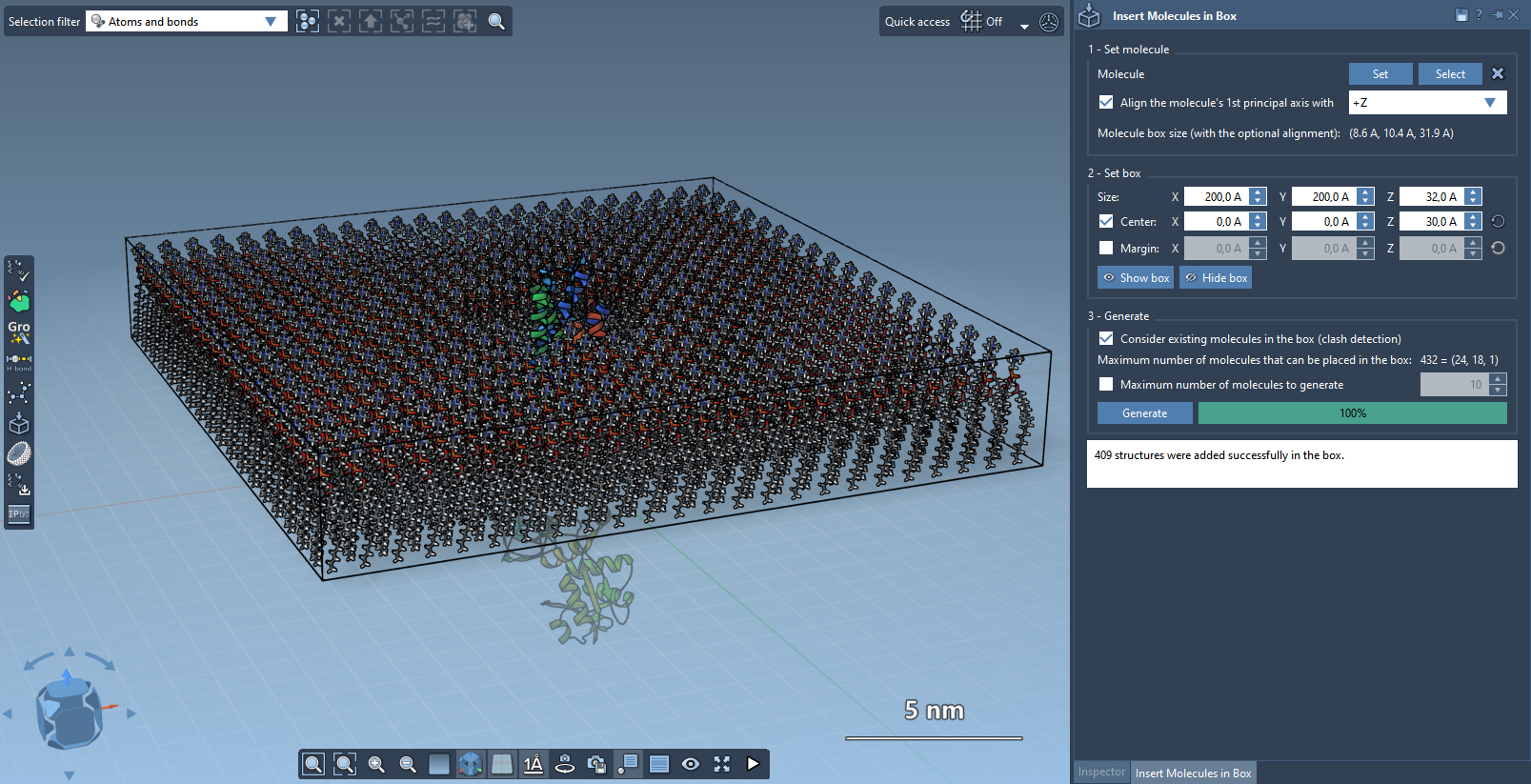
Before clicking Generate, enable Consider existing molecules in the box. This tells the builder to place lipids in available space rather than ignoring the protein already in the box. The result should be a single lipid layer around the protein, with the existing protein accounted for during placement.
For a bilayer, build the two sides separately
A simple way to create a bilayer with this workflow is to generate the first layer with +Z alignment, shift the box center in the Z direction, and then generate the second layer with -Z alignment. This gives the two layers opposite orientations. After generation, inspect the system and adjust the box or center as needed.
The general lesson is to handle orientation, box placement, and existing molecules as separate decisions. Doing so makes it easier to diagnose an unexpected count or placement: check the molecule alignment and dimensions first, then the box center and size, and finally whether existing molecules are being considered.
For the complete tutorial and related workflows, see the Molecular Box Builder documentation.
Note: SAMSON and all SAMSON Extensions are free for non-commercial use. Get SAMSON.