



Understanding how molecules move—whether during a drug unbinding event or a protein conformational change—is crucial in molecular modeling. But visualizing those motions in a clear and interpretable way can be a challenge. If you’ve ever tried to trace how a group of atoms moves along a specific path during a simulation, you may already know it’s not always straightforward.
The Pathlines extension in SAMSON offers a simple and effective way to visualize the motion of the center of mass (COM) of selected atoms as they follow computed or experimental paths. This can be especially helpful for analyzing ligand unbinding routes, domain movements in proteins, or diffusion simulations.
Why the Center of Mass?
Instead of visualizing the chaotic trajectories of each individual atom, focusing on the center of mass offers a cleaner representation of collective motion. This is particularly useful when dealing with flexible molecules, or when you want to summarize the movement of a complete ligand or protein domain over time or along a predefined path.
Creating a Pathline: A Step-by-Step Overview
This guide focuses on the part of the process where you go from a selected group of atoms and a path to a visual representation of their center-of-mass trajectory. Here’s how:
Step 1: Select Atoms and Path(s)
In the Document view, select the group of atoms you wish to track. This could be a ligand, a domain, or any subset of atoms in the structure. Then, select the path(s) along which the atoms move. If you don’t specify atoms or paths, SAMSON will default to using the whole system and all available paths.

Step 2: Add the Pathline Visual Model
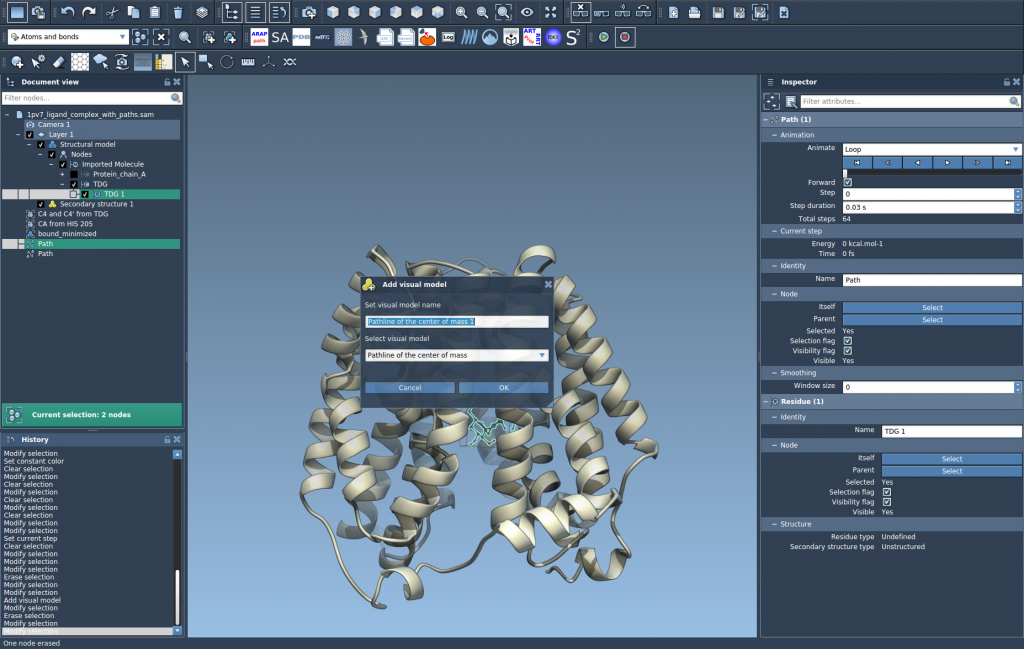
Now that you’ve made your selection, head to Visualization > Visual model > More… or use the shortcut Ctrl+Shift+V / Cmd+Shift+V on Mac. In the dialog, choose Pathline of the center of mass and click OK.
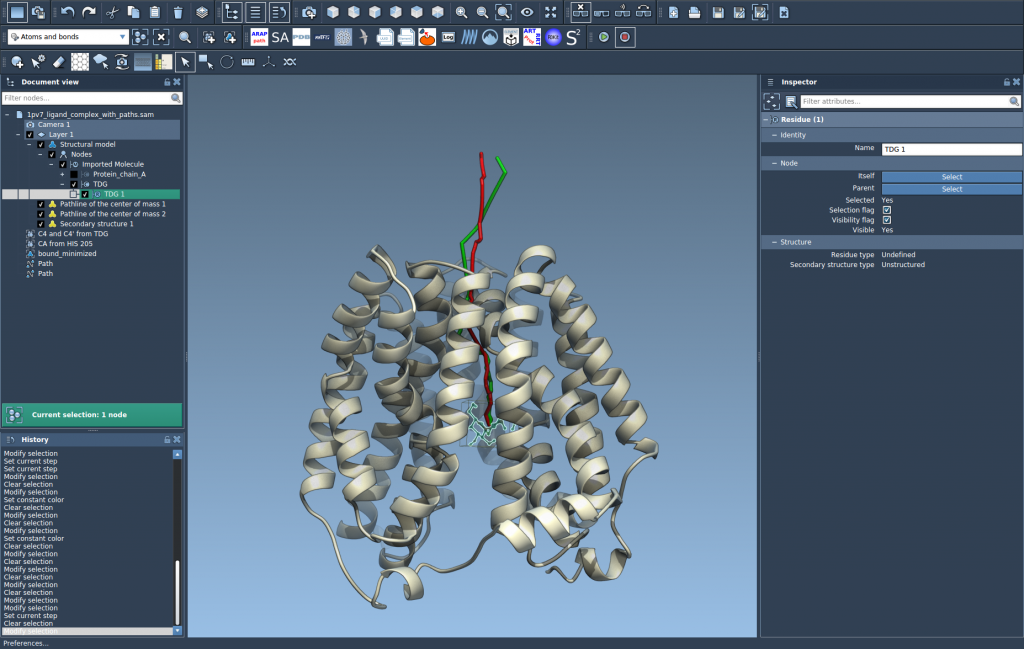
This will generate a visual model of the COM trajectory along the path(s):
Step 3: Customize and Explore
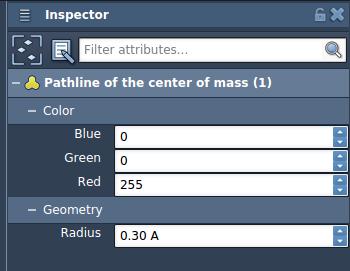
You can tune the visualization in the Inspector: color, thickness, and other properties of the pathline visual model can be adjusted to fit your workflow or presentation style.
Double-click a path in the Document view to play or pause it, or use the context menu with a right-click to access more advanced options. The Inspector also provides access to path controllers if you want even more control over the animation or path features.
Use Cases
- Quickly identify ligand exit routes from a binding pocket.
- Analyze conformational shifts during protein folding or domain swapping.
- Visualize movement patterns in guided diffusion simulations.
This approach is not limited to one application domain—you can use it in structural biology, medicinal chemistry, or materials science simulations.
If this is the kind of insight you’re looking to bring into your modeling work, explore the full Pathlines documentation and try it yourself.
SAMSON and all SAMSON Extensions are free for non-commercial use. You can download SAMSON from https://www.samson-connect.net.