



Understanding how ligands move within and around proteins is essential for interpreting molecular dynamics simulations and gaining insights into unbinding mechanisms. However, with the large number of atoms and data points in simulations, the movement of the ligand as a whole can be hard to follow visually. This is where center-of-mass (COM) pathlines offer a simple, insightful solution.
Pathlines in SAMSON let you visualize how the center of mass of a group of atoms—such as a ligand—moves along a specified path during a simulation. The result is a clear trajectory that reflects the overall motion without the visual clutter of all atoms.
The Use Case: Ligand Unbinding
Imagine you’re studying the unbinding of Thiodigalactosid (TDG) from Lactose permease (PDB ID 1PV7). You’ve generated unbinding paths using the Ligand Path Finder extension. Now you want an intuitive way to show where the ligand traveled along each path. That’s where COM pathlines come in.
Steps to Visualize Center-of-Mass Pathlines
1. Load the Sample System
If you want to try this on a predefined system, launch SAMSON and go to Home > Download and paste the following URL:
https://www.samson-connect.net/documents/046f1acd-c799-40f6-8185-cb4847eff795
Click Download to access a document containing the protein-ligand system with precomputed unbinding paths.

2. Select Atoms and Paths
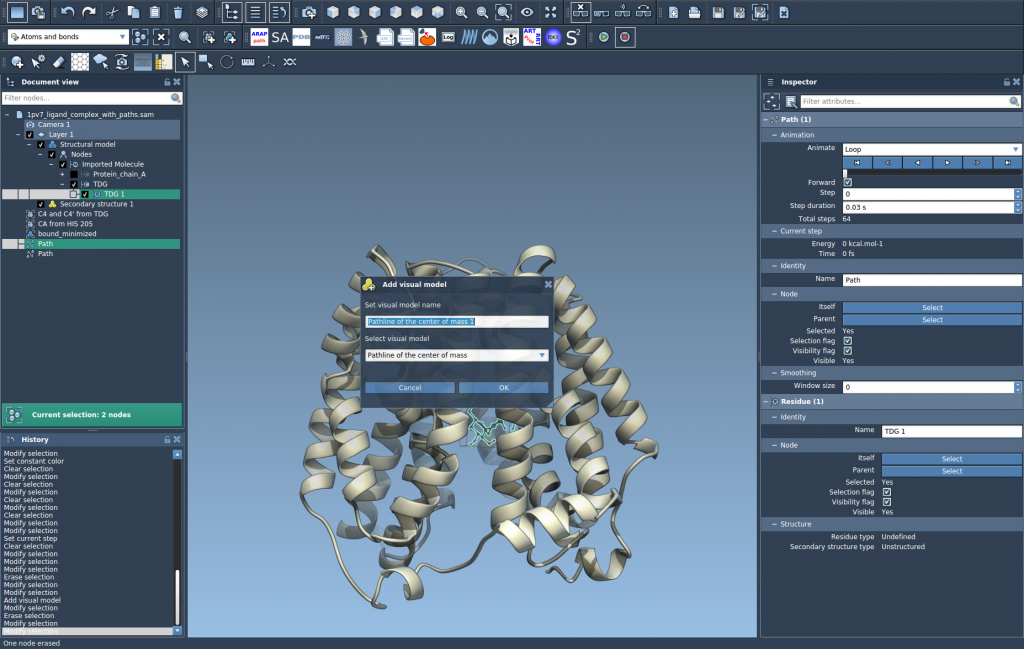
Open the Document view. Find the ligand node, typically named TDG, and select it. This tells SAMSON you want to track the movement of its center of mass. Then, select one or more unbinding paths from the list (hold Ctrl or Cmd to select multiple).

3. Create the COM Pathline Visual Model
Go to Visualization > Visual model > More… (or use Ctrl/Cmd + Shift + V), select Pathline of the center of mass in the dialog, and click OK.
The result is a visual line tracing the path of the ligand’s mass center along the unbinding route—much simpler to interpret than tracking individual atoms.
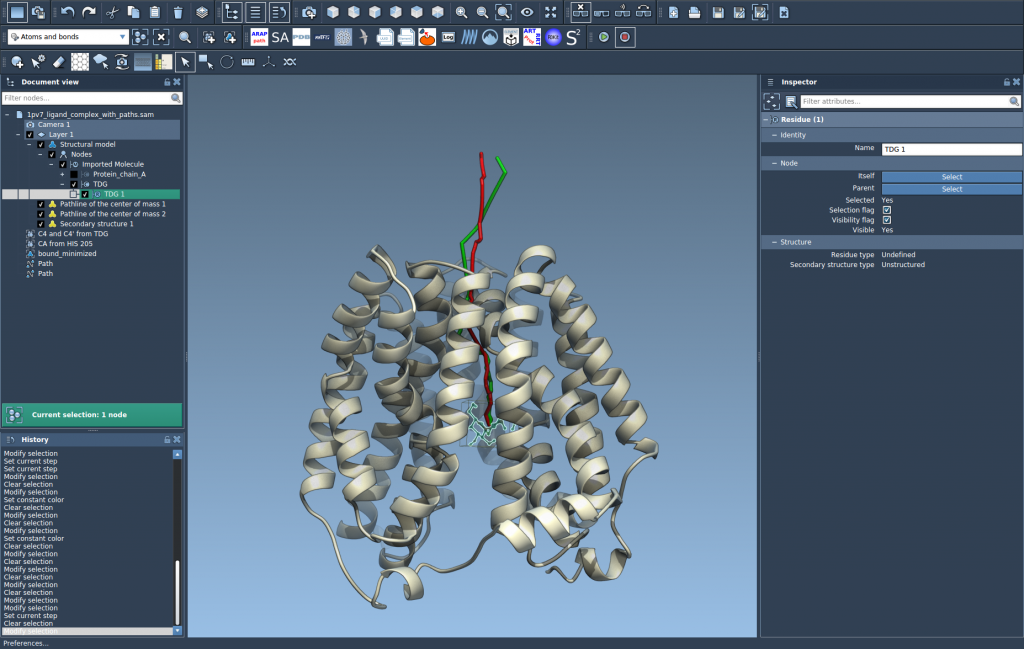
4. Customize and Analyze
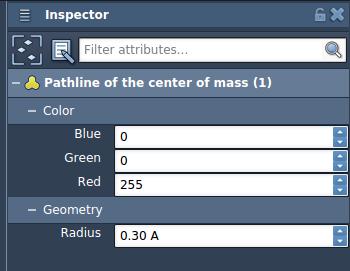
Select the pathline, open the Inspector (shortcut: Ctrl/Cmd + 2), and tweak visual settings like thickness and color to make trajectories easier to explore. You can even double-click paths to animate and explore how the COM evolves over time.
Why Bother with COM Pathlines?
- No need to sift through dozens of individual atom trajectories.
- Clear summary of directional behavior.
- Ideal for reports, presentations, or comparative studies.
For learning more and trying the feature step by step, visit the full documentation: https://documentation.samson-connect.net/tutorials/pathlines/pathlines/.
SAMSON and all SAMSON Extensions are free for non-commercial use. You can download SAMSON at https://www.samson-connect.net.