



When analyzing molecular mechanisms, understanding how a system transitions between two conformations is often just as important as knowing the endpoint structures. But finding realistic, physically meaningful paths between such conformations can be a significant challenge. Molecular modelers face this issue often, especially during studies of ligand binding/unbinding or protein conformational shifts.
This is where SAMSON’s Parallel Nudged Elastic Band (P-NEB) app offers a practical solution. If you’ve already generated a path in SAMSON—say, using the Ligand Path Finder—you can take just one more step to optimize that path using P-NEB, turning a rough estimate into a smoother, low-energy trajectory. The good part? You don’t need to build a model from scratch: you can apply the optimization directly to existing paths within a few clicks.
Why Optimize Transition Paths?
Preliminary path generation methods may linearly interpolate structures or propose heuristic pathways. These rough paths can give you a starting point, but they don’t always take molecular forces into account. Without refinement, such paths might pass through high-energy or physically unrealistic regions. Optimizing these paths provides a minimum energy route that better represents nature’s way of doing things. That’s especially valuable in applications like drug discovery or enzyme mechanism studies.
Using P-NEB in SAMSON
After generating a path (perhaps from interpolated conformations or the Ligand Path Finder), just locate it in the Document view. Select the path node, then launch the P-NEB app (Home > Apps > All > P-NEB) and configure a few parameters:
- Spring constant: 1.00
- Number of loops: 100
- Interaction model: Universal Force Field (UFF)
- Optimizer: FIRE
- Climbing image method: leave unchecked for now
- Parallel execution: enabled
- Suffix name: NEB
Click Run, and SAMSON starts optimizing each image in the path under spring force constraints. Thanks to parallel execution, optimizations can be faster, especially for longer paths.
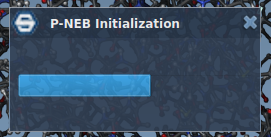
The progress is shown in the status bar, and once complete, you’ll find a new optimized path in your document:

To evaluate the result, visually inspect the new path or use the built-in Inspector. You can also start and stop path animations with a double-click, or right-click to reveal more options for visualization or analysis.
When and Why to Use Paths Instead of Conformations
While P-NEB also accepts a set of conformations as input, using a predefined path is typically faster and easier to manage. If you already have conformations, you can convert them into a path easily via Conformation > Create path from conformations in the context menu.
By starting with a path, especially one generated from an unbinding simulation or interpolation, and refining it with P-NEB, you obtain transition pathways that are not only continuous but also energetically meaningful — a critical component for realistic simulations or publications.
Try It Out
If you’d like to try this, sample documents are available directly in SAMSON with paths ready for optimization. Just go to Home > Download and insert this sample document URL: Zinc ligand unbinding trajectory. It’s a small system, ideal for test runs.
To learn more about optimizing paths and the P-NEB app, visit the full documentation page: P-NEB in SAMSON.
SAMSON and all SAMSON Extensions are free for non-commercial use. You can download SAMSON at https://www.samson-connect.net.