



When working with complex molecular systems, managing selections efficiently can turn hours of tedious operations into seconds of fluid action. Selecting atoms, residues, or molecules is often just the beginning—especially when toggling between ligands, receptors, water molecules, or other key parts of a structure. If you’ve ever wanted to switch between multiple selections without repeating yourself, SAMSON’s Quick Groups might be exactly what you need.
What are Quick Groups?
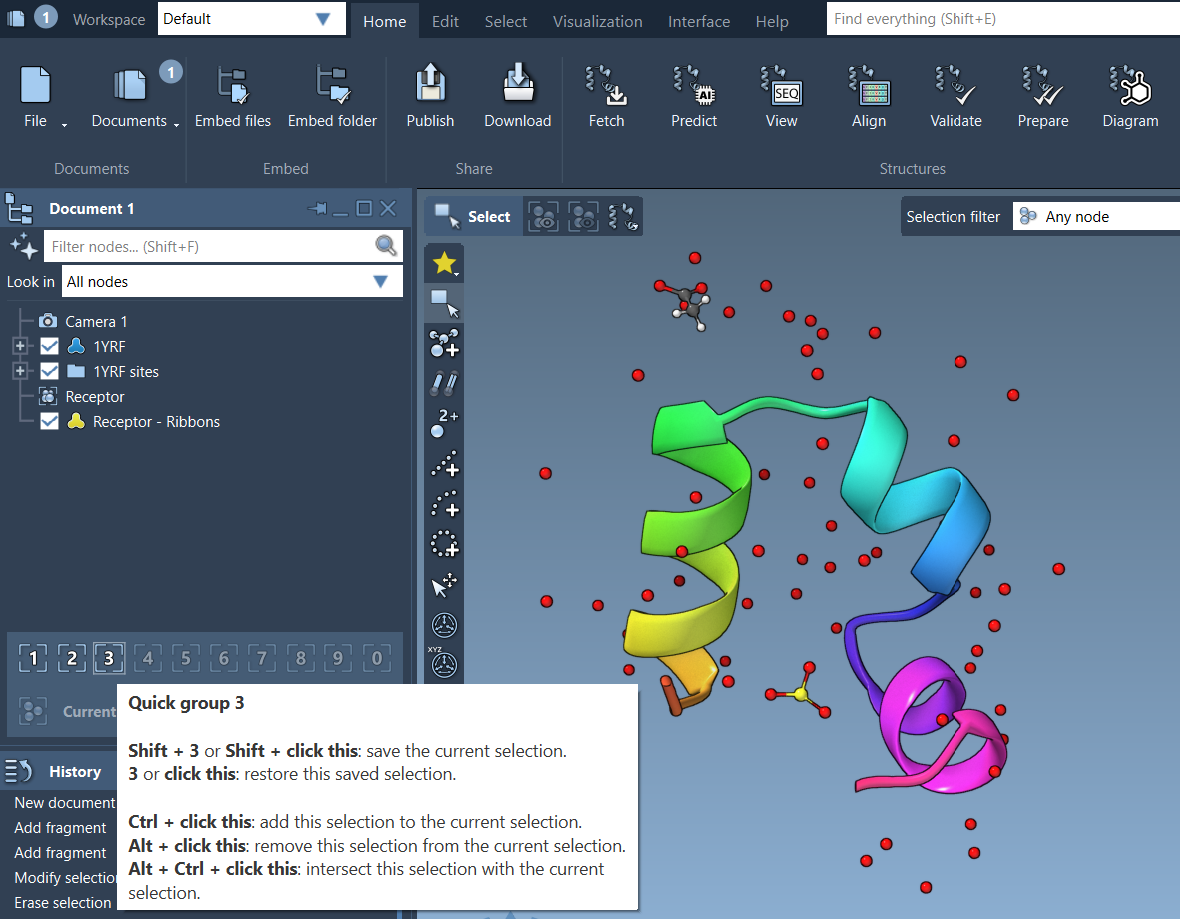
Quick Groups are temporary selection memory slots that let you assign, recall, and switch between different selections using simple keyboard shortcuts or mouse clicks. Think of them as bookmarks for selections within your active SAMSON document.
This functionality is especially helpful for:
- Analyzing different binding regions independently
- Switching between structural elements in large systems
- Applying visual models to different regions of a molecule
- Setting up simulation input by toggling selections
Assigning Quick Groups
After selecting atoms, residues, or any nodes of interest, you can assign them to a Quick Group using either a keyboard or a mouse:
- Mouse: Hover over a Quick Group slot in the Document view and press Shift + click
- Keyboard: Press Shift + number (e.g., Shift + 2) to assign the selection to Quick Group 2
You can assign up to 10 groups, indexed from 1 through 10.
Switching Between Selections
Once assigned, switching between groups is simple:
- Press 1, 2, etc. to load the corresponding Quick Group’s selection
- Click the Quick Group icon in the Document view
- Double-tap a number key (e.g., 1 1) to zoom to that group
This allows seamless toggling between ligands, systems of interest, or structural domains in just moments.
Example Workflow
Consider the following typical scenario for a molecular modeler working with a protein-ligand complex:
- Select the ligand and assign it to Quick Group 1
- Select the protein receptor and assign it to Quick Group 2
- Select important water molecules and assign them to Quick Group 3
- Toggle between all structures using 1, 2, 3
Using Quick Groups like this can drastically reduce the time needed to build selections and interact with various elements of your model, especially during simulations or visualizations.
Fast Navigation, Less Repetition
In SAMSON, Quick Groups behave like control groups in real-time strategy games—designed to streamline workflows while keeping all your key selections at your fingertips. Whether you’re preparing figures for presentations or experimenting with simulation setups, Quick Groups let you recall complex selections instantly, making molecular modeling just a bit easier.
To learn more about selection tools and other time-saving features, visit the full documentation: https://documentation.samson-connect.net/users/latest/selecting/
SAMSON and all SAMSON Extensions are free for non-commercial use. To get started, download SAMSON at https://www.samson-connect.net.