



When working with molecular models, one common step before running simulations or analyses is geometry optimization. This ensures that your structure starts from a relaxed configuration, typically corresponding to a local energy minimum. In SAMSON, an integrative platform for molecular design, the FIRE Minimizer (Fast Inertial Relaxation Engine) offers a quick and efficient way to relax molecular geometries.
But while launching the FIRE Minimizer is straightforward, many users wonder: How should I configure its settings? This blog post offers a clear breakdown of the key parameters so you can make informed choices that improve convergence and give better control over the minimization process.
What Does the FIRE Minimizer Do?
The FIRE algorithm combines aspects of velocity-based and force-directed approaches to efficiently move systems toward local minima. Compared to traditional methods like Steepest Descent, it is faster for complex systems with collective atomic motions. It’s particularly effective in pre-simulation cleanups and during the preparation of structural data before launching molecular dynamics or other computational analyses.
Key Settings You Should Know
| Setting | Description |
|---|---|
| Step size | This is the initial atomic movement step at each iteration of the minimization. A smaller value means smoother dynamics but potentially slower performance. Users often start with the default and adjust only if the system looks unstable or converges too slowly. |
| Steps | This controls how often the viewport is refreshed during minimization. For smoother visual updates, reduce this number. For faster performance and a faster visual convergence overview, increase it. |
| Fixed | When enabled, this option keeps the step size constant instead of letting it adapt during minimization. This can be useful in controlled benchmarking or when reproducibility across multiple runs is required. |
Why These Settings Matter
Say you’re working with a structure derived from NMR or docking datasets. These structures are often slightly strained or poorly packed, which makes optimization essential before dynamics. If the step size is too large, atoms might overshoot into unfavorable collisions. If it’s too small, you may waste simulation time on minuscule adjustments. Similarly, tuning how often FIRE updates your viewport helps you visually assess changes, especially when working with large systems.
Helpful Tip
If you’ve moved atoms manually during editing and the minimizer isn’t behaving as expected, you might benefit from the Reset button to clear the internal FIRE history. This ensures that minimization restarts cleanly without momentum memory from earlier user interactions.
Ready to Optimize Smarter?
Understanding these three core settings—Step size, Steps, and the Fixed option—can help you make better decisions about your modeling workflow. They’re not just checkboxes—each offers control over stability, performance, and monitoring of your structural relaxations.
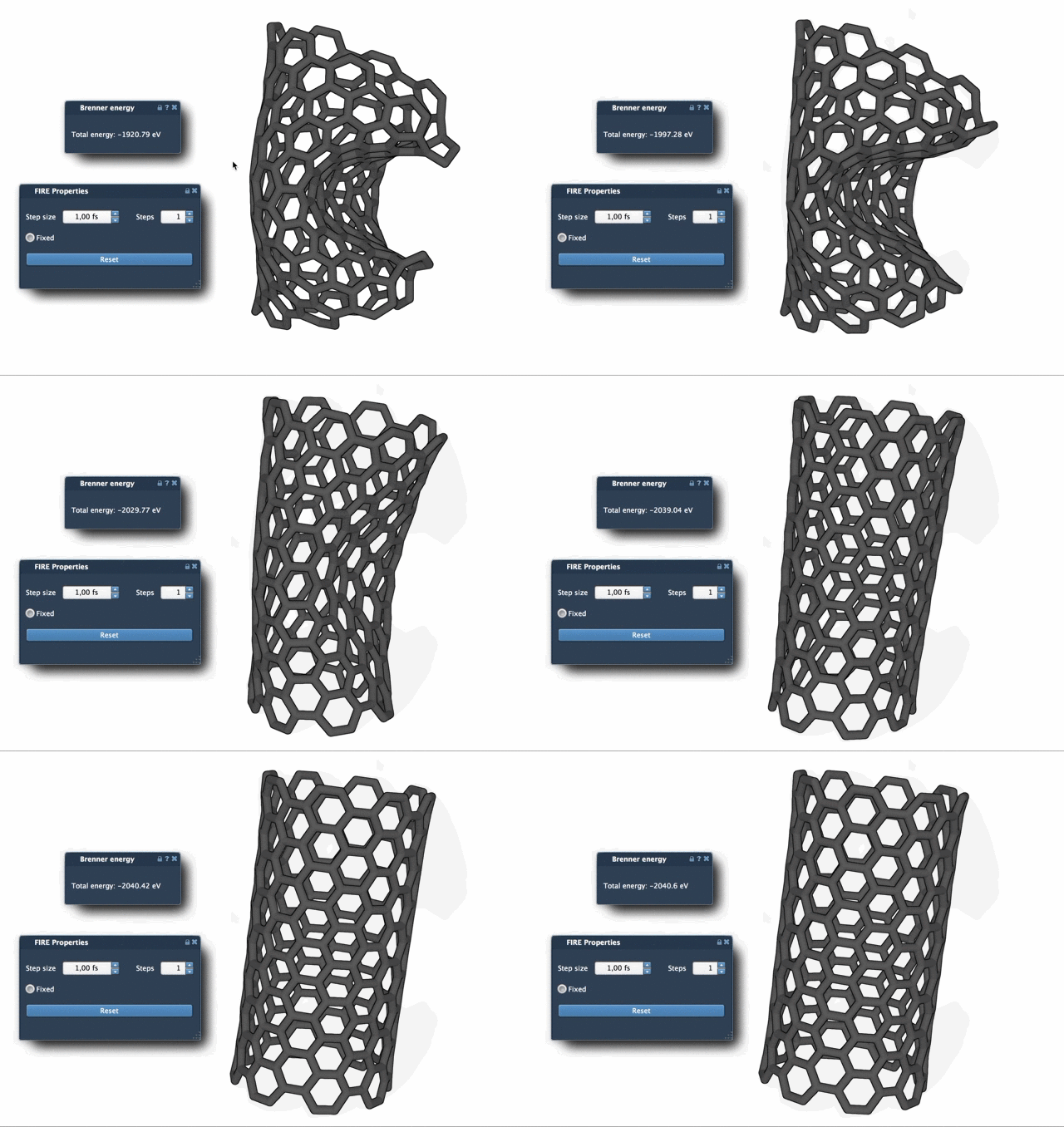
To learn more about FIRE Minimizer and how it integrates into SAMSON workflows, visit the full tutorial here: https://documentation.samson-connect.net/tutorials/fire/ready-set-fire/
SAMSON and all SAMSON Extensions are free for non-commercial use. You can download SAMSON at https://www.samson-connect.net.