



Preparing a molecular model for simulation often involves an essential but sometimes time-consuming step: geometry optimization. When atoms are not in energetically favorable positions, your simulation might diverge or waste computational resources on fixing geometry-related problems. Enter the FIRE Minimizer, or Fast Inertial Relaxation Engine – a method designed to bring structures to local minima more efficiently, especially when large-scale structural motions are involved.
In this blog post, we’ll explore how to set up a molecular structure for simulation using SAMSON and the FIRE Minimizer Extension – providing a cleaner, faster path to reliable simulations. This is especially useful for workflows that involve imported molecular models (e.g. from PDB, MOL2 files) or structures derived from experiments such as NMR.
Why Perform a Quick Optimization First?
Models coming from experimental data often exhibit minor – but significant – clashes, unrealistic bond angles, or strained geometries. Running simulations directly on these models can lead to unnatural behavior or make it harder to interpret your results. A quick geometry optimization step lets you:
- Remove atomic clashes.
- Relax structures without performing full energy minimization.
- Maintain the integrity of global conformational arrangements.
FIRE vs. Steepest Descent
While steepest descent is traditionally used in energy minimization, it’s not ideal when the energy gradient is small but geometry changes are still needed. The FIRE algorithm improves convergence for large-scale motions, making it ideal for early-stage fixes and preparing systems for full-scale optimization or MD.
How to Set It Up
Assuming you’ve already installed SAMSON, follow these steps to get started with FIRE:
- Log into SAMSON Connect.
- Visit the FIRE Minimizer Extension page and click Add.
- Restart SAMSON – the extension will now be available in your system.
Once you’re ready to optimize:
- Load your molecule (SAMSON supports formats such as PDB, MOL2, and many more).
- Go to Edit > Add Simulator.
- Select the appropriate interaction model for your system.
- Under State Updaters, choose FIRE.
Adjusting FIRE Parameters
You can tweak the following FIRE settings to suit your system:
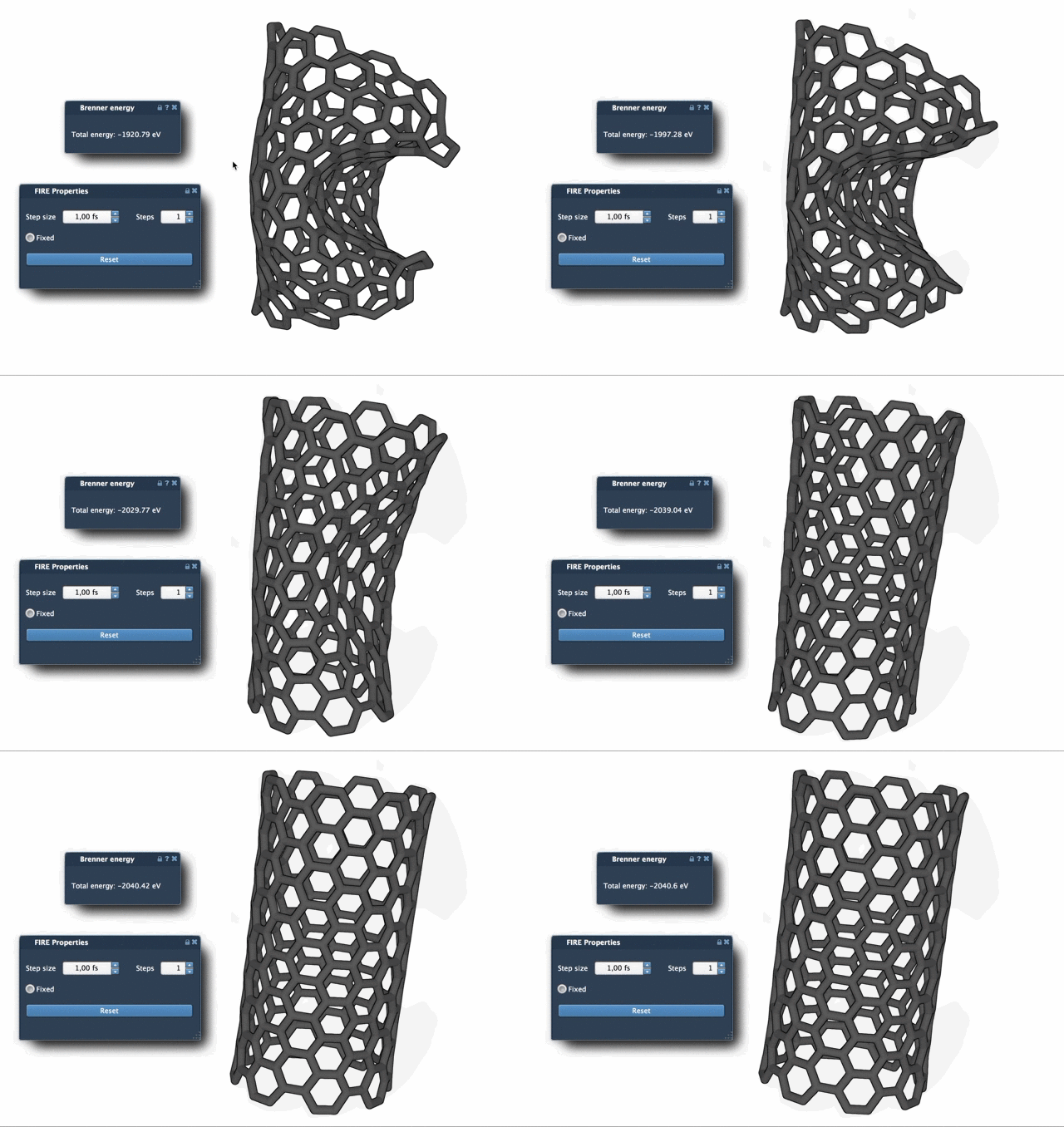
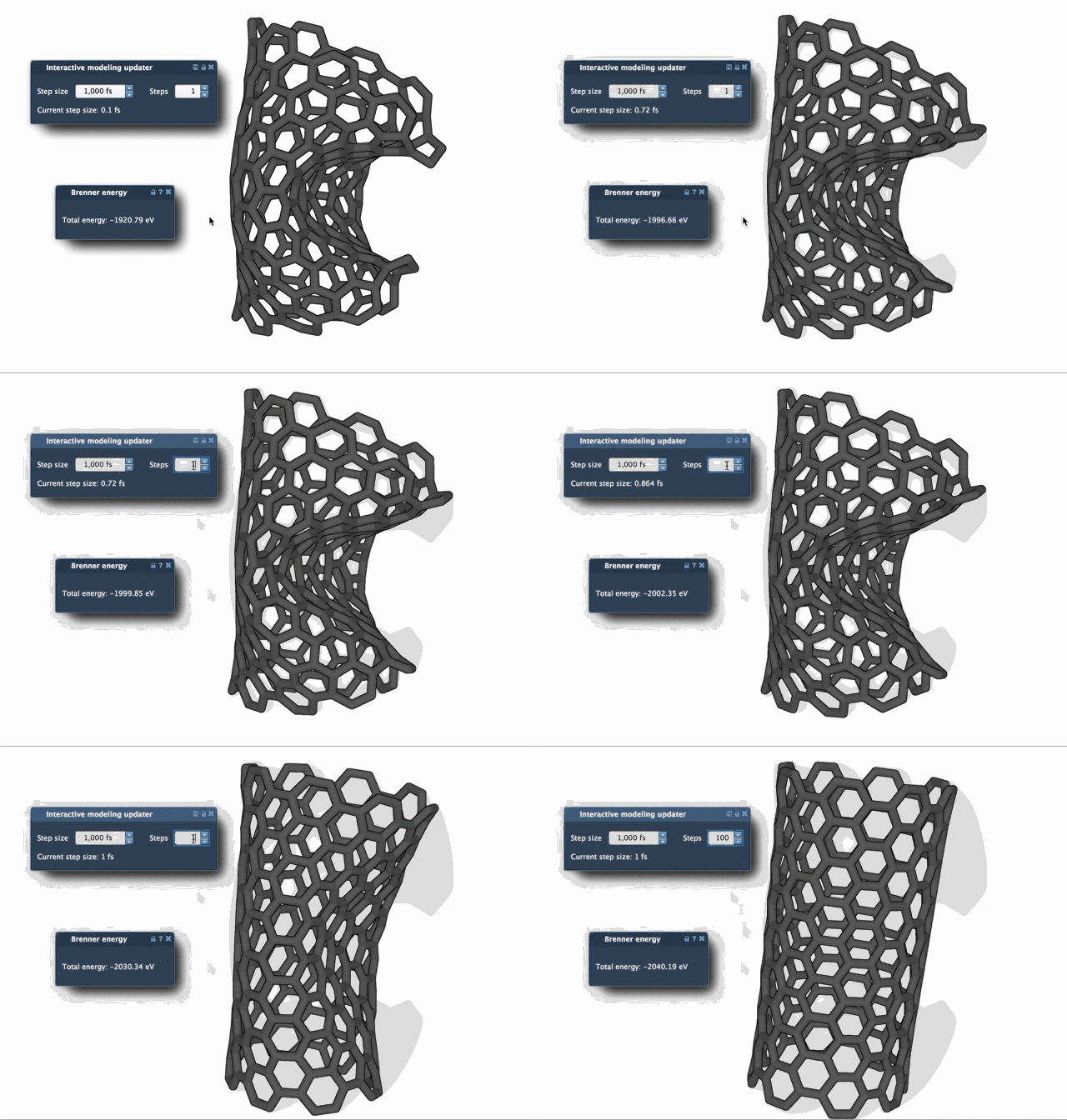
- Step size: Initial step used during optimization.
- Steps: Number of steps between viewport/visual updates.
- Fixed: Optional switch to lock the step size.
To observe optimization progress more clearly, increase the Steps value – this results in less frequent updates but more visible molecular relaxation movement.
If you’ve manually moved atoms during optimization and want to remove stored information from previous steps, simply press Reset to start a fresh minimization.
Integrated Workflow
Because the FIRE Minimizer is implemented as a SAMSON State Updater, it can be reused across multiple Extensions. One example is the Molecular Restrainer, which performs geometry optimization of structures derived from NMR data.
By incorporating FIRE into your early-stage modeling workflow, you can reduce simulation artifacts and improve both speed and stability.
Learn more in the full documentation here: https://documentation.samson-connect.net/tutorials/fire/ready-set-fire/
SAMSON and all SAMSON Extensions are free for non-commercial use. You can get SAMSON at https://www.samson-connect.net.