



For molecular modelers working with large systems, it’s common to face repetitive and time-consuming tasks like selecting specific atoms based on custom values, geometric patterns, or chemical types. Doing so manually through the interface—especially over thousands of atoms—can become tedious and error-prone. Fortunately, the Atoms Selector Extension in SAMSON offers a quick and mathematically precise alternative to ease this burden.
If you’ve been scripting in the Simple Script Extension to select atoms, you’ll appreciate that the Atoms Selector Extension allows for the same expressive power—but in a much simpler form. You just provide a logical or mathematical expression, and BAM 💥—SAMSON selects your atoms accordingly.
What Can You Do With It?
The Atoms Selector lets you define selection criteria using variables like atomic coordinates (a.x, a.y, a.z), atomic properties like a.elementID, a.symbol, a.partialCharge, and more, combined with logical and mathematical operators. You don’t need to write a full script—just one expression.
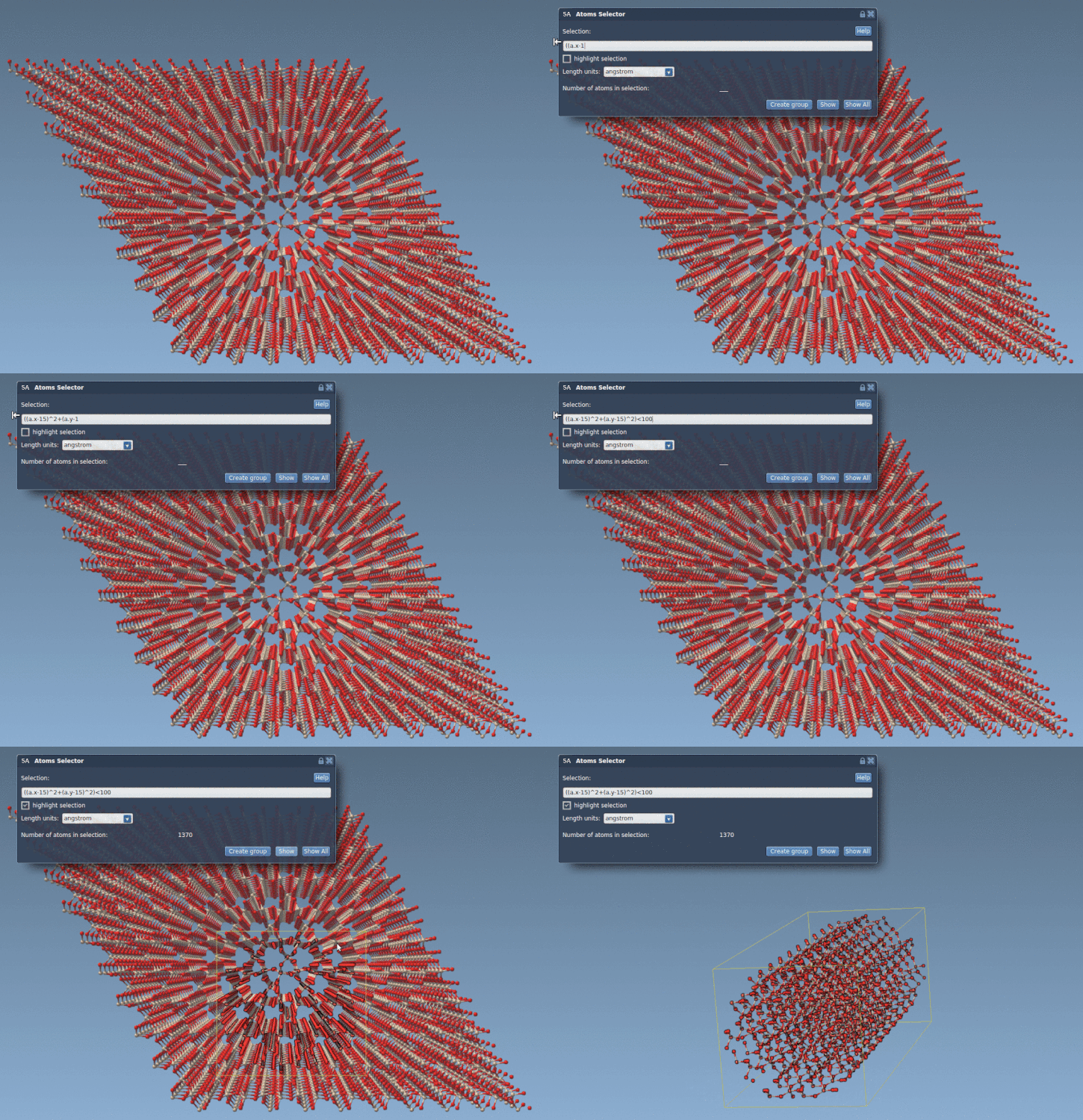
Let’s say you want to select atoms located within a cylindrical region in your structure. Instead of clicking through the model, here’s what you can type into the selector:
|
1 |
((a.x-15)^2 + (a.y-15)^2) < 100 |
This selects atoms within a cylinder of radius 10 Å centered at (15,15), slicing along the z-axis.
Other Use Cases
- Only want hydrogen atoms? Use:
a.symbol=='H' - Want atoms on the left side of your model? Try:
a.x < 0 - Get a specific residue:
a.residueSequenceNumber==12 - Highlight atoms with larger thermal fluctuation:
a.temperatureFactor > 50
Why Use Atoms Selector?
Unlike manually selecting atoms or using keyboard shortcuts, mathematical selection gives you:
- ⚡ Immediate control over complex selections
- 🎯 Precision not possible through manual picking
- 🧪 A way to encode knowledge of the system’s properties into a visual process
This is particularly useful in workflows involving nanomaterials, crystals, or biomolecular assemblies where you want to isolate a part of the structure for further modification, export, or analysis.
How To Start
To use it:
- Open the Atoms Selector Extension in SAMSON
- Enter your desired expression
- Press the “Apply” button
You can immediately visualize your selection and proceed to modify or export those atoms.
To learn more about the Atoms Selector and more scripting capabilities in SAMSON, visit the full documentation at
https://documentation.samson-connect.net/tutorials/simple-script/making-nano-batarangs-and-more/
SAMSON and all SAMSON Extensions are free for non-commercial use. You can download SAMSON here: https://www.samson-connect.net