



Molecular modelers often work with large, complex systems—think lengthy protein chains, multiple ligands, or layered structural hierarchies. Navigating and selecting specific components in such systems can easily become overwhelming.
To address this challenge, SAMSON introduces the Node Specification Language (NSL), a flexible way to filter and select nodes like atoms, residues, or structural groups based on their properties. While NSL can be used in multiple areas of the SAMSON interface, a particularly efficient place to use it is in the Document View.
Pinpoint What You Need in Seconds
SAMSON’s Document View aligns closely with a typical file browser. Nodes (i.e., anything from atoms to folders) are organized hierarchically, so users can quickly access structures based on how they’re stored. But instead of scrolling through hundreds of entries, you can type an NSL expression into the filter box to immediately isolate what you’re looking for.
For example, if you want to see only structural groups, just type:
|
1 |
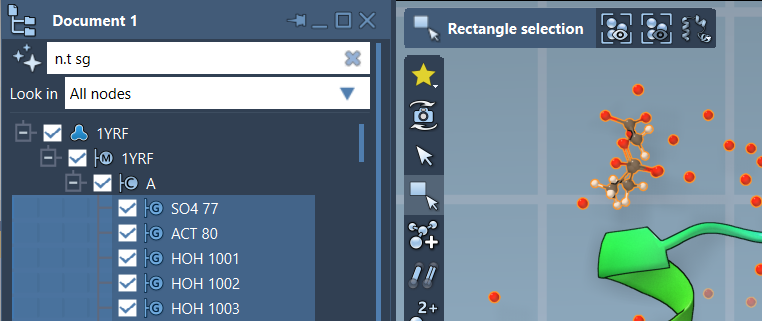
n.t sg |
This filters the Document View to show only structural groups. Once you’ve filtered what you need, just hit Enter to select those nodes directly.
Need Help Writing NSL? Ask the AI Assistant
Having trouble remembering NSL syntax? The built-in AI Assistant can write expressions for you. Located next to the Document View’s filter input, just click the “Ask AI” button (the one with the  star icon) and describe your selection goal in natural language. For example, “show all residues except alanine” could be converted to:
|
1 |
n.t r and not r.t ALA |
Why This Matters
When modeling a molecular system, you often need to focus on a specific feature—say, residues in a certain range, or atoms bonded to a specific element. Instead of manually expanding each node tree and selecting items one by one, NSL expressions let you filter and select in just one step.
More examples:
r.id 20:40: residues with ID between 20 and 40H in n.s: hydrogen atoms in the current selectionn.t bb: all backbone nodes
When to Use Document View over the Find Command
The Find command is great for quick searches from the toolbar. But the Document View gives you both context and control: you can filter with NSL, view the hierarchy, and then operate on the filtered nodes (like hide, delete, or edit them). This can be invaluable for working with large structural assemblies.
To learn more and try advanced filtering, check the full NSL documentation: https://documentation.samson-connect.net/users/latest/nsl/
SAMSON and all SAMSON Extensions are free for non-commercial use. Get SAMSON at https://www.samson-connect.net.