



When working with complex molecular systems, switching between different parts of your structure can quickly become time-consuming. Whether you’re analyzing a protein-ligand interaction, inspecting water molecules, or comparing different regions of a macromolecular complex, jumping between selections can feel a bit like navigating a maze.
Quick Groups in SAMSON aim to simplify this task. These are temporary, unnamed groups that let you assign selections to number keys (1–10) and then recall them instantly. If you’ve ever used control groups in real-time strategy games, this will feel very familiar.
Why Quick Groups Matter
In molecular modeling, you often need to come back to the same region repeatedly — a binding site, a set of interacting residues, or water molecules crowding a particular zone. Without Quick Groups, you’d need to manually reselect nodes each time. With Quick Groups, you can define selections on the fly, and toggle between them instantly using your keyboard.
How to Assign Quick Groups
- Make a selection — for example, select a ligand in your molecule.
- Assign it to Quick Group 1 by pressing Shift + 1. Alternatively, in the Document view, hover over the Quick Group slot and click it while holding Shift.
- Repeat for up to 10 groups. Each Quick Group maps to a number (1 through 10).
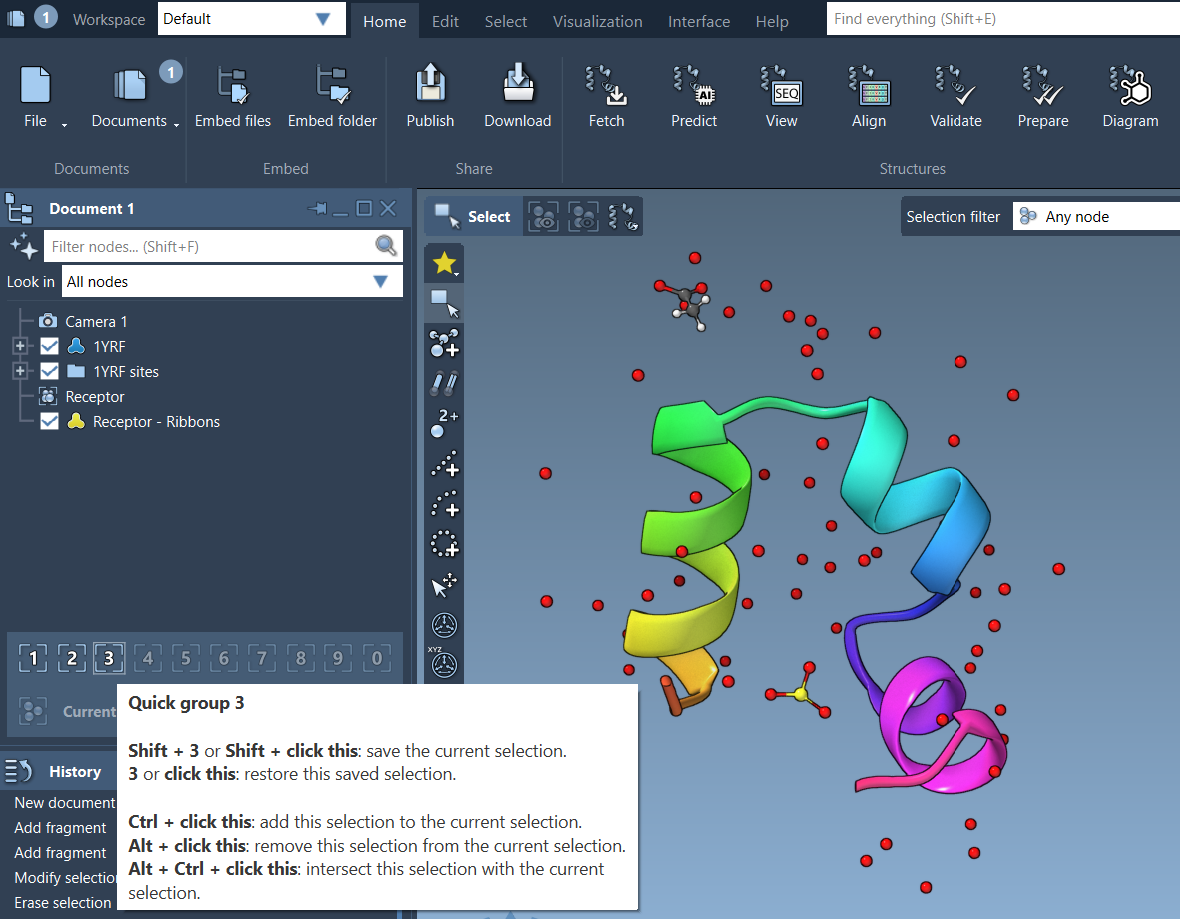
Quick Groups are listed in the lower part of the Document view, making them easy to spot and manage.
Switching Between Groups
- Press 1, 2, etc., to switch the current selection to the corresponding Quick Group.
- Double-press a number key, e.g., 11, to instantly zoom the view to that group.
- You can also click directly on the Quick Group icons in the Document view.
This ability to rapidly switch between saved selections without manually filtering or identifying nodes again can save a lot of time in workflows involving docking, visualization, or analysis.
Example Workflow
Suppose you’re studying a protein-ligand-water system. You could:
- Select the ligand and assign it to Quick Group 1
- Select the receptor protein and assign it to Quick Group 2
- Select water molecules and assign them to Quick Group 3
Now you can press 1, 2, or 3 to instantly select these parts of your system, or double-press to zoom in directly for closer inspection or editing.
This is especially helpful when applying different visual styles, running simulations, or preparing figures and presentations.
Visual Reference
A Few Notes
- Quick Groups are temporary. You can clear or redefine them anytime during your session.
- They are ideally suited for iterative design workflows or educational demos.
To learn more about selections and Quick Groups in SAMSON, visit the full documentation page here: https://documentation.samson-connect.net/users/latest/selecting/
SAMSON and all SAMSON Extensions are free for non-commercial use. You can download SAMSON at https://www.samson-connect.net.