



Creating custom crystal structures is a valuable skill for anyone working in materials science, solid-state chemistry, or molecular modeling. Whether you’re studying lattice strain, dopant behavior, or crystalline defects, simulating accurate, made-to-measure crystal models is essential. Fortunately, SAMSON’s Crystal Creator App offers a flexible and visual way to construct these models.
In this post, we’ll walk you through creating your own crystal structures manually — from defining unit cells to specifying atomic positions. This can be helpful when you’re working on theoretical systems or materials that aren’t found in standard databases. Let’s explore how to do it.
1. Accessing the Crystal Creator
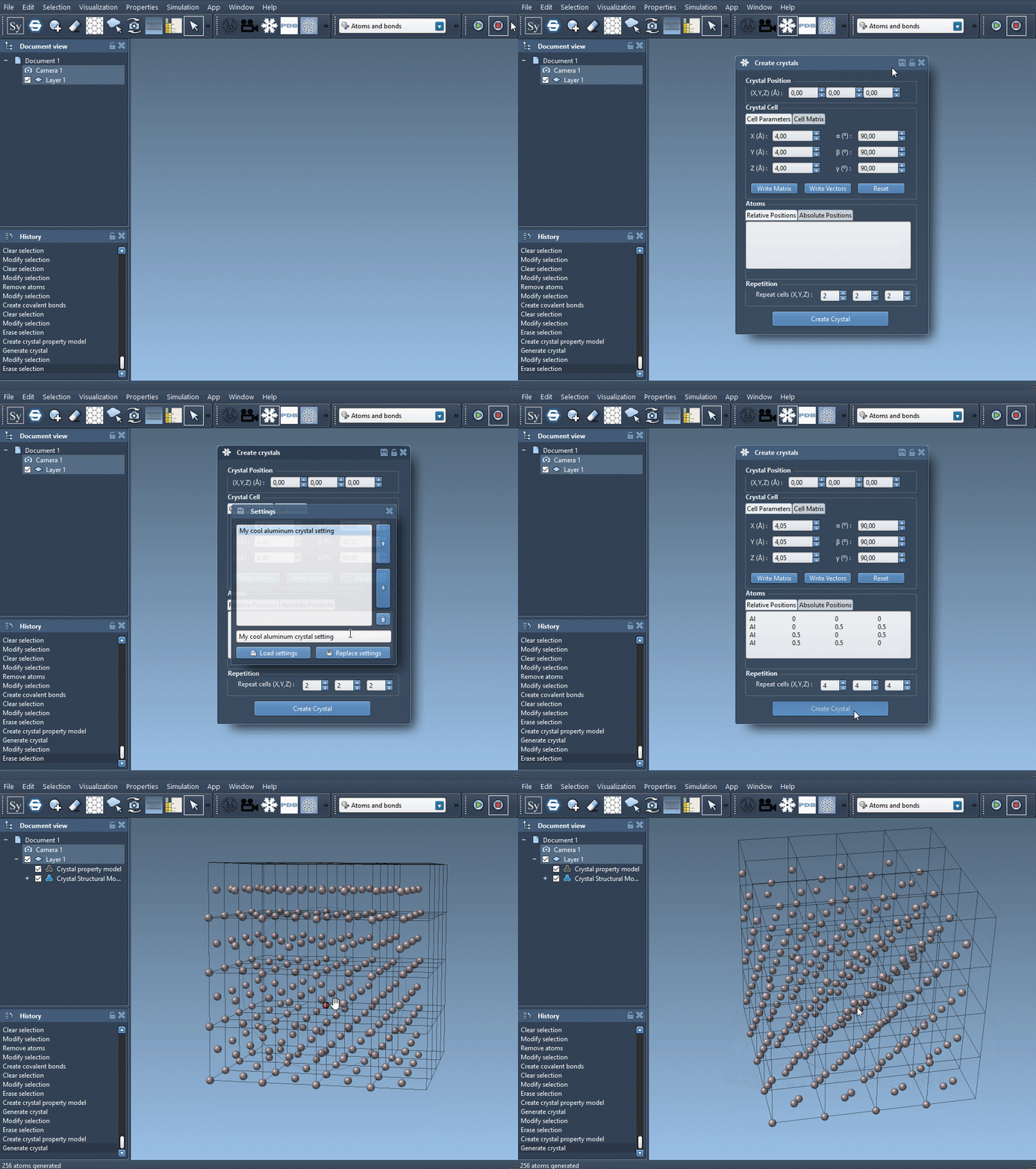
Start by opening SAMSON and navigating to Home > Apps > Materials > Crystal Creator. You can also press Shift + E to launch it quickly. If you don’t have the extension, you can find it on the SAMSON Marketplace.
2. Define the Unit Cell
You can define your unit cell using two approaches:
- Cell Parameters: Write the lattice lengths (a, b, c) and angles (α, β, γ).
- Vectors: Specify the unit cell X, Y, Z vectors directly.
You can easily switch between the two notations using the Write Matrix/Write Vectors button.
3. Add Atomic Positions
Next, provide the atoms and their coordinates inside the unit cell. Use the following format:
|
1 |
<element> <x> <y> <z> |
Example in relative coordinates for a Face-Centered Cubic (FCC) aluminum structure:
|
1 2 3 4 |
Al 0 0 0 Al 0 0.5 0.5 Al 0.5 0 0.5 Al 0.5 0.5 0 |
Coordinates can be in ‘relative position’ (fractions of unit cell vectors) or ‘absolute position’ (in Å). Make sure to match the tab selection to your input convention.
4. Choose the Number of Unit Cells
Select how many unit cells you want to generate along each axis. This determines the size of your full crystal lattice. Larger systems may better represent bulk properties, while smaller ones are easier to visualize and compute with.
5. Save and Reuse
After tuning your settings, you can save your crystal model configuration using the save icon in the property window. This makes it easy to reuse or modify your model later.
Why Build Your Own?
Real structures from databases are great, but custom-built models are ideal for:
- Designing hypothetical materials
- Introducing specific defects or dopants
- Testing model sensitivity to lattice parameters
- Generating teaching or demo data
Once your structure is built, you can use other SAMSON tools to analyze, minimize, simulate, or visualize atomic interactions. Editing crystals by hand gives you control over the research process and helps you learn by doing.
To learn more, consult the full SAMSON documentation page here:
https://documentation.samson-connect.net/tutorials/crystal-creator/generating-crystal-models/
SAMSON and all SAMSON Extensions are free for non-commercial use. You can get SAMSON at https://www.samson-connect.net.