



Carbon nanotubes (CNTs) are central to research in nanotechnology, materials science, and molecular modeling. But for many scientists, creating accurate single-walled or multi-walled CNTs in 3D can still be a frustrating experience — either due to lack of tools or difficulty configuring key parameters like chiral indices or nanotube dimensions.
If this sounds familiar, you may find SAMSON’s Nanotube Creator Extension to be a helpful (and time-saving) solution.
Why CNTs Matter in Modeling
CNTs are used to model nanoscale mechanical structures, electronic materials, biological transport mechanisms, and even drug delivery systems. Because their behavior depends heavily on their structure — such as chirality (n and m indices), length, and multi-walled configurations — having precise control over these parameters is essential when preparing simulations or visualizations.
What the Nanotube Creator Offers
The Nanotube Creator Extension in SAMSON makes it easy to generate well-defined CNT models interactively or through a graphical interface. Users can:
- Build both single- and multi-walled CNTs
- Interactively define the tube axis and radius with the mouse
- Use a graphical interface for precise input of structure parameters
- Combine CNTs into advanced configurations
Interactive Modeling with the Viewport
In interactive mode, you can literally draw CNTs in SAMSON’s 3D viewport:
- Set the tube axis and length: Click and drag with the left mouse button in the viewport.

- Adjust the radius: Release the button and move the mouse to change the
mparameter. Confirm with a click.
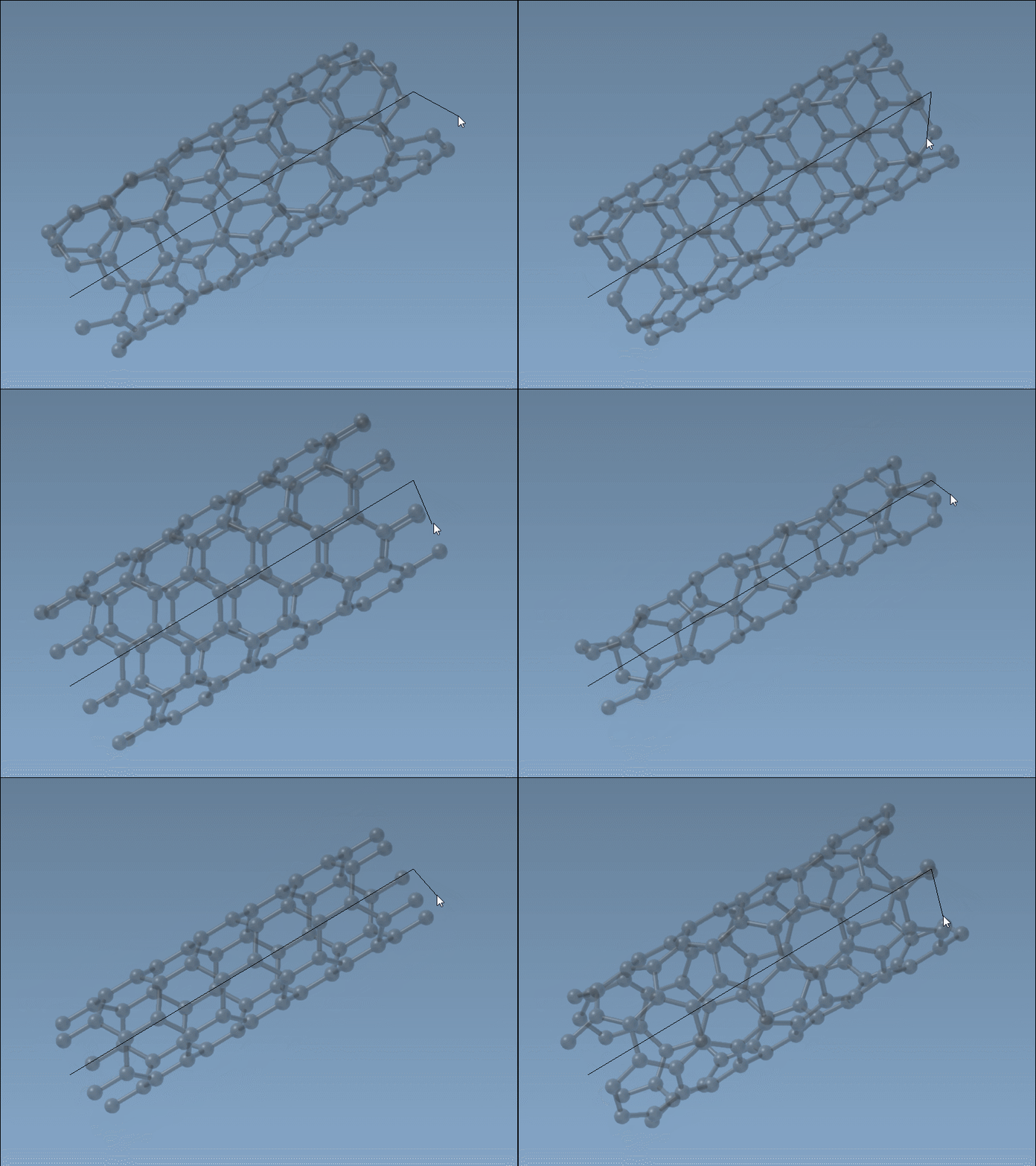
This live approach is especially convenient when rapidly prototyping different geometries or trying to visualize spatial arrangements without entering values manually.
Precise Configuration in the GUI
To refine your model, the editor’s GUI offers parameter fields where you can input exact values for:
- Start and end positions (defines the CNT’s direction and length in 3D)
nandmvalues (define chirality and radius)
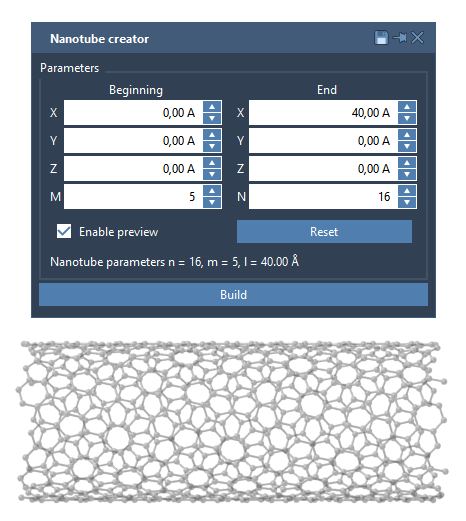
Example: Multi-Walled CNT
To build a three-layered concentric CNT model:
- Set start/end positions to
(0, 0, 0)and(40, 0, 0) - Build CNT 1:
n = 6,m = 6 - Build CNT 2:
n = 10,m = 10 - Build CNT 3:
n = 14,m = 14
The result is a multi-walled nanotube model layered concentrically along the x-axis.
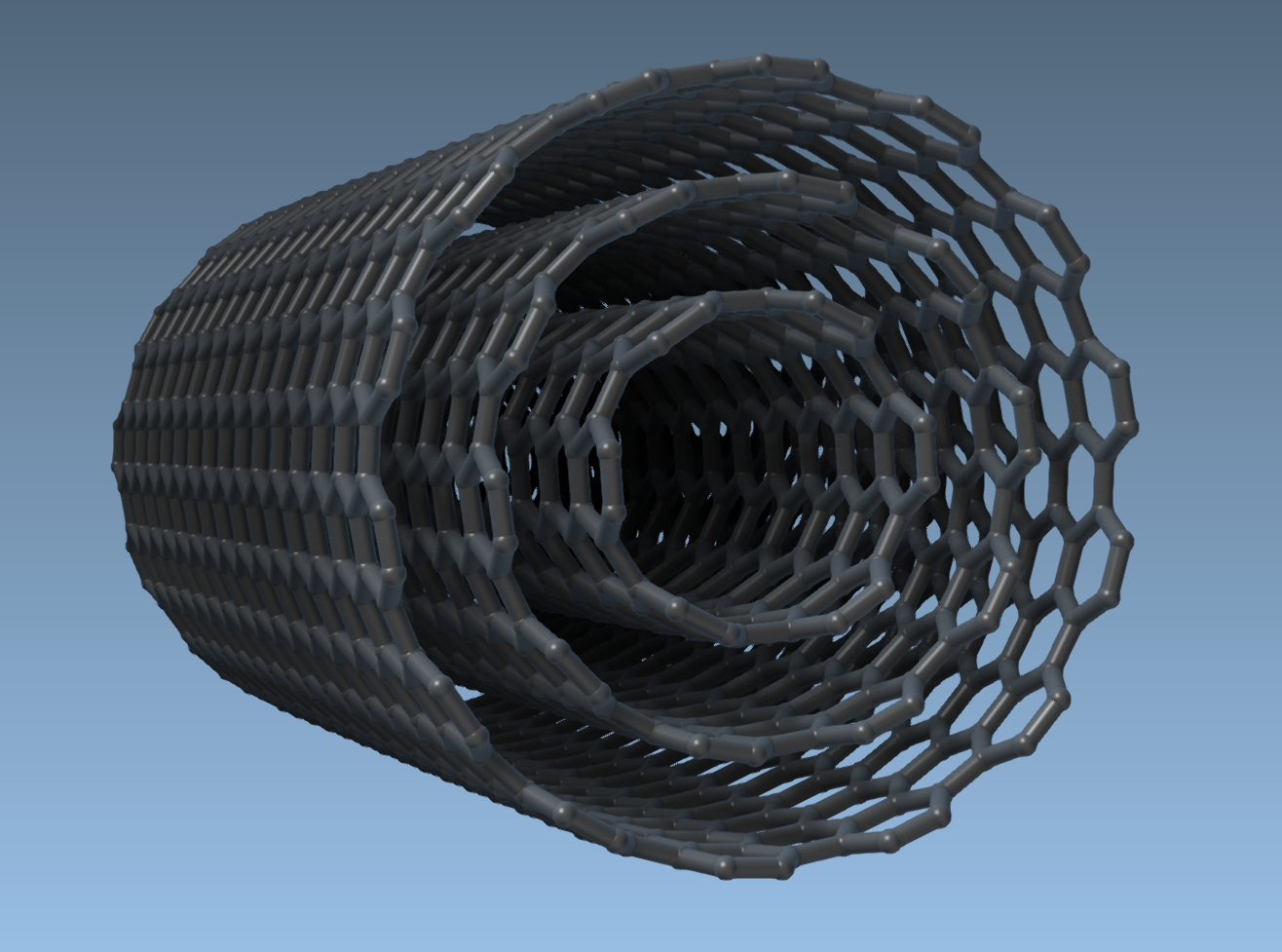
Why It Helps
Whether you’re simulating nanoscale materials, preparing visualization for publications, or setting up a drug transport model, the Nanotube Creator reduces time spent configuring models manually. It also lets you intuitively explore designs and observe the structure-property relationships of various configurations.
To learn more or to follow the documentation step-by-step, visit the full tutorial:
SAMSON Nanotube Modeling Tutorial
SAMSON and all SAMSON Extensions are free for non-commercial use. To get started, download SAMSON from https://www.samson-connect.net.