



If you have ever struggled to make sense of noisy Potential of Mean Force (PMF) profiles or spent hours parsing simulation folders manually, you’re not alone. For many molecular modelers, processing umbrella sampling results into clear, interpretable energy landscapes can feel more complex than the simulation itself.
Fortunately, the GROMACS Wizard Extension in SAMSON offers a visual and streamlined way to perform PMF analysis using the Weighted Histogram Analysis Method (WHAM). Minimal scripting. Immediate visual feedback. Automatic result management. Whether you’re wrapping up a long series of simulations or troubleshooting gaps in reaction coordinate coverage, this workflow can save you time and give you clarity.
What You Need
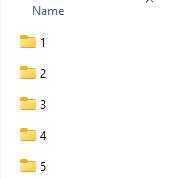
Before starting the analysis, make sure you have already completed umbrella sampling simulations. These should be organized into a project folder with numbered subfolders—each subfolder corresponding to a simulation with a specific reaction coordinate window.
Here’s what the folder structure might look like:
Performing WHAM Analysis in GROMACS Wizard
1. Open the GROMACS Wizard Extension in SAMSON and switch to the WHAM Analysis tab.
2. If you’ve just completed umbrella sampling in the Wizard, simply click the auto-fill button ( ) to automatically locate your simulation data.
3. Choose the desired project folder. The Wizard loads metadata such as reaction coordinates, simulation time, and temperature directly from the files.
4. Select the reaction coordinate of interest from a dropdown menu. Optionally, adjust the time window, boundaries, or energy units based on your simulation setup or hypotheses.
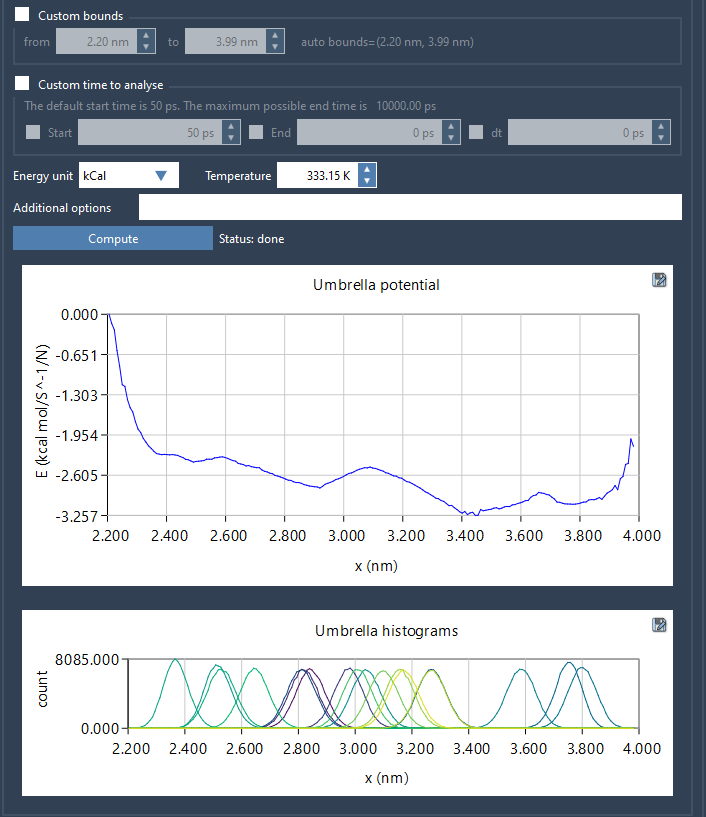
5. Click Compute to launch the WHAM calculation. SAMSON will display both the PMF and histogram plots within the interface as soon as the calculation completes.
Understanding the Output
The first plot shows the PMF curve—an energy profile useful for identifying energy wells and barriers along the chosen reaction coordinate. The second plot, a histogram, is equally important. It visualizes how well your simulations sampled the reaction coordinate space. Sparse regions may indicate a need for more sampling in specific windows.
Automatic Data Management
All results are stored in a dedicated wham_results folder within your project directory. This enables you to rerun calculations for new parameters or switch between reaction coordinates without losing previous results.
Who Should Try This
If you’re a molecular dynamics user looking for a visual, no-coding-required workflow to analyze PMF from umbrella sampling data, this method may simplify your process and help you make more informed decisions for further simulations.
To learn more, visit the original documentation at https://documentation.samson-connect.net/tutorials/gromacs-wizard/pmf-analysis/.
SAMSON and all SAMSON Extensions are free for non-commercial use. You can get SAMSON at https://www.samson-connect.net.