



Many molecular modelers know how to import molecules, dock ligands, or simulate dynamics. But when it comes to designing materials from the inside out—like building custom crystal structures—things often get more complicated. Whether you’re trying to study a novel inorganic compound, visualize a specific lattice arrangement, or teach students how unit cells combine into larger crystal networks, getting started can feel overwhelming.
Fortunately, the Crystal Creator App in SAMSON provides a user-friendly approach to generate crystal structures from scratch. In this post, we’ll walk through how to design your own periodic solid, define its unit cell, specify atomic positions, and save your creation for future use.
Launching the Crystal Creator App
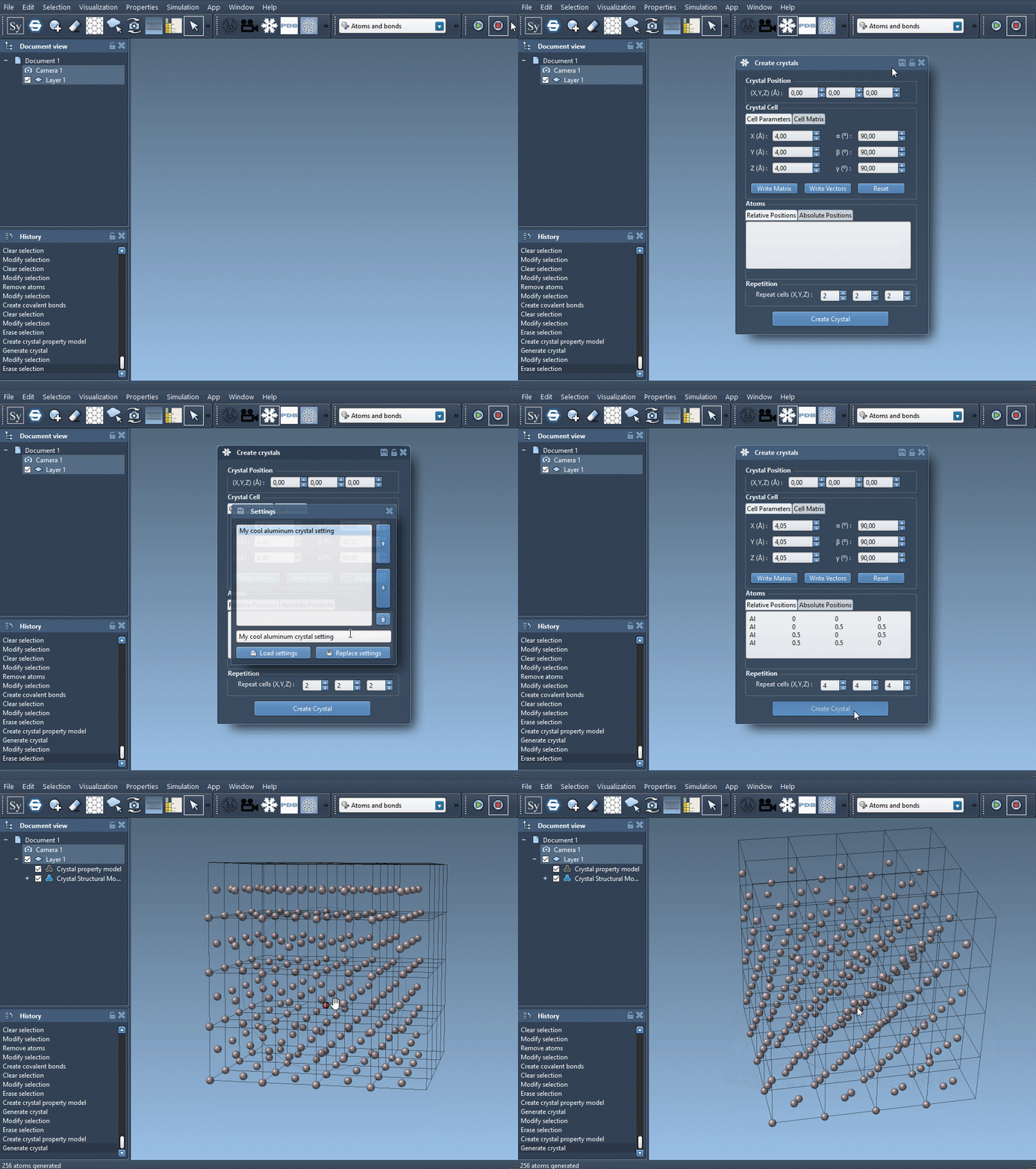
Open the app from Home > Apps > Materials > Crystal Creator or hit Shift + E in SAMSON. Once it opens, you’ll find a tabbed interface with all necessary parameters:
- Crystal origin: Define the position 0 of the crystal in your workspace.
- Unit cell: You can describe it using either cell parameters (lengths and angles) or direct lattice vectors. The Write Matrix and Write Vectors buttons allow quick switching between formats.
- Atoms: Define the atoms that make up your unit cell. Specify their symbol and coordinates, in either relative or absolute mode.
- Repetition: Choose how many unit cells to generate in each direction.
Coordinate input syntax: The format is simple:
|
1 |
<symbol> <x-coordinate> <y-coordinate> <z-coordinate> |
Coordinates can be in relative or absolute position depending on the tab you’re working in. For example:
|
1 2 3 4 |
Al 0 0 0 Al 0 0.5 0.5 Al 0.5 0 0.5 Al 0.5 0.5 0 |
Example: Building a Diamond Crystal
A diamond structure can be easily created by choosing a cubic unit cell with a lattice parameter of 3.60 Å and providing the following atomic positions:
|
1 2 3 4 5 6 7 8 |
C0 0 0 0 C1 0.25 0.25 0.25 C2 0 0.5 0.5 C3 0.5 0 0.5 C4 0.5 0.5 0 C5 0.25 0.75 0.75 C6 0.75 0.25 0.75 C7 0.75 0.75 0.25 |
This instructs the app to place carbon atoms at these positions throughout the specified number of unit cells.
Save and Reload
Once you’ve created a structure, you can save its settings using the save icon in the property window. This way, you won’t have to retype information the next time you need that setup. The saved crystal files can also be shared with collaborators or reused in simulations.
Why This Matters
Manually building crystals used to require lots of coding or fiddling with formats from crystallography databases. With the Crystal Creator App, you can directly visualize and edit structures interactively, making it suitable for:
- Materials science research
- Teaching crystallography and symmetry
- Preparing input for defects analysis and simulations
With SAMSON handling the underlying structure operations and helping visualize meshes, bonds, and unit cells, users can focus more on exploration and less on format conversions.
To explore more features and detailed steps, visit the full tutorial on creating crystal models in SAMSON.
SAMSON and all SAMSON Extensions are free for non-commercial use. You can get SAMSON at https://www.samson-connect.net.