



Creating molecular models can be a meticulous process—even more so when working with nanostructures like carbon nanotubes (CNTs). Whether you’re designing nanoscale sensors, exploring molecular transport systems, or preparing systems for simulation, setting up your model quickly and accurately matters. But what if, instead of typing in coordinates and tweaking parameters in menus, you could simply build with your mouse?
In this article, we’ll explore how to use SAMSON’s Nanotube Creator Extension to create single-walled and multi-walled CNTs directly in the viewport. If you’re looking for a more interactive and visual way to model CNTs, this feature might save you time and give you better spatial control at the early stages of your project.
Why Interactivity Matters
While using a graphical interface has its advantages (you can still do that, by the way), interactive modeling can be especially helpful when:
- You want to quickly prototype different CNT orientations without entering numeric values.
- You’re learning how the chiral vector parameters
nandmaffect tube geometry. - You’re setting up systems to be visually intuitive before fine-tuning parameters.
How It Works
Once you have added and activated the Nanotube Creator Extension in SAMSON, follow these steps to create a CNT interactively:
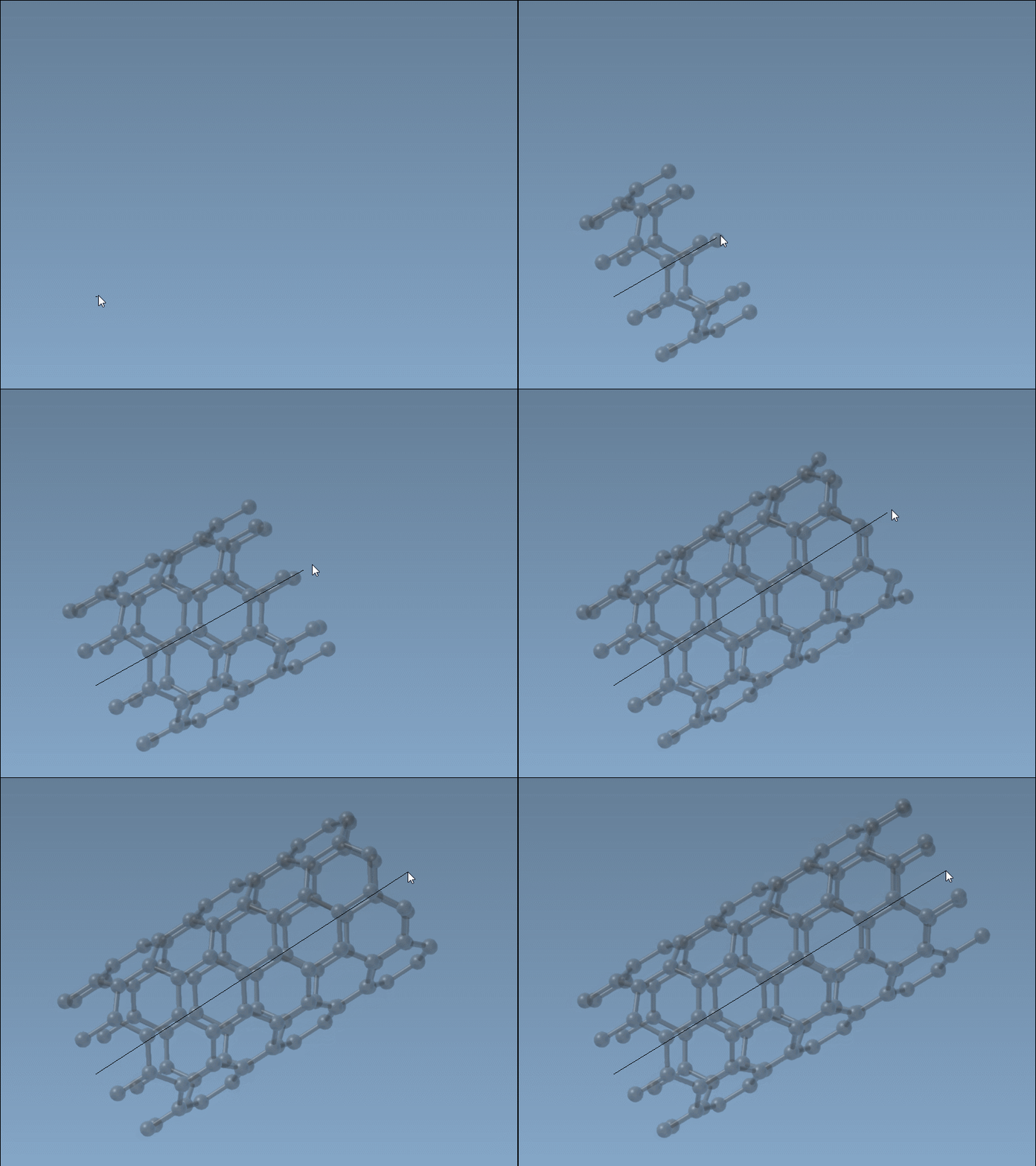
- Choose axis and length: In the viewport, press and drag the left mouse button to define the tube’s axis and length. Watch the live feedback in the status bar to track your orientation and tube dimensions.
- Set the tube radius: After releasing the mouse button, move your cursor to adjust the radius. Click again to confirm. This radius defines the
mparameter in your chiral vector.
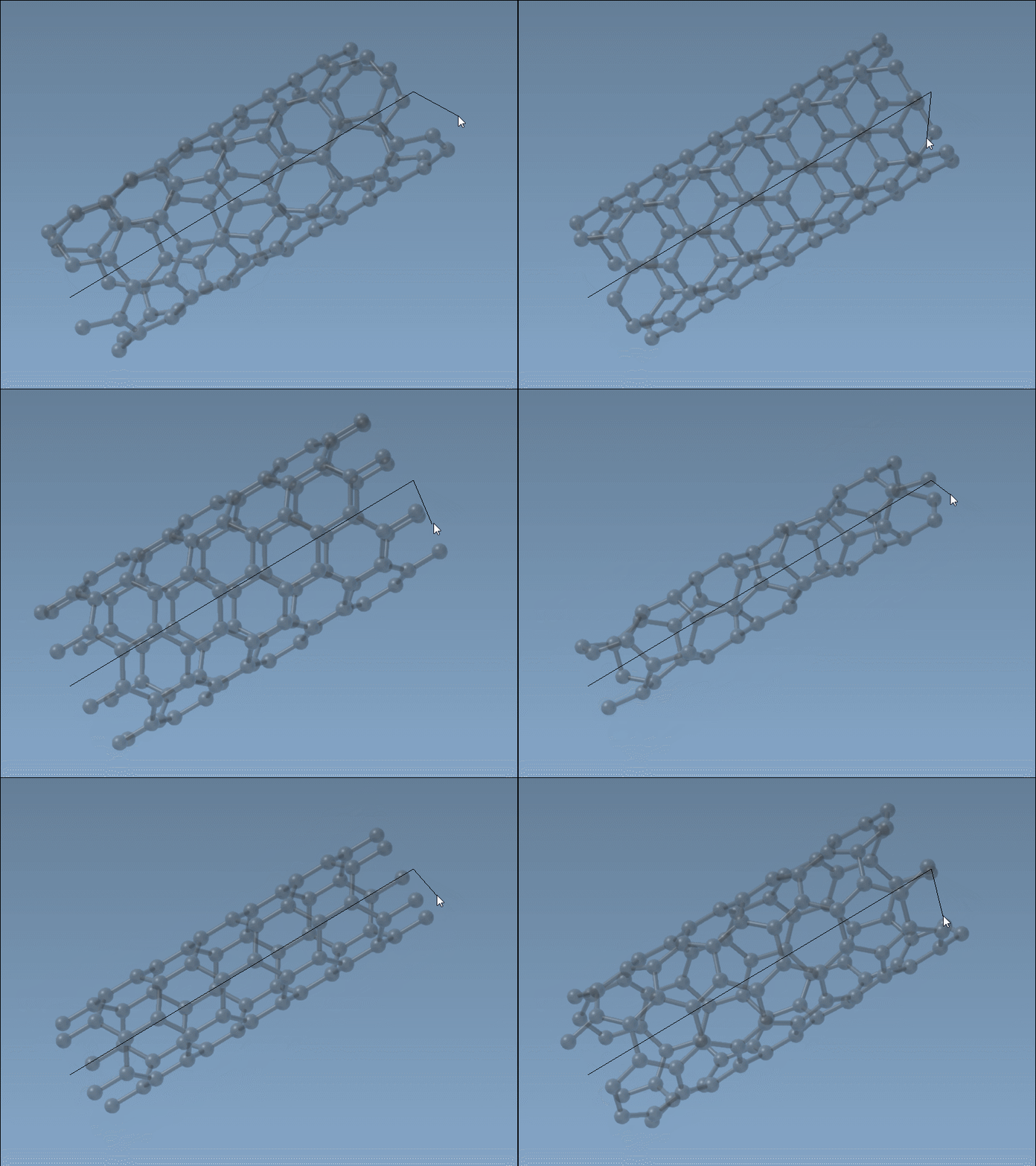
The status bar continuously updates with the changing values for n (by dragging) and m (by adjusting radius) so you can refine geometry on-the-fly. It’s a tactile and responsive process.
Tips and Things to Watch
- Precision control: If you have specific requirements for
nandm, combine interactive creation with the GUI later to tweak values numerically. - Orientation: Since the axis depends on your drag direction, rotate your viewport beforehand to get the perspective that matches the vector you want to draw.
- Single editor: SAMSON only allows one editor active at a time. If the editor doesn’t respond, check that no other editor is currently active.
Applications
The flexibility of this method is particularly useful in early-stage molecular design, for example:
- Sketching structures for simulation in computational material science.
- Rapidly iterating through different CNT geometries for membrane modeling.
- Building CNTs into complex molecular assemblies or hybrid nanodevices.
To Learn More
The interactive method works seamlessly alongside the GUI-based nanotube builder in SAMSON. If you prefer full numeric control, or want to construct multi-walled CNTs with specific chiralities, the graphical interface offers that pathway too. But for speed and accessibility, drawing with the mouse is a great place to begin.
Read the full documentation here: https://documentation.samson-connect.net/tutorials/nanotubes/building-nanotubes-models/
SAMSON and all SAMSON Extensions are free for non-commercial use. You can download SAMSON at https://www.samson-connect.net.