



Understanding how molecular systems transition from one conformation to another is a common challenge in structural biology and molecular modeling. Whether you’re investigating ligand unbinding, protein folding, or allosteric changes, the ability to model transition paths in a reproducible, physically meaningful way can be invaluable.
In many workflows, researchers begin by generating a series of intermediate conformations—snapshots of atomic coordinates between two experimentally observed or simulated states. But how do you turn this scattered set into a smooth, optimized transition path that can give you real insights into mechanisms or energy landscapes?
This is where the Parallel Nudged Elastic Band (P-NEB) method in SAMSON helps. And while applying P-NEB directly to a set of conformations is possible, there’s a smarter approach: combine them into a path first, then apply NEB to that path. It saves time and allows for a more coherent view of your system’s transformation.
Step-by-Step: From Conformations to Optimized Path
If you already have a series of conformations (e.g., from linear interpolation or generated by an app like Ligand Path Finder), here’s a straightforward guide to turning them into a smart, optimized path using NEB in SAMSON:
1. Convert Conformations into a Path
In the Document view, select your conformations. Then right-click and choose:
Conformation > Create path from conformations.
This single step allows SAMSON to treat your set of static conformations like a continuous molecular pathway, which can be animated and further optimized.
2. Launch the P-NEB App
From the main window, go to Home > Apps > All > P-NEB. You can also locate it with the Find everything search bar.

3. Select the Path Node
Back in the Document view, select the path node you just created from your conformations.
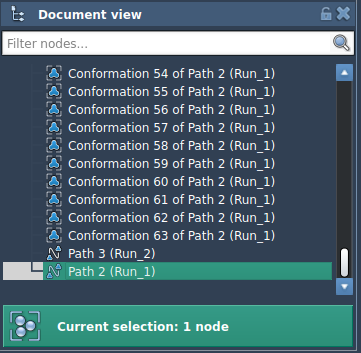
4. Configure NEB Settings Thoughtfully
In the P-NEB interface, adjust the following for a typical use case:
- Spring constant:
1.00 - Number of loops:
100 - Interaction model: Universal Force Field
- Optimizer: FIRE
- Parallel execution: checked
- Climbing image method: optional—start with it unchecked
- Suffix name:
NEB
5. Run the Optimization
Click Run. You’ll be asked whether to use existing bonds—select yes. The optimization will begin, showing progress in the status bar.

6. Examine Results
Once complete, a new optimized path will appear—with your given suffix—in the Document view.

You can animate it by double-clicking, use the Inspector to explore its conformations, or export it for further analysis.
Why Combine Conformations First?
You can run P-NEB directly on a set of conformations, but in practice, it’s slower and less efficient. Creating a path first makes the process faster and easier to manage—especially for systems where run times are a concern. It also allows for smoother visual inspection and easier follow-up edits.
To learn more about using the Parallel Nudged Elastic Band method in SAMSON, visit the full documentation page.
SAMSON and all SAMSON Extensions are free for non-commercial use. You can get SAMSON at https://www.samson-connect.net.