



When working on complex molecular systems, it’s common to switch between multiple regions of interest. You might be analyzing a ligand binding pocket, adjusting side chains of a receptor, or inspecting solvent placement. Repeatedly reselecting these components adds friction to your workflow, especially as models grow larger.
Quick Groups in SAMSON offer a fast, intuitive solution to this frequent challenge: they let you save temporary selections and instantly switch between them using simple keyboard shortcuts or clicks in the document view.
What are Quick Groups?
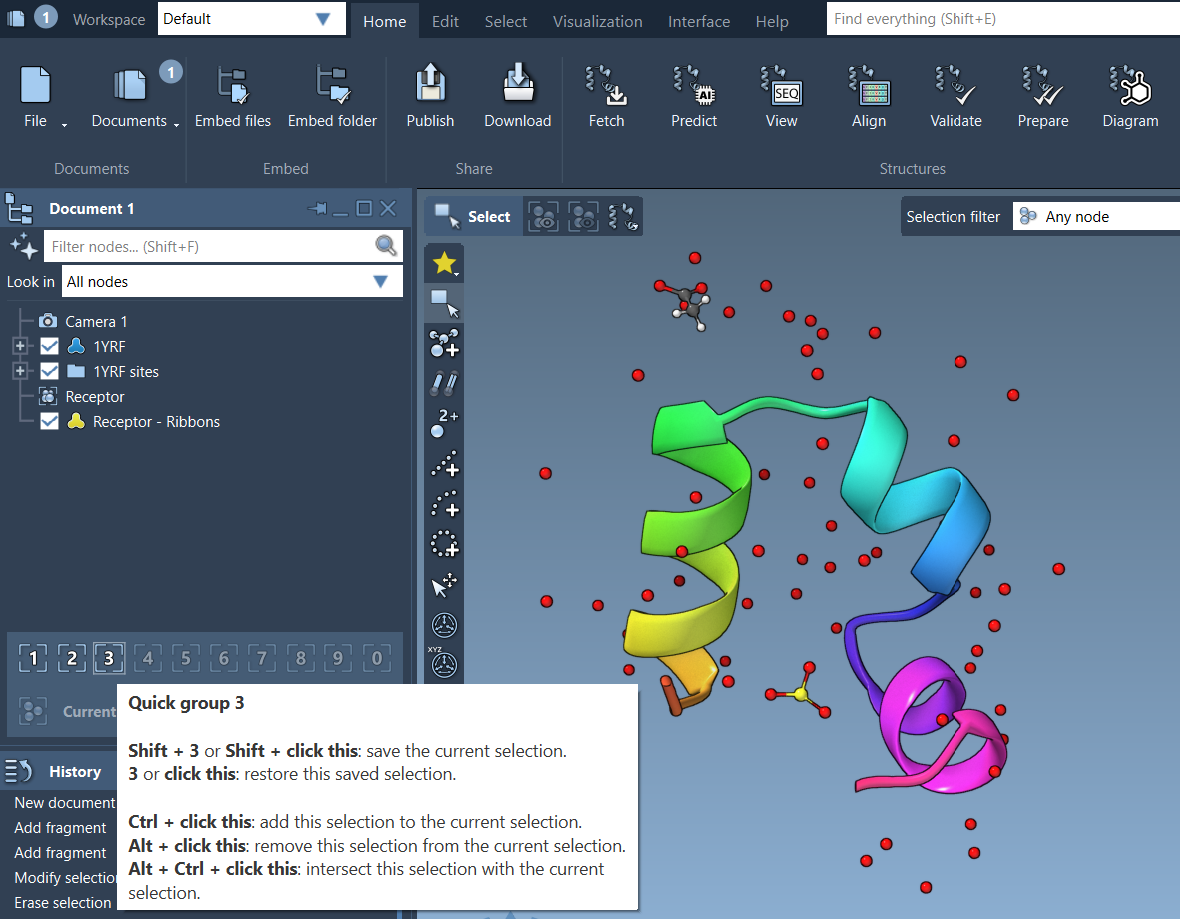
Quick Groups are lightweight, unnamed selection groups that appear at the bottom of the Document view. You can create up to 10 such groups and bind them to number keys (1–10) for instant access.
This is particularly helpful in workflows that require comparing regions, toggling states in dynamic systems, or visually isolating components for presentation.
How to Use Quick Groups
1. Assigning Selections
- Select atoms, residues, or molecules in the Viewport or Document view.
- Assign the selection to a Quick Group:
- Mouse method: Hover over a Quick Group slot in the Document view and press Shift + click.
- Keyboard method: Press Shift + number (e.g., Shift + 2) to assign it to Quick Group 2.
Quick Groups are flexible: reassign them at any time, and they are independent of permanent grouping or naming structures.
2. Switching Between Groups
Once your Quick Groups are set, switching is effortless:
- 1, 2, … 0 directly switch to the corresponding Quick Group’s selection.
- Double-press a number key (e.g., 1 twice) to zoom to that group’s selection instantly.
- Click on the Quick Group icons in the Document view to switch visually.
3. Real-World Example
Here’s an example of using Quick Groups during ligand-receptor analysis:
- Select the ligand → assign to Quick Group 1.
- Select all receptor residues within 5 Å → assign to Quick Group 2.
- Select nearby water molecules → assign to Quick Group 3.
You can now instantly go back and forth between selections with the 1, 2, and 3 keys — no need to reselect via filters or search expressions.
4. Tips
- Quick Groups are temporary but persist while the document is open.
- If some nodes are deleted, groups remain valid for the remaining nodes.
- Use them during presentations or teaching sessions to spotlight structural features.
Why Use Quick Groups?
- 💡 Rapid selection switching
- 🧬 Easier comparison between structural parts
- 🎓 Simplified workflows for teaching or presentation
- 🧪 Streamlined simulation and editing processes
Quick Groups are like memory slots for molecular regions — making modeling faster and more organized.
To learn more about selections and Quick Groups, visit the SAMSON Selecting Documentation.
SAMSON and all SAMSON Extensions are free for non-commercial use. You can download SAMSON at https://www.samson-connect.net.