



Designing carbon nanotube (CNT) structures can be a repetitive chore for molecular modelers and nanoscientists, especially when quick iterations or small variations are needed. Using traditional parameter input forms for each tube can feel cumbersome. But if you’re working in SAMSON, there’s an alternative you might not have explored fully: drawing nanotubes interactively in the viewport, using your mouse.
The Nanotube Creator Extension in SAMSON includes an intuitive design mode that lets you build CNTs directly in 3D—without opening any forms or dialogs. This can be useful when you’re testing shape hypotheses, quickly exploring different lengths and radii, or just want to visualize possibilities on the fly during brainstorming or teaching sessions.
Building a CNT with Mouse Control: Two Simple Steps
Once the Nanotube Creator is activated, creating a nanotube interactively works like this:
-
Set the axis and length: Simply press and drag the left mouse button in the viewport. This defines your nanotube’s orientation and length (‘n’ value), giving you visual control over where the tube starts, where it points, and how long it is.

A handy status bar at the bottom provides live feedback—including direction and real-time n-values—so you maintain precision while modeling visually.

-
Set the radius: When you release the mouse button, you enter radius mode. Move your mouse to adjust the radius (affecting the ‘m’ value), and click again to confirm.
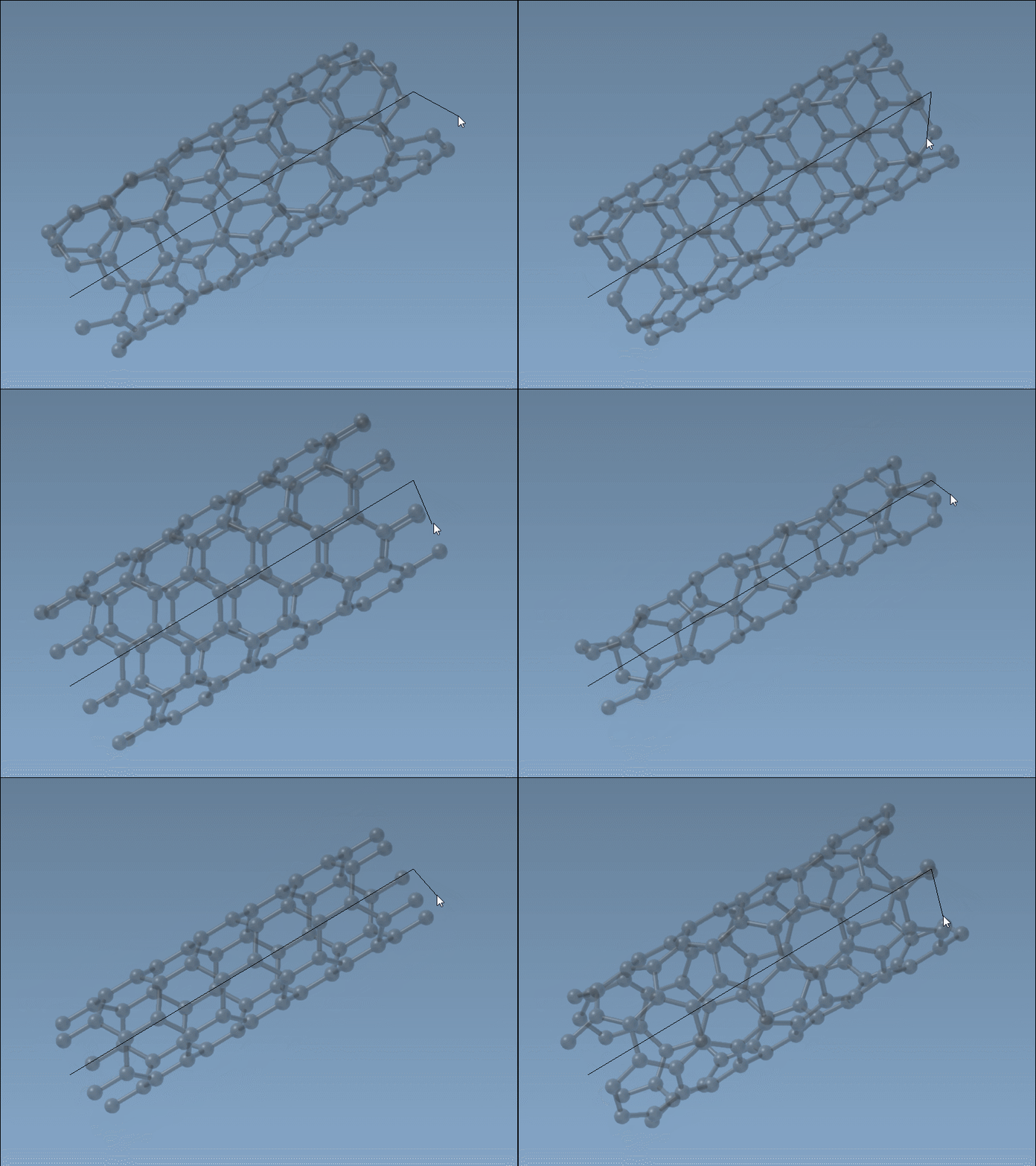
This simple two-step operation replaces what can often feel like multi-form editing with a fast, visual feedback loop that lets you see what you’re designing in real-time. Spending less time navigating menus means more time on iteration, analysis, and insight.
When is this mode especially useful?
- Experimenting with multi-walled structures: You can quickly create concentric walls with similar axes by repeating the drag-click operation and varying the radius slightly.
- Teaching and demonstrations: The visual approach helps convey the concept of how (n,m) parameters affect tube geometry—ideal for interactive lectures or recorded tutorials.
- Quick exploration before simulation: If you’re running simulations on CNT-based devices or materials, this mode helps sketch out candidate geometries before selecting the most promising candidates for detailed parameter input.
And you’re not locked in. If you decide later to tweak parameters more precisely, you can always switch to the graphical interface mode via the same editor and input exact values.
Tip: Keep the status bar visible
To get the best from this workflow, make sure the status feedback area is displayed. It updates live as you drag and helps you confirm your tube’s length and radius without guesswork.
Learn More
This method comes from the SAMSON Nanotube Creator documentation. It’s ideal for modelers looking to speed up repetitive design tasks or make early design steps more fluid.
View full documentation here →
SAMSON and all SAMSON Extensions are free for non-commercial use. You can get SAMSON at https://www.samson-connect.net.