



Calculating the Potential of Mean Force (PMF) is a critical step for molecular modelers studying free energy landscapes, especially in processes like ligand binding or conformational changes. However, setting up and running a WHAM-based PMF analysis can sometimes be frustrating: managing multiple simulation outputs, formatting data correctly, and configuring analysis parameters all introduce potential points of confusion and delay.
GROMACS Wizard in SAMSON simplifies PMF computation through an intuitive visual interface that brings typically command-line heavy workflows directly into a streamlined GUI. One useful feature is the WHAM Analysis tab, which allows you to focus on interpreting your results—not troubleshooting file formats or plotting scripts.
This post walks through how to compute the PMF from umbrella sampling data using this feature. It’s aimed at users who’ve already performed umbrella sampling simulations (using GROMACS Wizard, or independently), and now want to obtain the free energy profile in a quicker, cleaner way.
Organizing Your Project Folder
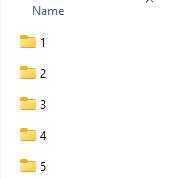
Before jumping into the analysis, make sure your project structure is ready. The wizard expects a folder that contains a series of numbered subfolders—each holding simulation results for different positions along the chosen reaction coordinate. These subfolders are usually generated using GROMACS Wizard’s umbrella sampling or batch computation workflows.
Loading and Computing the PMF
Once in the WHAM Analysis tab:
- Either specify the project path manually or use the Auto-fill feature to automatically detect the previous umbrella sampling project.
- GROMACS Wizard reads key metadata like the reaction coordinate names, simulation duration, and temperature directly from the trajectory files, removing the need to enter them manually.
- Select your reaction coordinate. You can customize the analysis further by adjusting the range (bounds), time span, or energy units.
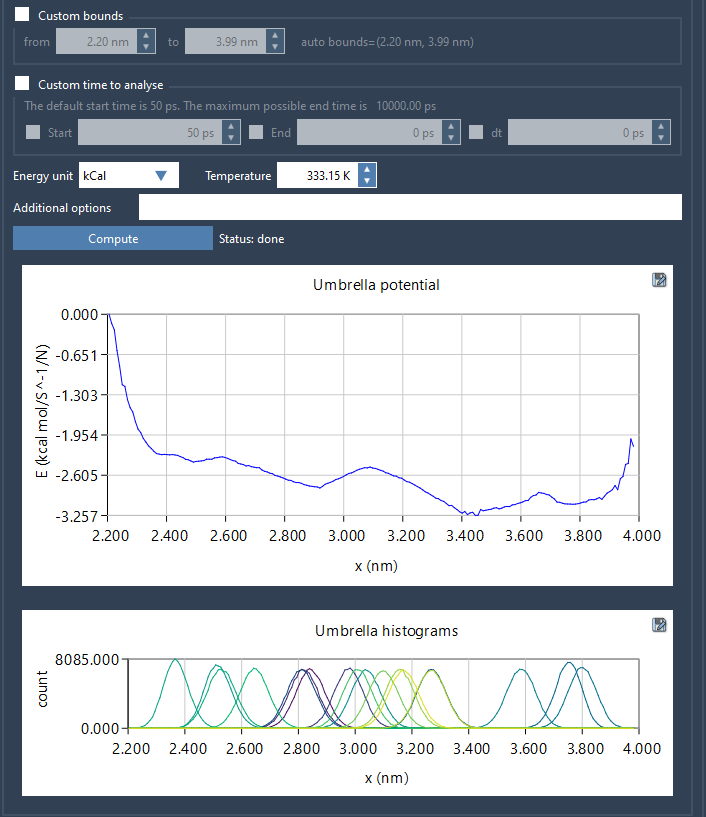
Once configured, click Compute. GROMACS Wizard will launch the WHAM computation and generate both the PMF and histogram plots.
Interpreting the Results
The PMF plot reveals the free energy profile along your chosen reaction coordinate, showing potential barriers, wells, and other features of interest. Meanwhile, the histogram plot indicates the extent of sampling across the coordinate, helping you assess whether additional simulations are needed for better convergence.
Importantly, GROMACS Wizard saves all computed plots and data automatically in a wham_results subdirectory of your project. This not only ensures reproducibility but also allows immediate reuse: the next time you select the same coordinate, the analysis loads instantly without re-computation.
Why This Matters
If you’ve dealt with formatting output files for WHAM tools or debugging strange behavior due to misaligned input, this workflow can be a breath of fresh air. Especially for those working across many umbrella windows or complicated systems, the ability to visually inspect the histogram and quickly test different analysis parameters makes a significant practical difference.
To dig deeper into the PMF analysis capabilities of GROMACS Wizard, visit the full tutorial at https://documentation.samson-connect.net/tutorials/gromacs-wizard/pmf-analysis/.
SAMSON and all SAMSON Extensions are free for non-commercial use. You can get SAMSON at https://www.samson-connect.net.