



Designing molecules is one of the central tasks in molecular modeling. But when it comes to building or editing small molecules—especially during early-stage design or cleaning up structures—many scientists still rely on separate 2D sketching tools, later importing their work into 3D modeling environments. This back-and-forth can lead to frustration and errors due to synchronization issues, format incompatibilities, or broken geometries.
What if you didn’t have to leave your 3D modeling environment at all?
With the Interaction Designer in SAMSON, you can create and edit molecules directly in a 2D canvas while staying completely synchronized with the 3D view. This means that any atom, bond, or fragment you add or modify in 2D appears instantly in 3D. No conversions, no external editors, no mismatches.
Start Designing with a Single Click
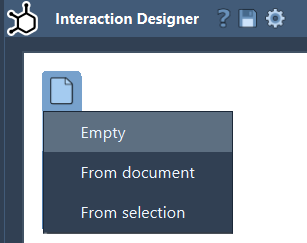
To begin sketching a new molecule, use Edit > Design in the Interaction Designer. You can either start from scratch, from an existing molecule in your active document, or from your current selection. The workspace offers a familiar 2D view for sketching atoms and fragments.
Add Atoms and Fragments
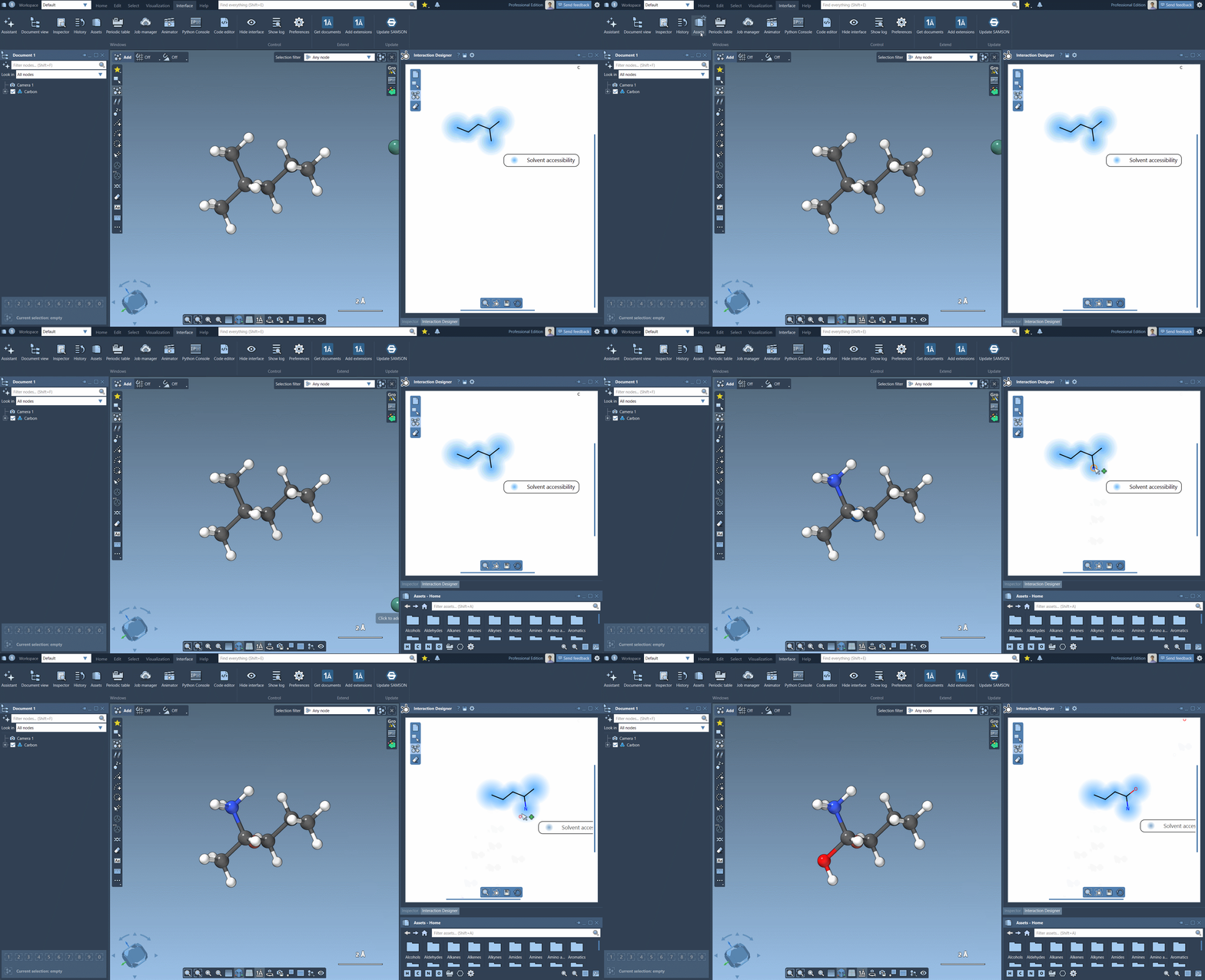
When in “Add” mode, SAMSON defaults to Carbon atoms. Click anywhere in the canvas to place atoms, and click on other atoms to extend the structure. To change the atom type, use the Assets Browser:
- Select atom elements like H, C, N, O directly using shortcut buttons
- Choose any element from the Periodic Table icon
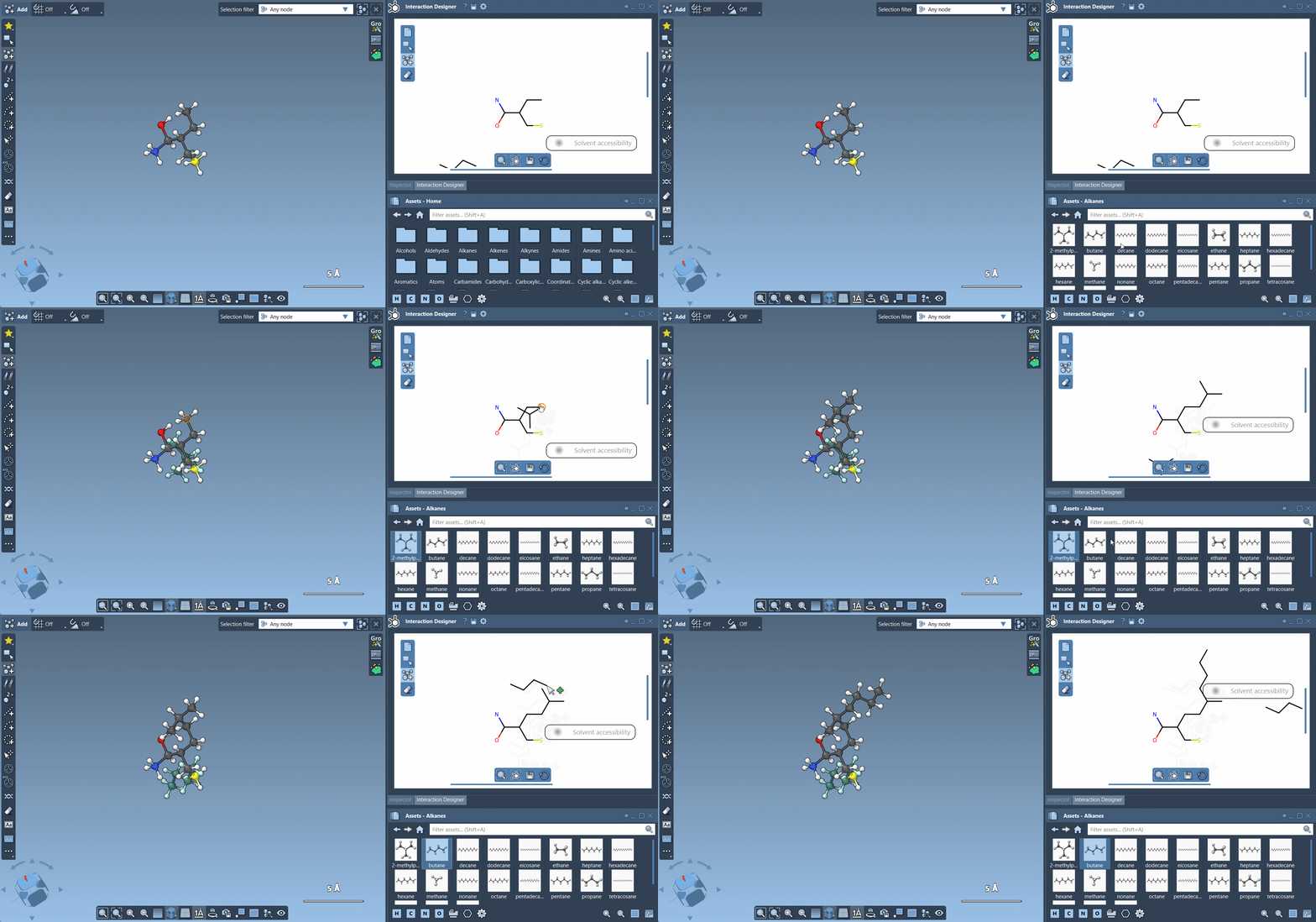
The same approach works for molecular fragments. Drag a fragment from the Assets Browser into the canvas and attach it to existing atoms. You can even change the pivot atom for how the fragment connects by holding Ctrl or Cmd and clicking the desired attachment point.
Edit and Erase Easily
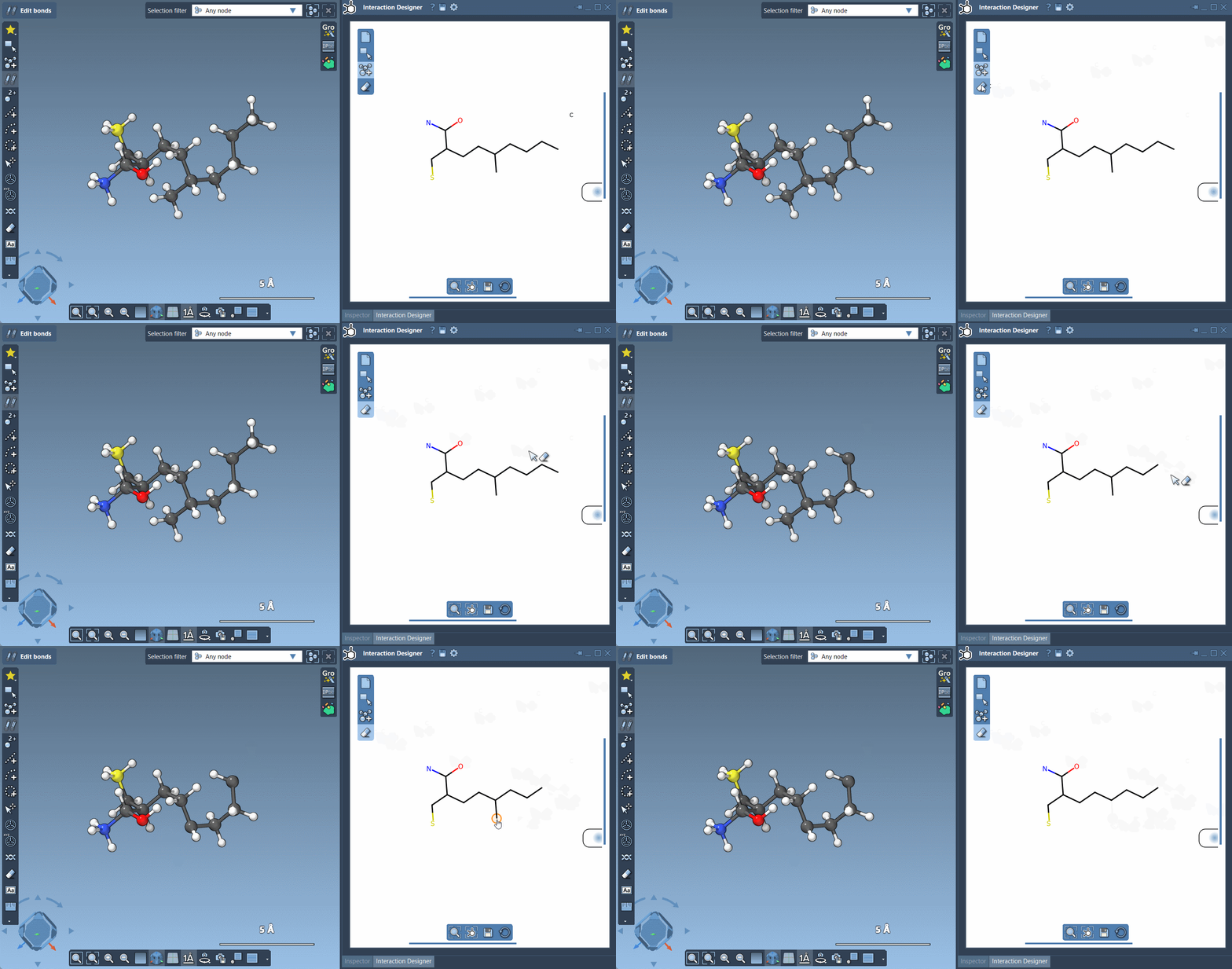
Want to adjust an atom type? Just select a different atom in the Assets Browser and click on an existing atom to modify it. Need to remove something? Click Erase in the left panel and delete atoms or fragments by clicking on them.
Stay in Control
The Interaction Designer offers intuitive features to help you zoom and move your canvas:
- Align 2D and 3D views using the bottom panel
- Zoom with Ctrl+Scroll (Windows) / Cmd+Scroll (macOS)
- Translate the view using the middle and right mouse buttons
Export High-Quality 2D Sketches
Once you’re done, export your designs in various formats like PNG, JPG, SVG, and more. Perfect for sharing, publications, or storing intermediate designs.
Whether you’re sketching a lead compound or editing a cofactor molecule from a crystal structure, staying in a single workspace simplifies your workflow and reduces the risk of errors. The tightly synchronized 2D-3D environment in SAMSON’s Interaction Designer is a time-saving tool that integrates the clarity of 2D design with the spatial awareness of 3D manipulation.
For more detailed usage and features, check out the full documentation at https://documentation.samson-connect.net/users/latest/interaction-designer/
SAMSON and all SAMSON Extensions are free for non-commercial use. You can download SAMSON at https://www.samson-connect.net.