



When working in molecular modeling, one common challenge is efficiently manipulating crystal structures to understand their properties and visualize complex arrangements. SAMSON’s Crystal Creator provides tools to address this need. Through this post, we’ll explore how to cut and inspect crystals to unveil their internal symmetry and properties, ensuring you can advance your modeling workflows smoothly.
Cutting Crystal Structures in SAMSON
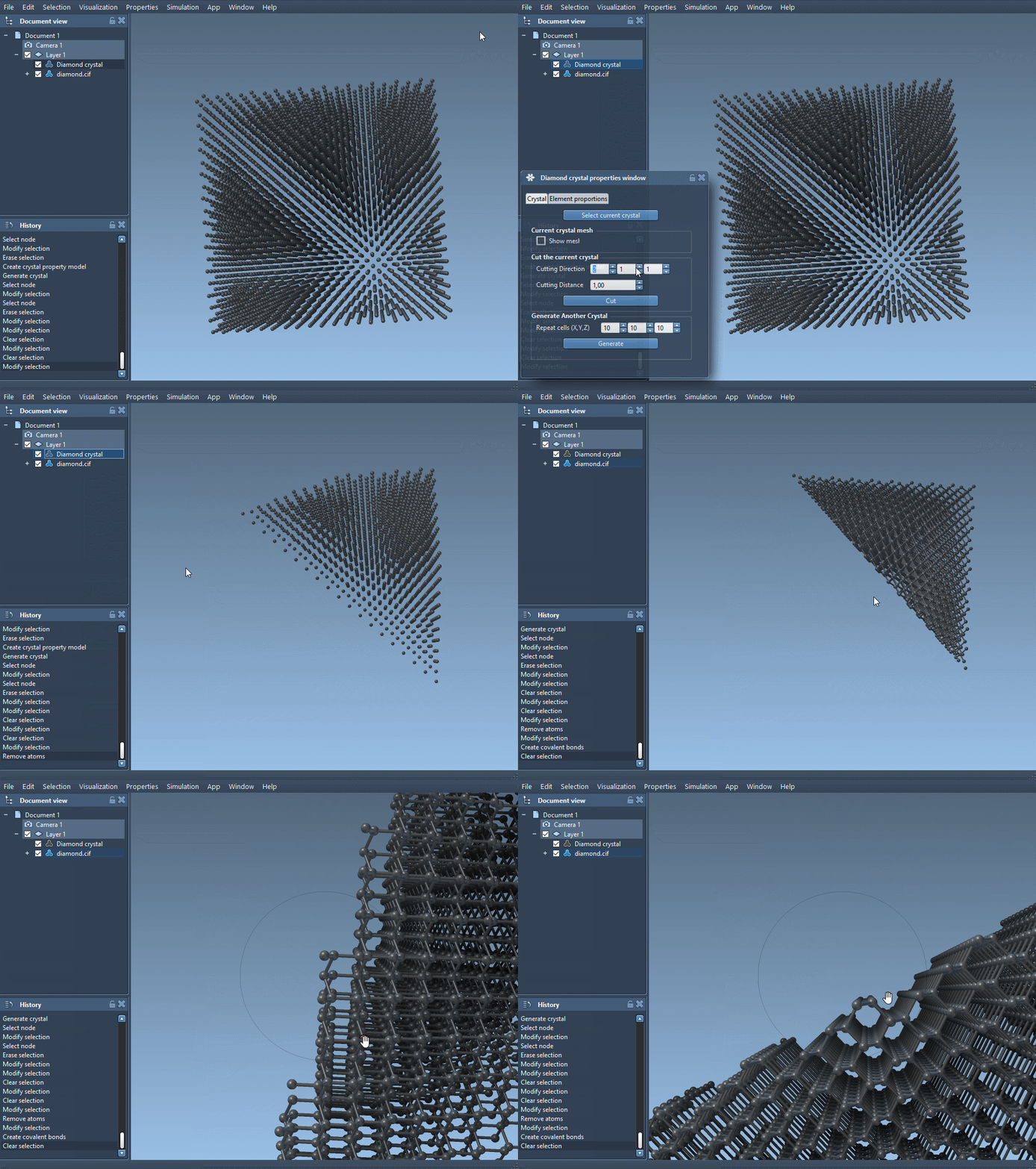
Once you have loaded a crystal into SAMSON (e.g., from a CIF file), you’ll notice how it seamlessly appears in the data graph. Now, suppose you want to examine its structure more closely by slicing it along specific directions to explore its symmetry or internal arrangement. Here’s how:
- Right-click on the property model of your crystal, and select properties.
- In the property window, head to the first tab. Here, among the tools provided, you’ll find a toolbox to cut your crystal.
- The first three boxes in the cutting toolbox let you define the cutting direction using Miller indices, while the fourth box determines the distance from position
0where the cut should happen.
For practice, load a diamond crystal structure and choose the cutting direction [111]. You’ll uncover its compact hexagonal structure, shedding light on why this direction is significant in material science!
Analyzing Defects and Meshes
In material science and molecular research, defects play a vital role in determining the properties of crystals. SAMSON allows users to analyze these defects effortlessly:
- Enable the mesh view from the property window to get a better spatial understanding of your structure.
- Use the check atoms ratio tool (available in the properties window’s second tab) to verify whether the proportions of substitutions and defects match the CIF file description.
For anyone investigating material defects’ role in conductivity, hardness, or other properties, these tools streamline the process of detection and analysis.
Additional Tips: Saving and Reproducing Your Work
Once you’ve completed your analyses or transformations, don’t forget to save your crystal settings! By clicking the save icon in the property window, you can store your customized configurations for later reference. This ensures that reproducibility—an essential aspect of scientific research—remains effortless in your workflows.
Why Use SAMSON for Crystal Manipulation?
SAMSON’s ability to simplify intricate processes such as crystal manipulation makes it a valuable tool for molecular modelers. Whether you aim to test theoretical hypotheses, visualize structural arrangements, or explore the effects of defects, SAMSON offers an efficient, user-friendly approach to handling crystal structures.
To learn more about cutting and manipulating crystals in SAMSON, visit the original documentation page here.
Note: SAMSON and all SAMSON Extensions are free for non-commercial use. To get started, download SAMSON from SAMSON Connect.