



For anyone tackling molecular modeling challenges, creating custom polymers with precise structural requirements can be a daunting task. That’s where SAMSON’s Polymer Builder Extension steps in — offering the ability to design flexible, complex polymers from scratch using custom monomers. Let’s delve into how you can register and manage custom monomers effortlessly.
Why Custom Monomers Matter
Polymers built from customized monomers can mimic synthetic chains, biopolymers, or tailored molecular scaffolds. This capability is essential for applications like material property prediction, electronic polymer modeling, or creating drug-polymer conjugates. With SAMSON, you’re equipped to work with real chemical fragments and avoid wearing yourself thin on manual setups.
How to Register a Custom Monomer
The registration process for custom monomers in Polymer Builder ensures flexibility and control over polymer design. Here’s a step-by-step guide:
- Select the molecular fragment you want to use as a monomer. This can be done in the Document view or the Viewport.
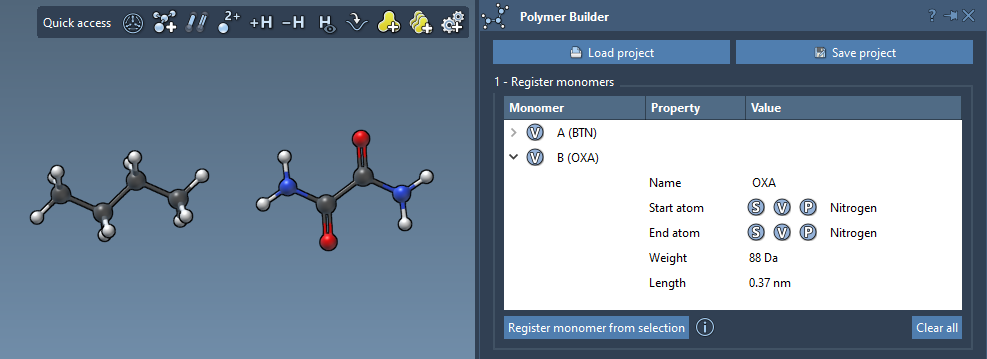
- Click Register monomer from selection. The system will derive a new monomer from the selected structure automatically.
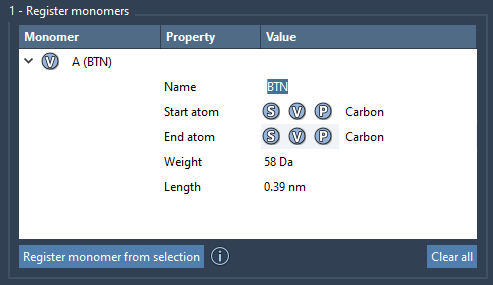
The tool streamlines the process by automatically detecting start and end atoms of the fragment. But if you want to customize this further, you have some handy options:
- S: Set atom from the current selection (after selecting a single atom).
- P: Pick an atom from a full list of options in the structure.
- V: Highlight specific structural components or atoms visually.
Each newly registered monomer is automatically assigned a unique identifier (e.g., A, B, C, etc.), along with its molecular weight and the distance between its start and end atoms. This helps you keep track of all your custom monomers effectively.
Editing and Managing Monomers
You’re not locked into your initial decisions and can modify registered monomers directly within the registration table. For example:
- Change the molecular structure of the monomer.
- Expand the monomer into separate structural groups if needed.
To simplify your workspace, you can remove monomers easily:
- Delete: Right-click a monomer in the table and choose Delete monomer.
- Clear all: Wipe the table clean if starting over.
Things to Keep in Mind
Some helpful notes while using the Polymer Builder:
- If you modify the chemical structure of a monomer (e.g., by adding or removing atoms), the monomer will automatically be deregistered.
- If the original fragment contains a single residue or group, SAMSON will suggest an appropriate monomer name. For more complex fragments, you can assign a custom name.
Custom monomers are building blocks for your unique polymers. This feature is invaluable for achieving precision in molecular design. To further explore how to use these tools together with sequences and generate full polymers, check out the official documentation page below.
Learn more at the official Polymer Builder documentation page.
*Note: SAMSON and all SAMSON Extensions are free for non-commercial use. Get SAMSON today at SAMSON Connect.*