



Molecular modelers often face challenges when designing molecules or visualizing molecular interactions in 2D while ensuring seamless synchronization with 3D structures. This can be a cumbersome process, requiring multiple tools and manual synchronization. Enter the Interaction Designer from SAMSON, which simplifies this pain point by providing an integrated 2D-3D environment for intuitive molecular design and visualization.
Why Use the Interaction Designer?
The Interaction Designer offers a solution for effortlessly creating and visualizing molecular interactions in 2D, such as protein-ligand interactions, while maintaining synchronization with 3D structures. This means you can easily explore both 2D and 3D molecular designs without worrying about losing alignment between the two perspectives. Let’s dive into how to make the most of it!
Create Interaction Diagrams with a Few Clicks
Using the Interaction Designer’s Home > Diagram command, you can automatically generate 2D interaction diagrams based on your current selection or the entire molecular document if no specific selection is made. Here’s what you can expect:
- Tight integration with the 3D viewport: Selecting, zooming, or adding atoms in one perspective reflects directly in the other, saving you time and effort.
- Visualize critical features like binding pockets, solvent accessibility, and interacting residues.
- Enhance interaction diagrams by moving and rearranging labels, hiding or showing specific interactions, and even customizing interaction colors for better visual clarity.

Pro Tip: Utilize the bottom menu in the Interaction Designer to align and update the 2D and 3D views.
Build New Molecules in 2D
The Interaction Designer isn’t just about analyzing interactions. It also empowers you to draw new molecules directly in 2D with ease. Here’s how:
- Start the design: Use Edit > Design to begin drawing a new molecule from scratch, a preexisting structure, or your current selection.
- Add atoms or fragments: In the left panel, click Add. By default, Carbon is the building atom. Click to add an atom, and click again to attach another atom to it. Need a different element? Quickly switch to the periodic table to choose your desired atom. You can even select fragments using the Assets Browser.
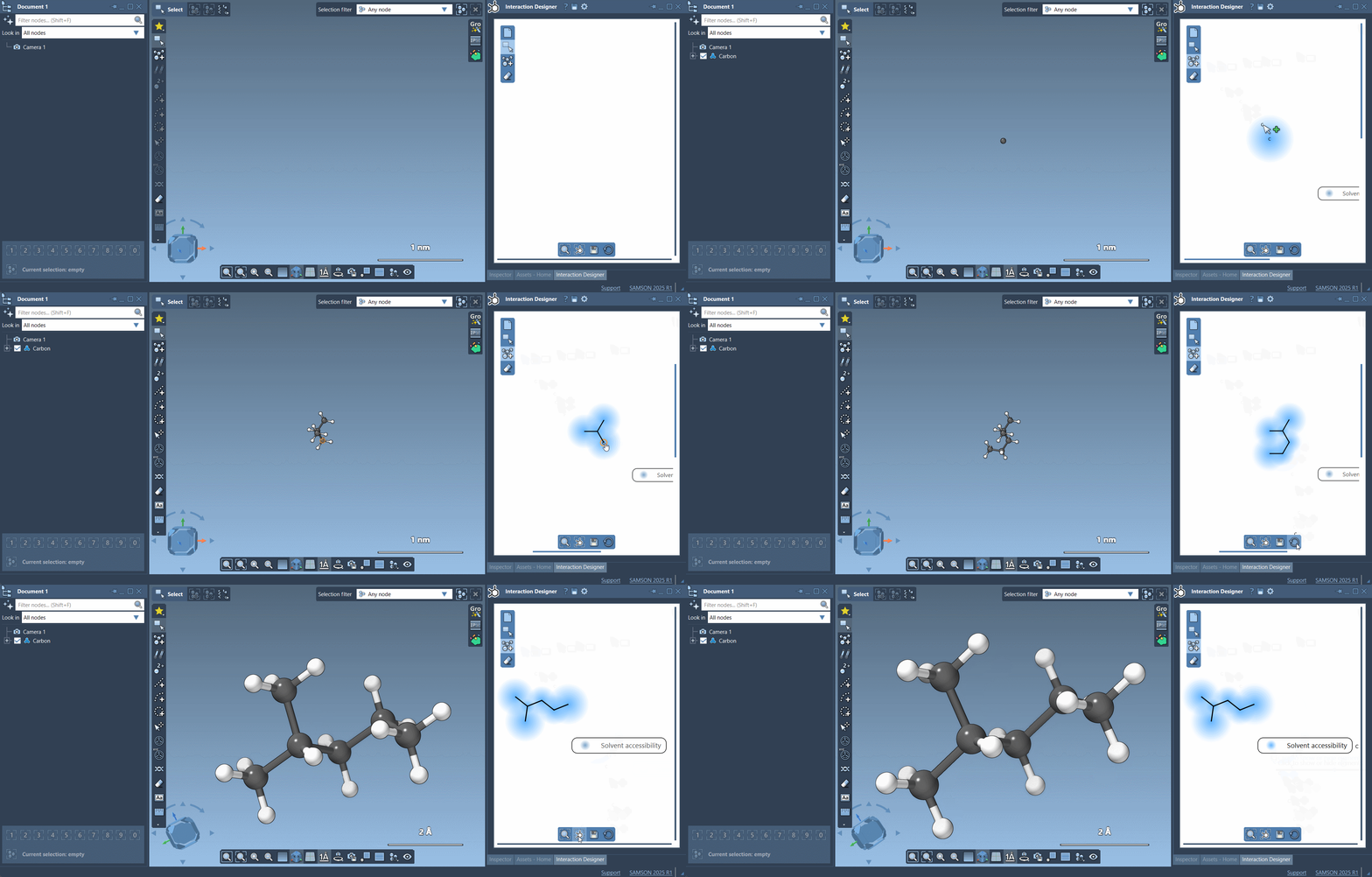
Need to erase atoms? Simply activate the Erase tool and remove unwanted components effortlessly.
Export and Share Diagrams
The fruits of your molecular design and interaction analysis can be exported in various image formats like PNG, JPG, BMP, and even SVG. This makes sharing your work or including it in reports hassle-free. All you need is to hit the Save button in the bottom panel!
With tools like the Interaction Designer, what used to take hours can now be done in minutes, with better integration and visualization than ever before.
If you’re ready to streamline your molecular modeling workflows, start exploring the Interaction Designer today! To dive deeper into the available features, visit the official Interaction Designer documentation.
Note: SAMSON and all SAMSON Extensions are free for non-commercial use. Get started by downloading SAMSON at https://www.samson-connect.net.