



A molecular path can be difficult to interpret when the structure contains thousands of atoms. If your question is simply “Where did this ligand or domain move?”, inspecting every atom along every frame may add visual clutter without making the overall route clearer.
One useful summary is the center-of-mass (COM) path. In SAMSON, the Pathlines visual model draws the COM trajectory of selected atoms along one or more paths. It gives you a compact view of group displacement—useful for examining ligand unbinding, diffusion, or collective domain movement—without confusing that summary with the motion of each individual atom.
What a pathline tells you—and what it does not
A pathline answers a specific question: how does the center of mass of this selected group move along the selected path? It is therefore well suited to comparing the broad route taken by a ligand or atom group. Because it summarizes a group as one point, it does not show the group’s internal rearrangements or the motion of individual atoms. If those details matter, inspect the structure and path as well as the pathline.
Build a focused view
- Install the Pathlines extension from SAMSON Connect, then restart SAMSON.
- Load the sample system through Home > Download, using the document URL https://www.samson-connect.net/documents/046f1acd-c799-40f6-8185-cb4847eff795. The example contains lactose permease (
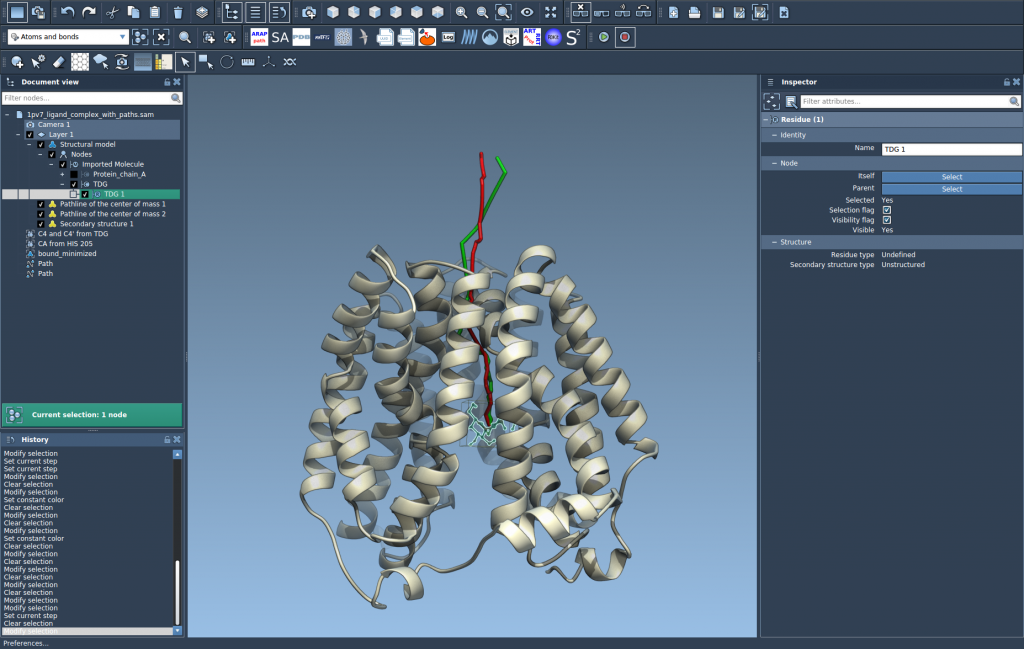
1PV7), the ligand thiodigalactoside (TDG), and two paths generated with Ligand Path Finder. - In the Document view, select the atoms whose group motion you want to summarize, then select one or more paths. Use Ctrl-click on Windows/Linux or Cmd-click on macOS to select multiple nodes.
- Choose Visualization > Visual model > More…, select Pathline of the center of mass, and click OK.

Selection determines what the visual summary means. Selecting the ligand focuses the line on ligand displacement; selecting a different atom group changes the group whose COM is followed. If no atoms are selected, the entire system is used. If no paths are selected, all paths in the document are used. These defaults are convenient, but for a targeted comparison it is worth checking the selection before creating the visual model.
Use the pathline as a guide, not a verdict
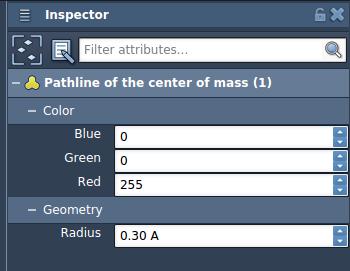
Once created, the line can help make the overall displacement easier to see in the context of the molecular structure. You can double-click a path in the Document view to start or stop it, and right-click it to access path options. Select the path and open the Inspector to access its controllers. To change the pathline’s appearance, select the pathline visual model and adjust its properties, such as color and thickness, in the Inspector.
A practical way to read a crowded result is to start with one meaningful group and one path, then add other paths if you want to compare routes. Keep the molecular structure visible as a reference: the COM line summarizes displacement, while the surrounding atoms provide context for where that displacement occurs. Also note that deleting a path removes its associated pathline, and deleting atoms used by a pathline changes the visualization.
For the full walkthrough and sample setup, see the Pathlines tutorial.
Note: SAMSON and all SAMSON Extensions are free for non-commercial use. Get SAMSON.