



For molecular modelers, tracking the movements of ligands, residues, or groups of atoms in complex systems is an essential part of understanding molecular behavior. Whether you’re exploring ligand unbinding, domain motions, or diffusion, having a precise visualization of such motion is key to meaningful interpretations. If you’ve ever struggled to capture the subtle trajectories of atoms over simulations, SAMSON’s Pathlines visual model might just make your life easier.
What’s the Challenge?
In molecular modeling, interpreting detailed motion data can often feel overwhelming. It’s not just about the absolute positions of atoms; what’s even more important is how structures shift, react, and transition, particularly when examining a complex protein-ligand interaction or conformational changes in macromolecules. Without the right tools, visualizing trajectories—especially the collective motion of atoms—can be cumbersome and unclear.
How Does Pathlines Help?
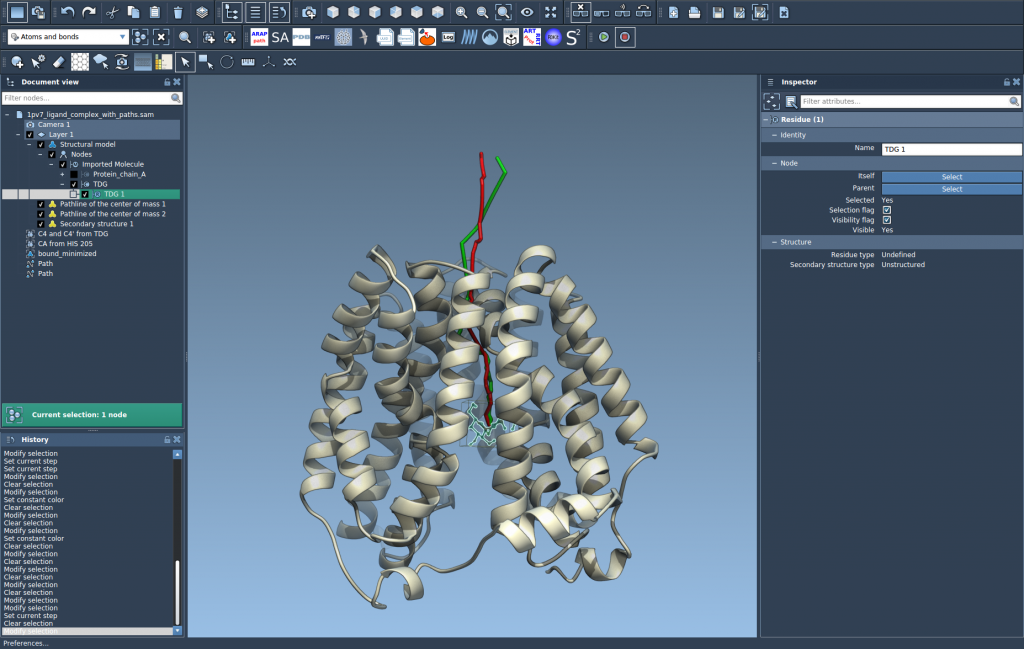
The Pathlines visual model in SAMSON takes the stress out of this process by allowing users to directly observe the center-of-mass (COM) trajectory for selected groups of atoms along specified paths. This streamlined visualization is ideal for studying:
- Ligand unbinding or rebinding routes
- Macromolecular conformational changes
- Diffusion and atomic motion across simulations
A Step-by-Step Look
1. Loading the Sample System
To get started, load the Lactose permease (1PV7) sample provided in the tutorial. This includes its ligand (Thiodigalactosid, TDG) and unbinding paths generated with the Ligand Path Finder. You can find the sample here. Ensure you’ve completed this step so that you can follow along with the tutorial properly:

2. Selecting Atoms and Paths
Decide which atoms and paths you’d like to track. In SAMSON’s Document view, select a group of atoms whose COM motion you want to analyze along one or more paths. Hold Ctrl / Cmd to select multiple nodes. For fully automated visualization, you can also leave the selection blank—to use the entire system or all paths in the document.

3. Creating the Pathline Visual Model
With your atom groups and paths selected, you can now create a Pathline visual model:
- Navigate to Visualization > Visual model > More… (shortcut: Ctrl/Cmd + Shift + V).
- In the dialog box that appears, choose Pathline of the center of mass and click OK.
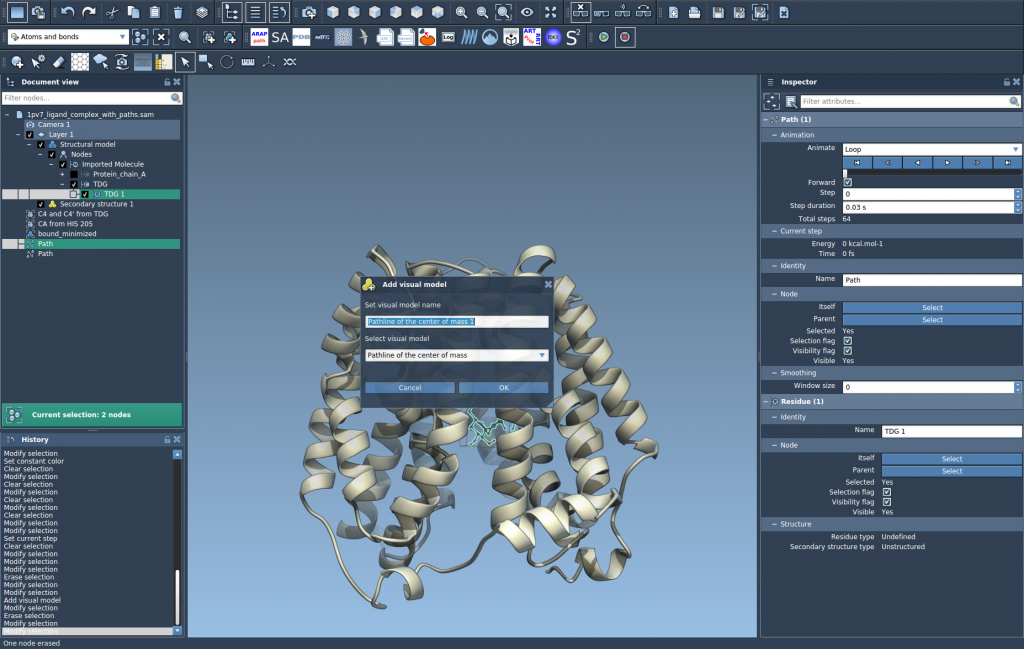
4. Exploring and Customizing Your Pathline
Once the Pathline visual model is created, you can easily explore and adjust it for better clarity:
- Double-click a path in the Document view to play/pause its animation.
- Right-click a path to access its context menu for more options.
- Use the Inspector (Ctrl/Cmd + 2) to adjust visual attributes like color and thickness of the Pathline.
Final Thoughts
The Pathlines tool provides a straightforward, visually intuitive approach to tracking molecular motion, helping you gain clearer insights into processes like ligand unbinding and reaction coordinate workflows. If you’d like to explore additional ways to optimize paths, consider using the Parallel Nudged Elastic Band (P-NEB) for further refinement.
For detailed instructions and additional resources, visit the official Pathlines tutorial page.
Note: SAMSON and all SAMSON Extensions are free for non-commercial use. You can get SAMSON at samson-connect.net.