



Placing lipids around a protein by hand can quickly become tedious: each molecule needs a sensible orientation, the layer needs to surround the protein, and copies should not overlap the structure already in the scene. Molecular Box Builder offers a more systematic starting point. It can replicate a selected lipid across a defined 3D box while taking existing molecules into account.
This workflow is useful for building a single lipid layer around a protein. It is a geometry-building step, not a substitute for later minimization or equilibration, but it can help you create a structured starting arrangement without positioning each lipid individually.
First, give the protein a clear orientation
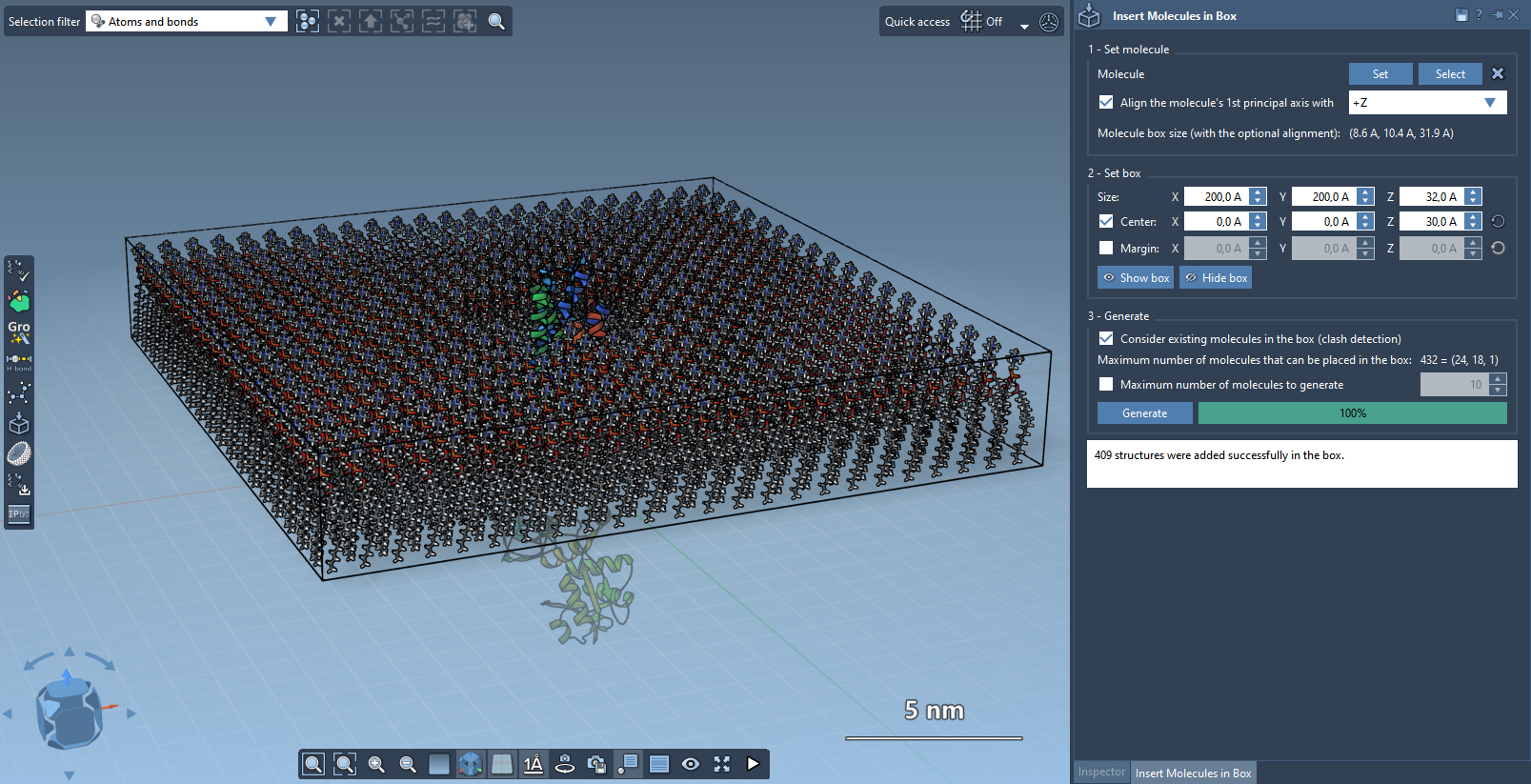
A box is defined along the X, Y, and Z axes, so orienting the protein before setting up the lipid layer makes the box easier to reason about. In SAMSON, right-click the protein in Document view and choose Move selection > Align with Z axis, then choose Move selection > Center on the origin.
This puts the protein’s long direction along Z and centers it at the origin. The practical benefit is that you can define a box around the protein with its dimensions and center in mind, rather than trying to compensate for an arbitrary orientation. The alignment and centering are setup choices; you can still move or rotate objects later with SAMSON’s Move editors.
Set the lipid and its orientation
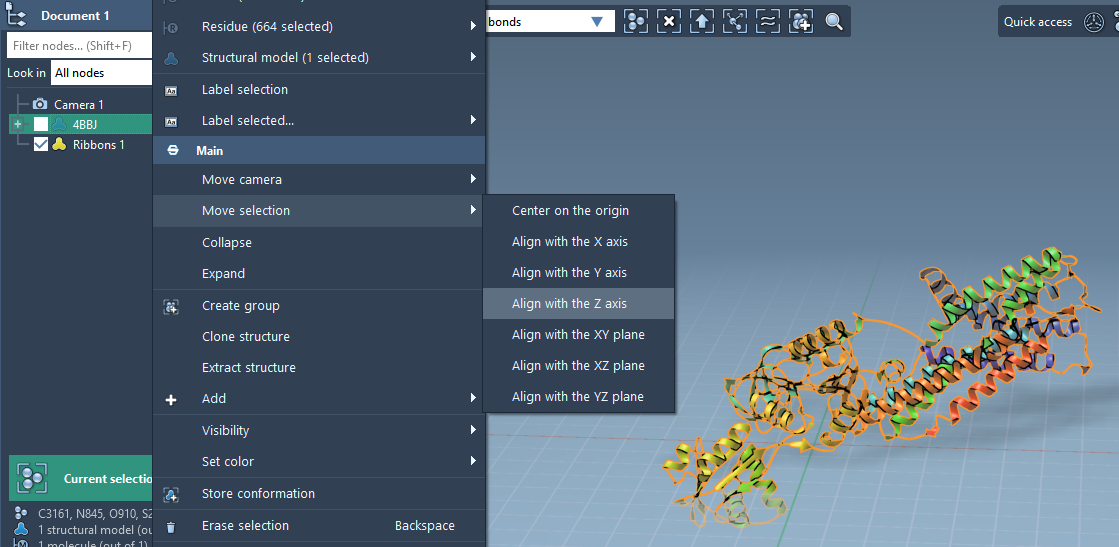
Import the lipid you want to use, select it, open Home > Apps > Assembly > Molecular Box Builder, and click Set. You can also find the app through Find everything… by pressing Shift+E and searching for Molecular Box Builder.
For a layer around a protein aligned to Z, set the lipid’s principal axis to +Z. The app defines this axis as the first eigenvector of the molecule’s moment of inertia. It calculates the molecule’s bounding box using the chosen alignment, which helps it estimate how many copies fit. If you need to inspect the selected structure, use Select in the app; use X to clear the current molecule.
Define the space, then account for the protein
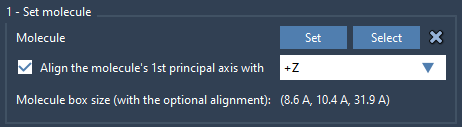
Enter the box dimensions along X, Y, and Z. Enable Center and set the center coordinates so the box is centered around the protein. By default, the box corner is aligned with the origin, so checking the center setting is an important detail when the protein has already been centered there.
Next, set the margin between inserted molecules if needed. A positive or negative margin changes the spacing; by default, the builder places molecules so they do not clash with one another. The app predicts how many copies fit along each axis and the total number. Treat that prediction as a planning aid: changing the box dimensions or margin updates it.
For a protein-associated layer, enable Consider existing molecules in the box before generating. This tells the builder to place lipids only in available space, rather than treating the box as empty. Review the box dimensions and predicted count before clicking Generate. You can optionally set a maximum number of molecules if you do not want to fill every available position.
From one layer to a bilayer
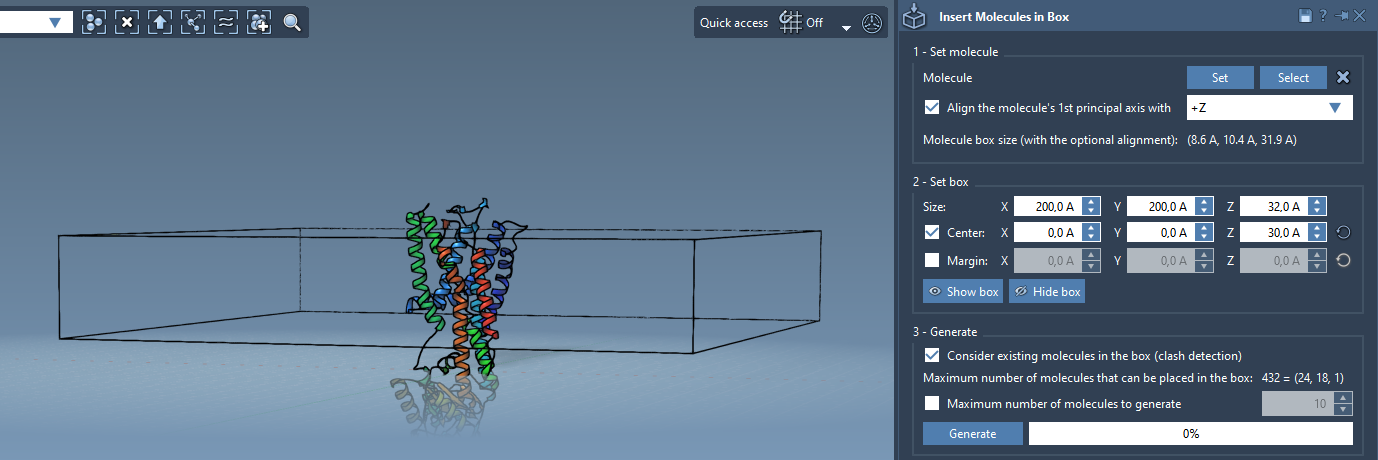
To make a single layer, generate the arrangement with the lipid aligned to +Z and the protein inside the box. To build a bilayer, the documented approach is to create the first layer with +Z alignment, shift the box center along Z, and create the second layer with -Z alignment. The opposite orientation gives the two layers different directions.
After generating the arrangement, inspect it in the scene. A generated structure is a starting configuration: the next step may be to minimize and equilibrate it before simulation. SAMSON’s GROMACS Wizard can be used for preparing and simulating systems; see the GROMACS Wizard tutorials.
For the complete Molecular Box Builder walkthrough, including solvent boxes and other replicated assemblies, read the original documentation.
Note: SAMSON and all SAMSON Extensions are free for non-commercial use. Get SAMSON.