



A molecular transition path can look plausible and still be awkward to interpret: neighboring structures may be unevenly spaced, and the sequence may not follow a physically meaningful route. The Parallel Nudged Elastic Band method (P-NEB) addresses a specific part of this problem: it refines a candidate path by optimizing its intermediate images while spring forces help keep neighboring states evenly distributed.
The important distinction is that P-NEB refines a path; it does not generate the initial pathway for you. Start with a path or a sequence of conformations representing a possible transition. If you have only two relaxed endpoint structures, first create intermediate states—for example, by linear interpolation or with a path-generation tool such as Ligand Path Finder. Then use P-NEB to improve the candidate.
Why refine a path?
Think of a path as a sequence of snapshots connecting molecular states. The snapshots between the endpoints are the images P-NEB optimizes. The Nudged Elastic Band method combines the system’s energy and forces with spring forces between neighboring images, helping relax the pathway without letting its images bunch together arbitrarily. P-NEB implements the climbing-image NEB method, which can be used to search for a saddle point. In the basic workflow below, however, leave the climbing-image option unchecked; you can run the calculation again with it enabled if you want to try that strategy.
This is useful when you already have a proposed transition—such as a ligand unbinding route—and want to examine a refined version rather than treating a rough trajectory as the final result.
Prepare the input
Install the P-NEB extension and the FIRE state updater. In SAMSON, use Home > Download to load a sample document. The tutorial provides a smaller zinc-ligand unbinding example for tests, as well as a protein–ligand system containing lactose permease (1PV7), thiodigalactoside (TDG), and unbinding paths.

Before starting, check what kind of input you have. A path stores a trajectory for selected atoms. A conformation stores positions for a selected group of atoms. P-NEB accepts either, but for the same system and number of steps, the tutorial notes that using a path is faster. If your input is a set of conformations, you can select them and use Conformation > Create path from conformations in the context menu before running the refinement.
Run P-NEB on a path
- Open P-NEB from Home > Apps > All > P-NEB, or find it using the Find everything… search box.
- Set the spring constant to
1.00and the number of loops to100. - Choose Universal Force Field as the interaction model and FIRE as the optimizer.
- Leave Climbing image method unchecked for the first run. Check Parallel execution to run one thread per conformation, and enter
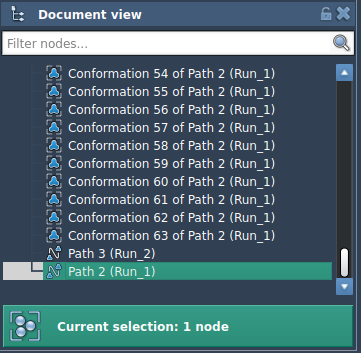
NEBas the suffix name. - Select the input path in the Document view and click Run.
When the Universal Force Field setup asks whether to use existing bonds, choose to use them and click OK. The app then initializes and computes the optimized pathway. Progress is shown in the status bar. When the run finishes, SAMSON adds a new path to the Document view, leaving the original available for comparison.

Inspect before interpreting
Select the resulting path and examine it with the Inspector. You can also double-click the path to start or stop its animation and watch how the selected atoms move through the sequence. Compare the refined route with the input: look for changes in the progression of structures and whether the motion is easier to follow. A smoother-looking animation is not, by itself, proof that a pathway is experimentally correct; treat the result as a refined computational candidate for further inspection or analysis.
The same app can process a selected set of conformations when no path is available, although the path-based workflow is preferable when both inputs represent the same steps. After inspecting the output, you can export the path or continue into a simulation or free-energy workflow.
For setup details and related workflows, see the full P-NEB tutorial.
Note: SAMSON and all SAMSON Extensions are free for non-commercial use. Get SAMSON.