



Molecular modelers often face challenges in extracting meaningful physical insights from simulation data. One common task is computing the Potential of Mean Force (PMF), a critical quantity for understanding free-energy profiles along reaction coordinates. Achieving this can feel daunting without the right tools or guidance, especially after completing an umbrella-sampling workflow. Thankfully, the GROMACS Wizard in SAMSON provides a straightforward and streamlined way to perform PMF analysis using the Weighted Histogram Analysis Method (WHAM).
Why PMF Analysis Matters
PMF profiles are essential for understanding the energy landscape of systems under investigation, such as molecular binding or conformational changes. They can identify energetically favorable states, reveal energy barriers, and guide experimental or computational follow-ups. However, assembling the necessary input and organizing simulations can often be cumbersome.
Using the GROMACS Wizard for PMF Analysis
The GROMACS Wizard is designed to simplify this workflow without compromising on precision. Here’s a step-by-step guide to computing a PMF profile:
- Select Your Project Path: Navigate to the WHAM Analysis tab in the GROMACS Wizard. Here, you’ll be prompted to choose your project folder. If you’ve just completed an umbrella-sampling step, you can use the auto-fill button (
 ) to streamline this process.
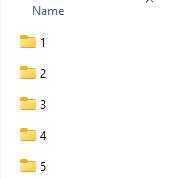
 - Confirm Input Organization: Verify that your folder structure contains subfolders for different simulation windows that align with the same system and reaction-coordinate definitions. A well-organized structure is key to accurate results:
- Choose the Reaction Coordinate: From the GROMACS Wizard interface, select the reaction coordinate you wish to analyze. The Wizard automatically loads relevant information, such as the reaction-coordinate range, temperature, and time frame.
- Adjust Settings (Optional): You can fine-tune your analysis by setting custom bounds, time ranges, or energy units to suit your study’s specifics.
- Compute the PMF: Once you’re satisfied with the inputs and settings, click Compute. The Wizard will generate two critical plots:
- The PMF profile, showing the free-energy surface along the reaction coordinate.
- A histogram to assess the coverage of the coordinate space, ensuring the simulation adequately sampled all regions.
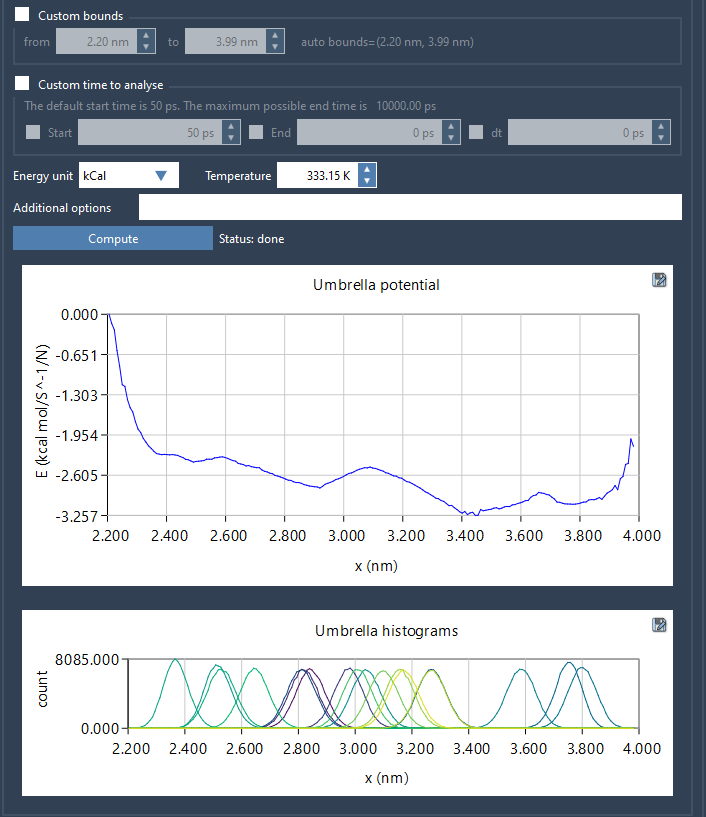
The GROMACS Wizard then saves the results, including the plots, histograms, and profile data, in the wham_results subfolder within your project directory. You can also reuse this data for alternative analyses with the same reaction-coordinate system by simply switching parameters.
Making Sense of the Results
The histogram provides valuable insights into how effectively the reaction-coordinate space was covered. If any regions appear under-sampled, this may necessitate additional simulations or extended sampling for those specific windows.
Next Steps: Refine and Revisit
Once you’ve interpreted the PMF profile, it’s essential to verify the fidelity of the simulation data. If you notice gaps or unusual artifacts in the results, returning to the umbrella-sampling workflow to enhance coverage or extend simulations can improve reliability.
To explore this tutorial further, visit the original documentation at https://documentation.samson-connect.net/tutorials/gromacs-wizard/pmf-analysis/.
SAMSON and all SAMSON Extensions are free for non-commercial use. You can download SAMSON at https://www.samson-connect.net.