



If you’ve ever needed to export ligand trajectories for free energy calculations or reaction coordinate analysis, you know how time-consuming it can be to prepare the data. With SAMSON’s Export Along Paths extension, this process becomes significantly easier, helping you focus on the science rather than tedious manual setup. Here’s how it works.
Why You Might Need This
When working with molecular systems, there are many cases in which extracting the trajectories of specific atoms along defined paths becomes critical. For instance, if you’re performing free energy profiling for a ligand-binding or unbinding event, or analyzing key intermediate states in molecular simulations, having a reliable method to export these trajectories is a huge time-saver.
SAMSON allows molecular modelers to seamlessly export such trajectories with its Export Along Paths extension. Whether you need all atoms or just specific subsets (like binding site residues or a ligand), this tool simplifies the task with a user-friendly interface.
Getting Started with Export Along Paths
The first step is to install the Export Along Paths extension from SAMSON Connect. After installation, restart SAMSON and load your molecular system. For this demonstration, we’ll use a sample system featuring the Lactose permease protein (1PV7) and its ligand, Thiodigalactosid (TDG), along with predefined unbinding paths generated with the Ligand Path Finder. This system can be easily downloaded directly from the tutorial.

Two Efficient Export Options
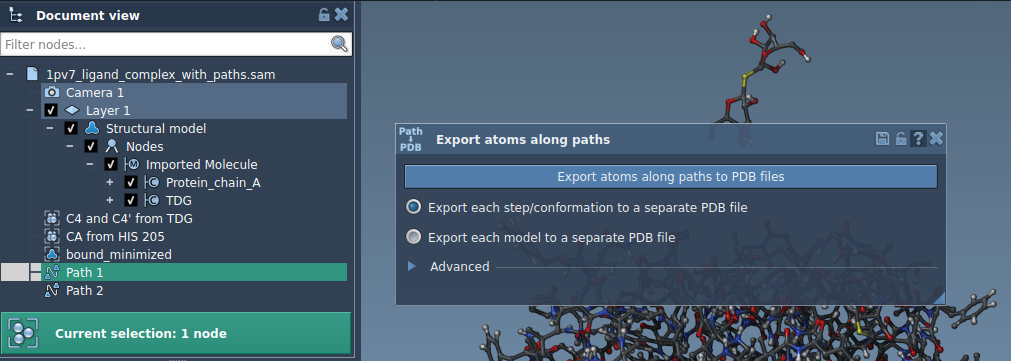
Once your molecular system is ready, open the Export Along Paths application via Home > Apps > All > Export Along Paths. Here’s how to export data depending on your needs:
Option 1: Export All Atoms
- Select one or more paths in the Document view.
- Choose your export mode: all frames in a single PDB file, or each frame as a separate PDB file.
- Click Export atoms along paths to PDB files, specify the destination folder and file prefix, and you’re done! You can optionally adjust frame export intervals under the Advanced section.
Option 2: Export a Subset of Atoms
Sometimes, you only need to analyze a specific subset of atoms, like a ligand or residues in a binding pocket. Here’s how to do that:
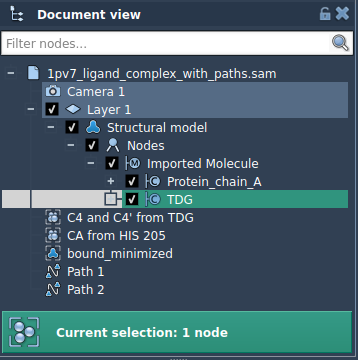
- In the Advanced panel, select specific atoms (e.g., the ligand
TDG) in the Document view. - Click Add to define this selection as a model for export, which will appear as a named group in the export table. You can rename it, add multiple sets of atoms, or use the Reset button to redefine it if necessary.
- Once satisfied, choose your export format (single or multiple PDB files), select a path, and click Export atoms along paths to PDB files.
This flexibility saves time, especially when managing complex trajectories or focusing on specific interactions.
Applications in Molecular Modeling
Exporting trajectory data can enable workflows for tasks like:
- Generating reaction coordinates for free energy calculations.
- Analyzing ligand binding/unbinding trajectories.
- Visualizing intermediate states in simulations.
- Tracking movements of specific groups, such as a backbone or active site residues.
Try It Yourself
To learn more about exporting trajectories in SAMSON, visit the full documentation.
Note: SAMSON and all SAMSON Extensions are free for non-commercial use. Get SAMSON here.