



Building carbon nanotubes (CNTs) can seem daunting, especially if your goal is precision. Whether for molecular simulations, nanotechnology, or electronic property studies, SAMSON’s Nanotube Creator Extension makes it intuitive and straightforward. In this guide, we’ll walk you through how to interactively construct nanotubes step by step using this tool, which is particularly helpful for tasks like creating single-walled or multi-walled CNTs with customized configurations.
The Problem: Precise Nanotube Building
As a molecular modeler, you may often face the challenge of accurately configuring CNT dimensions, such as radius or length, while ensuring their alignment in space. Tools without intuitive feedback systems can lead to trial-and-error workflows, slowing down research. SAMSON resolves this with interactive feedback and graphical controls that let you build CNTs effortlessly in the viewport.
Step 1: Setting Up Your Nanotube Axis and Length
To begin, you’ll launch the Nanotube Creator editor in SAMSON. You can activate it via the viewport menu (… > Materials > Nanotube Creator) or by searching “Nanotube Creator” with the shortcut (Shift + E).
Once activated:
- Define axis and length: Press and drag the left mouse button in the viewport. You’ll see a live preview of the nanotube’s orientation and length (determining the
nparameter). - Real-time feedback: Observe the status bar as you drag your mouse, which provides live updates on the axis orientation and tube length.

With these visuals and the status bar, you can precisely align your nanotube for your project.
Step 2: Adjusting the Radius
Once the length is set, it’s time to configure the radius, corresponding to the m parameter:
- Release the left mouse button after setting the length.
- Move the mouse to adjust the nanotube’s radius. Again, the status bar will help you monitor changes.
- Click the left mouse button again to finalize the radius.
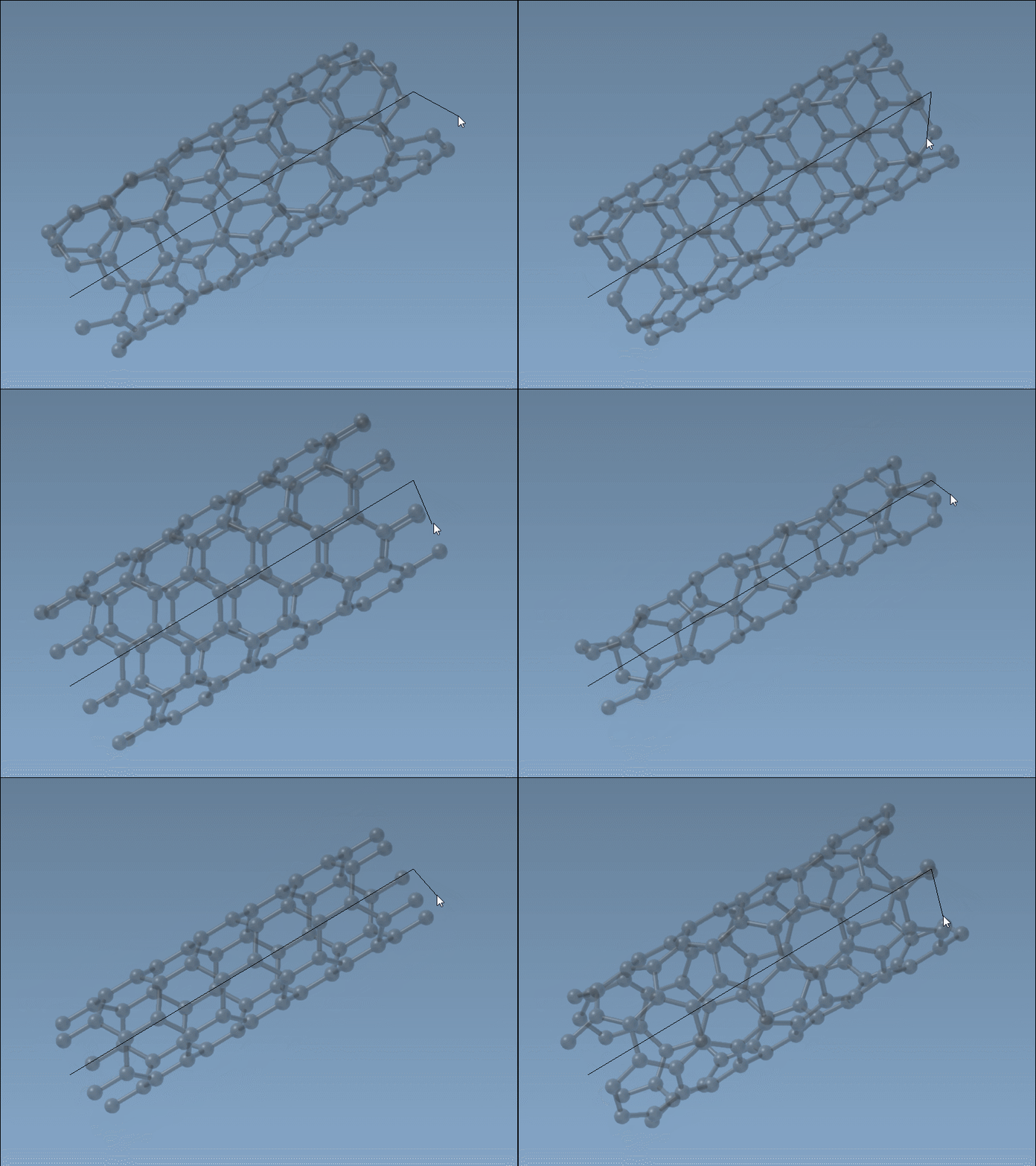
These steps provide control over the most critical parameters of a CNT’s geometry, allowing you to design structures that truly match your modeling needs.
Tips: Using the Status Bar for Precision
The status bar offers invaluable feedback during the creation process. As you drag your mouse, it shows updates on the parameters n (proportional to length) and m (proportional to radius). By closely monitoring these values, you can ensure your nanotube fits specific requirements.
Why Use Interactive Mode?
Interactive mode is ideal for when you need manual control over geometric configurations, enabling you to:
- Quickly prototype CNT designs for molecular analyses.
- Experiment with varying configurations and get instant visual feedback.
- Troubleshoot alignment and spatial placement in nanostructures.
What’s Next?
With your nanotube created, you can:
- Export images for visual presentations.
- Simulate the nanotube’s properties in real-time using techniques like the Brenner potential.
- Integrate CNTs into more complex hybrid nanostructures.
For a deeper dive, consult the original documentation page.
Note: SAMSON and all SAMSON Extensions are free for non-commercial use. To start exploring, download SAMSON at https://www.samson-connect.net.