



A new force-field workflow can be deceptively easy to start—and surprisingly easy to misconfigure. The system may be assigned to the wrong application domain, a molecular charge may not match the intended state, or the first energy readout may appear blank while the model is still initializing. These are small setup details, but they can make an exploratory modeling session confusing or lead you to interpret results too soon.
UMA in SAMSON offers interactive energy and force evaluation with machine-learning atomistic models. It is suited to fast geometry refinement, exploratory relaxation, and qualitative force analysis. A useful way to approach it is to treat setup as a sequence of checks: match the task to the system, select a model appropriate for the first pass, verify the inputs that define the calculation, and wait for the first successful evaluation before judging the output.
1. Match the task to the system
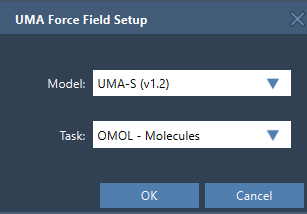
After opening your structure, add a simulator through Edit > Simulate > Add simulator, choose UMA Force Field, select a state updater—for example, FIRE—and press OK. In the setup window, choose both a model and a task. The task is not just a label: it selects the application domain for the system you are evaluating.
- OMOL – Molecules: molecular systems. This is the task whose interface uses total charge and spin multiplicity.
- OMAT – Inorganic materials: bulk inorganic materials workflows.
- ODAC – MOFs: MOF and direct-air-capture-style adsorption workflows.
- OC20 – Catalysis: catalytic surfaces and adsorbates.
- OMC – Molecular crystals: molecular-crystal systems.
When a structure could plausibly fit more than one category, pause and identify what you are actually modeling: an isolated molecule, a bulk material, an adsorbate on a catalytic surface, or a molecular crystal. Choosing a task that matches the system is a more meaningful first decision than simply choosing the largest available model.
2. Start with a practical model choice
The extension offers UMA-S in two versions—2.3 GB, v1.2, and a lighter 1.1 GB, v1.1—and UMA-M, an 11.7 GB, v1.1 model with more capacity. For a first exploratory workflow, the documentation recommends starting with UMA-S unless you already know you need UMA-M. This keeps the initial choice straightforward while you check that the task and structure are set up as intended.
Before creating the simulation, make sure the UMA Force Field and Python Scripting extensions are installed and up to date, and that the machine can install Python packages on first use. On its first run, UMA prepares a dedicated Python environment and may request access to the models. Follow the prompts in SAMSON. Setup can take time, and after it finishes you may need to create the interaction model again.
3. For molecules, check charge and spin
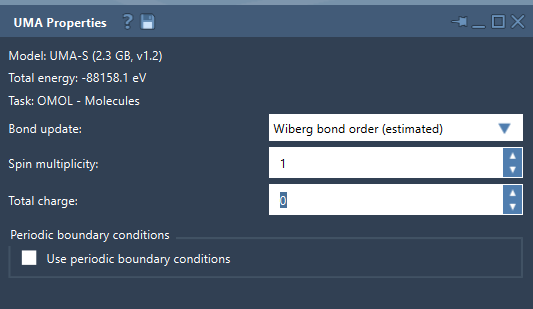
If you selected OMOL – Molecules, verify the total charge and spin multiplicity in the UMA Properties window. These values are part of the request sent to UMA, so they should represent the molecular system you intend to model. Don’t treat the defaults as confirmation that they are correct for your structure.
4. Give the first evaluation time to finish
Once the environment is ready and the model is accessible, start the simulation with Edit > Simulate > Start. The properties window may initially report that energy is unavailable. That can simply mean the first UMA evaluation has not completed yet. Wait for it to finish; the total energy is displayed after a successful evaluation. Then you can interactively move atoms or refine the structure while UMA updates energies and forces.
This small pause matters: an empty initial energy field is not, by itself, a result you should interpret. First confirm that the backend has started and the first evaluation has succeeded.
5. Treat visualized bond orders as estimates
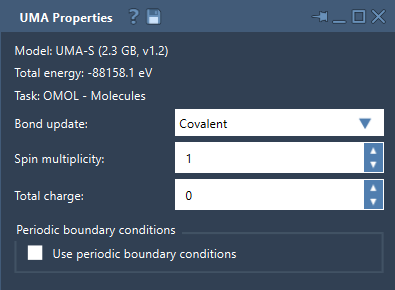
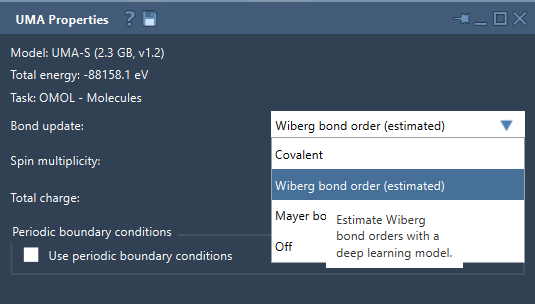
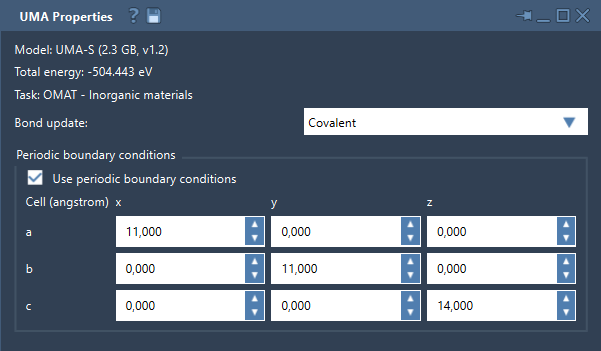
The Bond update control determines how the bond graph is handled during a simulation. Covalent recomputes covalent bonds from the current structure; Off leaves the existing graph unchanged. The Wiberg and Mayer options estimate bond orders with a deep-learning model. They can be useful for interactive exploration, but the documentation specifically cautions that these are estimated bond-order visualizations. For important conclusions, confirm them with your reference method rather than treating the displayed estimate as definitive.
6. Check the cell before periodic interpretation
For periodic workflows, the properties window includes a periodic-boundary-conditions control and a 3 × 3 cell matrix in angstroms. Verify that periodic boundary conditions are set as intended and inspect the cell before interpreting results. A cell is part of the context for a periodic calculation, so checking it is a basic input-validation step—not an optional cosmetic detail.
A quick pre-run checklist
- Does the selected task match the system type?
- Are you starting with UMA-S unless you have a reason to choose UMA-M?
- For OMOL, are charge and spin multiplicity consistent with the intended molecule?
- For a periodic system, have you checked the periodic setting and cell matrix?
- Have you waited for the first evaluation before interpreting energy or forces?
- Are estimated bond orders being treated as exploratory rather than definitive?
Use UMA to screen, refine, and explore structures; when a result needs higher confidence, confirm it with an appropriate reference method. For the full setup steps and details, see the UMA Force Field tutorial.
Note: SAMSON and all SAMSON Extensions are free for non-commercial use. Get SAMSON.