



A molecular structure can look reasonable and still produce confusing simulation results if the model is configured for the wrong kind of system. Charge, spin, periodicity, and even the choice of application task all matter. When setting up UMA in SAMSON, a few deliberate checks can make the difference between a useful interactive exploration and a result that is difficult to interpret.
UMA is designed for interactive energy and force evaluation, including fast geometry refinement and exploratory relaxation. It is useful to treat it as a way to screen, refine, and investigate structures—not as a reason to skip checks against a higher-accuracy reference method when final conclusions matter.
1. Match the task to the system
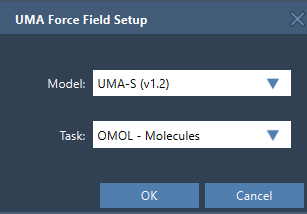
When you add a simulator through Edit > Simulate > Add simulator, choose UMA Force Field as the interaction model. The setup window asks you to select a model and a task. Pick the task based on what you are modeling:
- OMOL – Molecules for molecular systems
- OMAT – Inorganic materials for bulk inorganic materials
- ODAC – MOFs for MOFs and direct-air-capture-style adsorption workflows
- OC20 – Catalysis for catalytic surfaces and adsorbates
- OMC – Molecular crystals for molecular crystals
These options correspond to different application domains; choosing the closest match is a better starting point than treating every structure as a generic molecule. For the model, UMA-S is a sensible default for a fast workflow. The available choices include UMA-S v1.2 (2.3 GB), UMA-S v1.1 (1.1 GB), and the larger UMA-M v1.1 (11.7 GB). The documentation recommends starting with UMA-S unless you already know you need the larger model.
2. Check the details that define your input
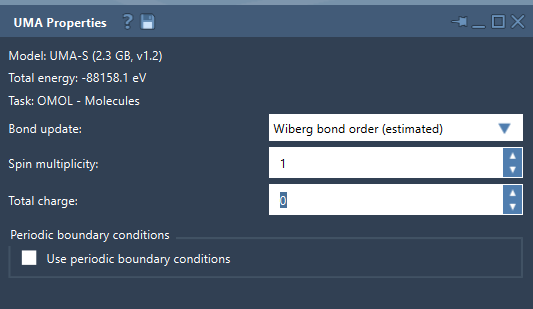
For OMOL, the properties window provides controls for Total charge and Spin multiplicity. Set them to values consistent with the molecular system you intend to model: they are part of the request sent to UMA. If these values are uncertain, pause to verify them rather than treating the defaults as confirmation that they are correct.
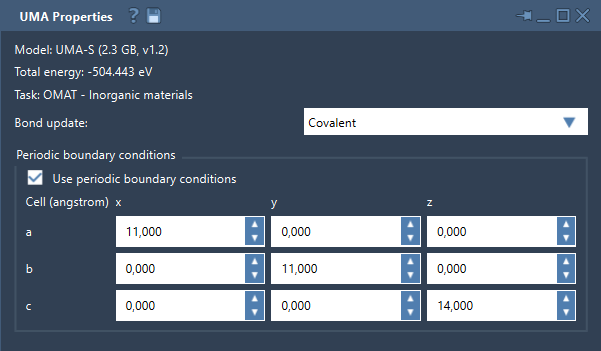
For periodic workflows, inspect the Periodic boundary conditions setting and the 3 × 3 cell matrix, given in angstroms. A cell that does not represent the system you intend to study can make the resulting calculation hard to interpret. Confirm both whether periodic boundary conditions should be enabled and whether the cell is appropriate before drawing conclusions.
3. Plan for first-use setup
Before starting, make sure the UMA Force Field and Python Scripting extensions are installed and up to date, and that the computer can install Python packages on first use. On its first run, UMA prepares a dedicated Python environment and may request access to the models. Follow the prompts in SAMSON; setup may take time, and you may need to create the interaction model again after it finishes.
Once the environment and model are ready, start the simulation with Edit > Simulate > Start. The energy may initially be unavailable while the first evaluation is pending. Wait for that evaluation to complete before interpreting the displayed value. Then move atoms or refine the structure interactively while UMA updates energies and forces.
4. Treat bond-order estimates as exploratory
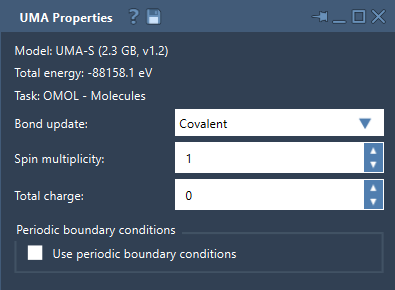
The Bond update control offers several ways to handle the bond graph: recompute covalent bonds, estimate Wiberg or Mayer bond orders with a deep-learning model, or leave the existing graph unchanged. Wiberg and Mayer modes are estimated bond-order visualizations. They can help with interactive exploration, but important conclusions should be checked with your reference method.
A compact pre-run checklist is therefore: choose the matching task, begin with UMA-S, verify molecular charge and spin for OMOL, check the cell for periodic systems, and allow the first evaluation to finish. Use the result to explore or refine, then confirm consequential findings with a higher-accuracy reference method when needed.
For the full setup instructions and interface details, see the UMA Force Field tutorial.
Note: SAMSON and all SAMSON Extensions are free for non-commercial use. Get SAMSON.