



A familiar bottleneck in molecular modeling is turning one promising structure into a useful set of alternatives. Editing SMILES one by one is easy to get wrong: a small change can alter more than the intended region, and keeping track of which candidates came from which substitution quickly becomes tedious.
SAMSON’s RDKit-based SMILES Manager offers a more structured approach: specify an initial molecule, mark the fragment to replace, and supply fragments to insert. The tool combines these pieces and stores the resulting molecules in a Results table. This is useful when you want to explore a defined set of isosteric replacements while keeping the rest of the starting molecule in place.
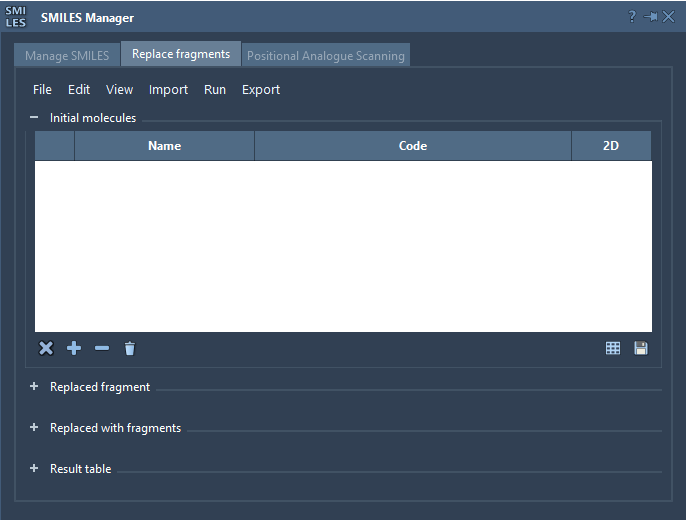
Think in three parts
Before running a replacement, separate the task into three inputs:
- Initial molecule: the molecule whose structure you want to modify.
- Target fragment: the portion of that molecule you want to replace.
- Replacement fragments: the alternatives you want to test in that position.
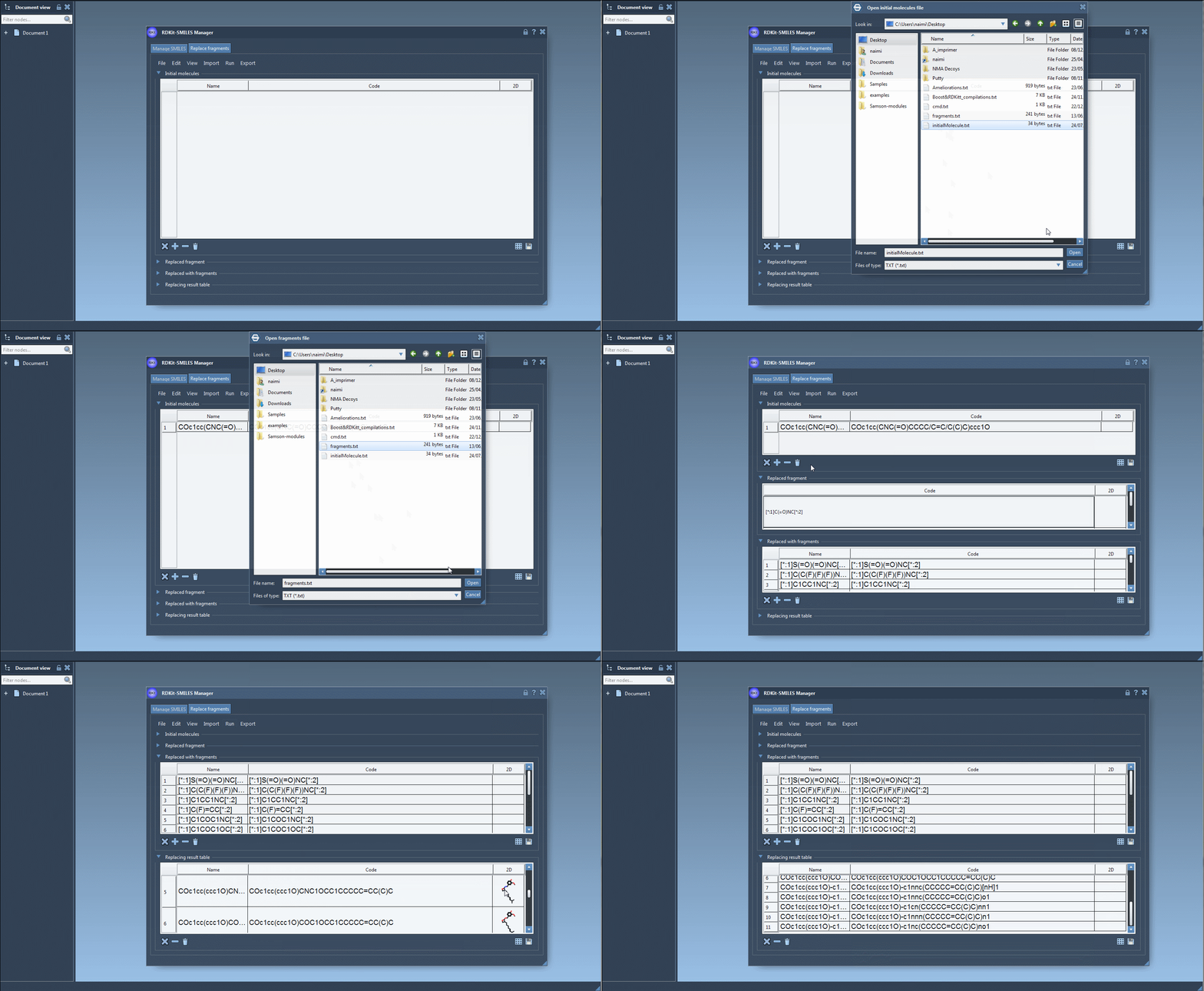
Keeping these roles distinct makes the workflow easier to inspect and repeat. You can load initial molecules from a file, add them manually, or use a selection from the active SAMSON Document. The target fragment and replacement fragments can also be entered manually or imported from the document or files.
Use attachment labels to define the connection
For the example in the tutorial, the initial molecule is COc1cc(CNC(=O)CCCC/C=C/C(C)C)ccc1O. The target fragment is [*:1]C(=O)NC[*:2]. The labels [*:1] and [*:2] mark the two ends of the fragment pattern, telling the replacement workflow where the surrounding molecule connects. Replacement fragments need the same two labeled ends so the software can join them to the scaffold.
For instance, one supplied alternative is [*:1]S(=O)(=O)NC[*:2]. The tutorial also includes alternatives such as [*:1]C1CC1NC[*:2] and [*:1]C1COC1OC[*:2]. These are not standalone molecule strings: the attachment labels are part of the replacement pattern. A useful preparation step is to check that every fragment has both labels and that they represent the intended connection points before you run the operation.
Run, review, then export
Once the inputs are ready, choose Replace fragments from the Run menu. The generated molecules appear in the Results table, which presents SMILES alongside names and 2D depictions, much like the Manage SMILES table. That shared layout helps you review the output as a collection rather than as an unstructured list of strings.
Use the 2D depictions to make an initial visual check that the expected region changed and that the rest of the molecule appears consistent with your design. If a SMILES string is invalid, the manager highlights its row and displays an error image instead of a normal depiction. Treat the generated set as candidates for further inspection, not as evidence that a substitution improves a property: the replacement workflow generates structures, while evaluating their suitability requires your downstream modeling and analysis.
From the Results table, you can view molecules in the active document using the Export menu. You can also create 3D structures, save the results to a file, or export a grid image of the depictions. A grid can be a practical way to compare a set of alternatives in a meeting or keep a visual record alongside your project notes.
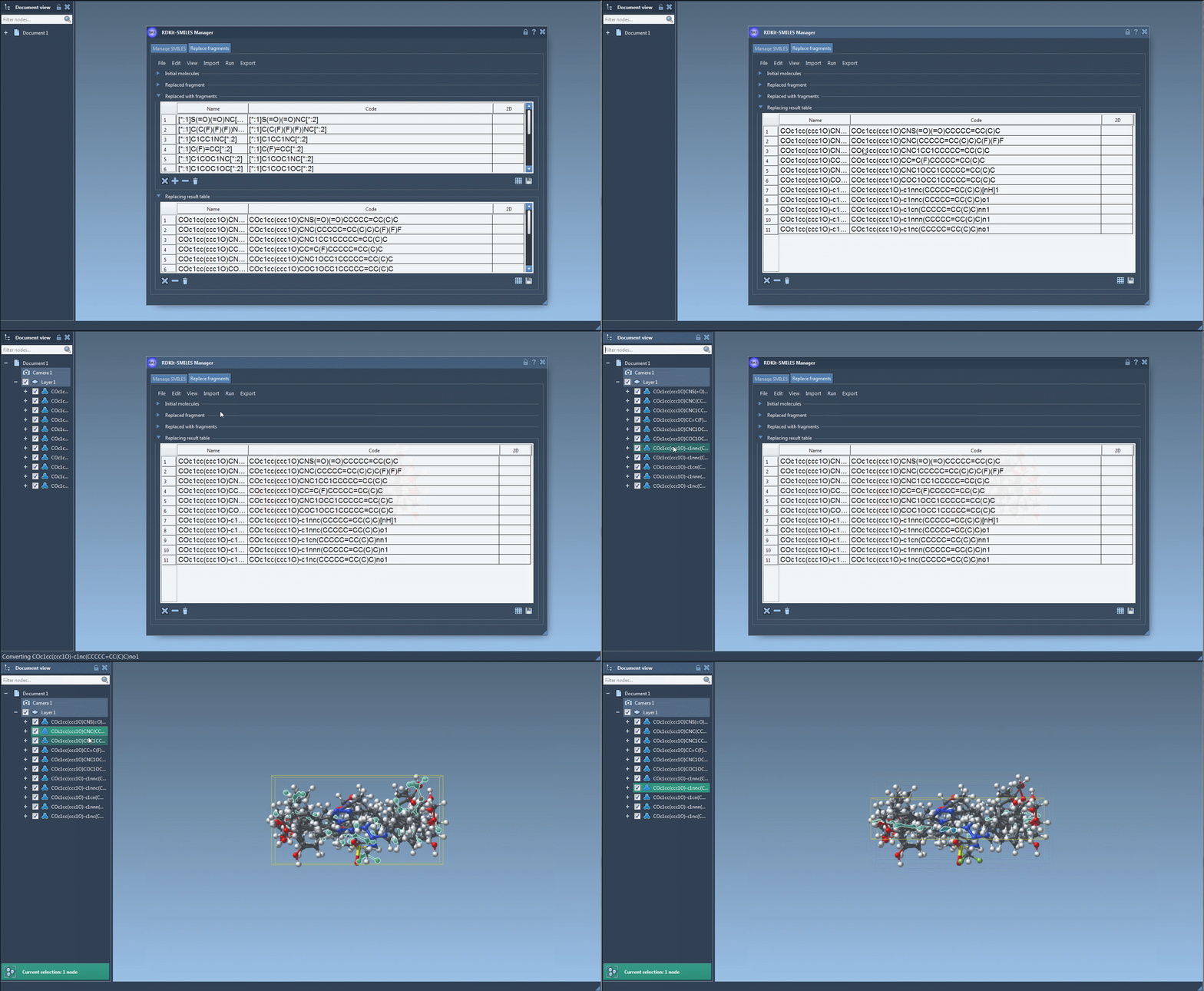
The key benefit is a more organized path from a defined structural edit to a reviewable analogue set. Start with a clear target fragment, use matching attachment labels, and inspect the resulting structures before carrying them into 3D modeling or other analyses.
Read the full SMILES Manager tutorial to learn more.
Note: SAMSON and all SAMSON Extensions are free for non-commercial use. Get SAMSON.