



For molecular modelers, the struggle to seamlessly analyze and design molecules in 2D while keeping everything in sync with 3D visualizations is a frequent challenge. A disjointed workflow often leads to inefficiencies, and manually synchronizing 2D and 3D diagrams can derail focus from scientific discoveries.
With SAMSON’s Interaction Designer, these challenges are addressed through an integrated toolset that combines a 2D molecule editor with a synchronized 3D viewport. Whether you’re visualizing protein-ligand interactions or engineering molecules from scratch, this functionality simplifies the process remarkably. Let’s explore some key features!
Effortless Start to Designing Molecules
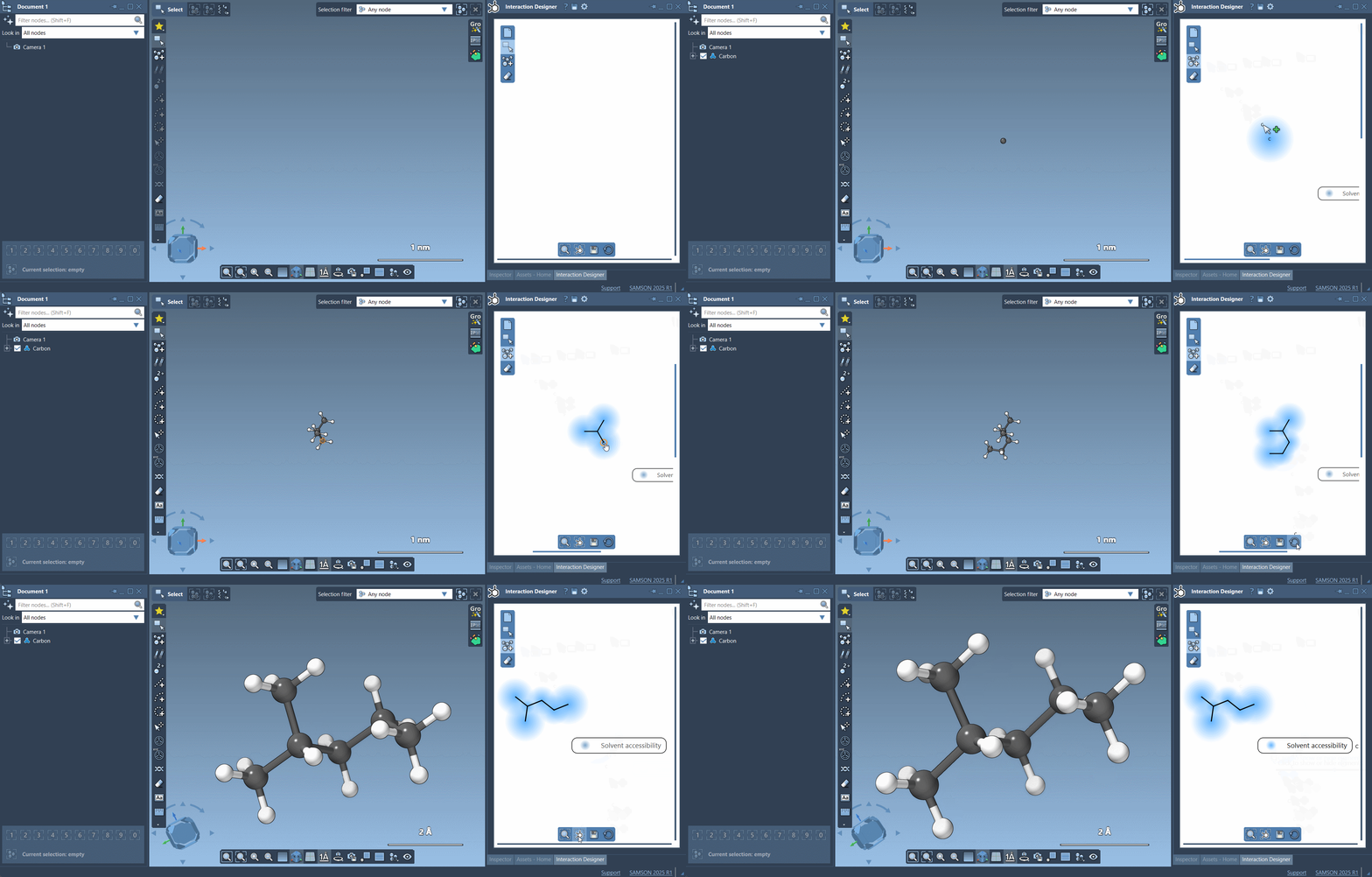
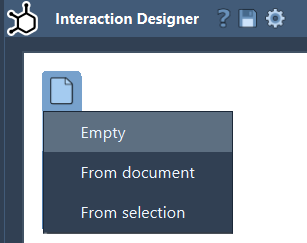
The Interaction Designer makes it easy to start building molecules:
- From scratch,
- From a molecule in an active document,
- Or even from your current selection.
All you need to do is select the Edit > Design command. To streamline the process, the left panel in Interaction Designer features an “Add” mode, where you can directly add atoms step by step in 2D. Atoms can be linked effortlessly by clicking on an existing atom to connect it to a new one, creating a seamless building experience.
Using Atoms from the Periodic Table
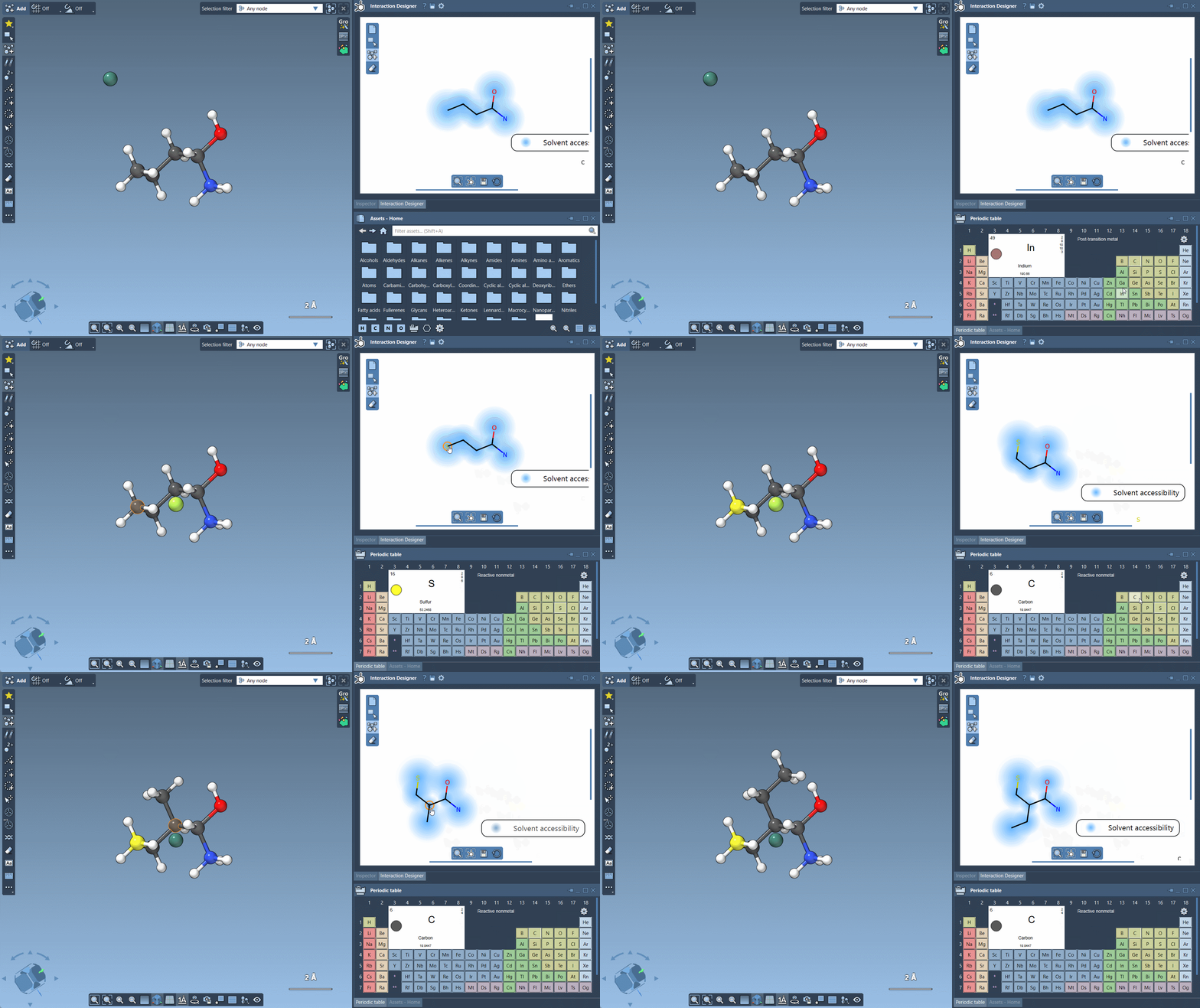
Editing molecules to include specific elements follows an intuitive workflow. For commonly used elements like H, C, N, O, you can quickly switch using button shortcuts in the Assets Browser. For other elements, a fully-featured Periodic Table is integrated into the interface. Simply select your desired element, and you’re ready to build! This flexibility allows modelers to fine-tune molecule designs effortlessly.
Including Fragments for Complex Designs
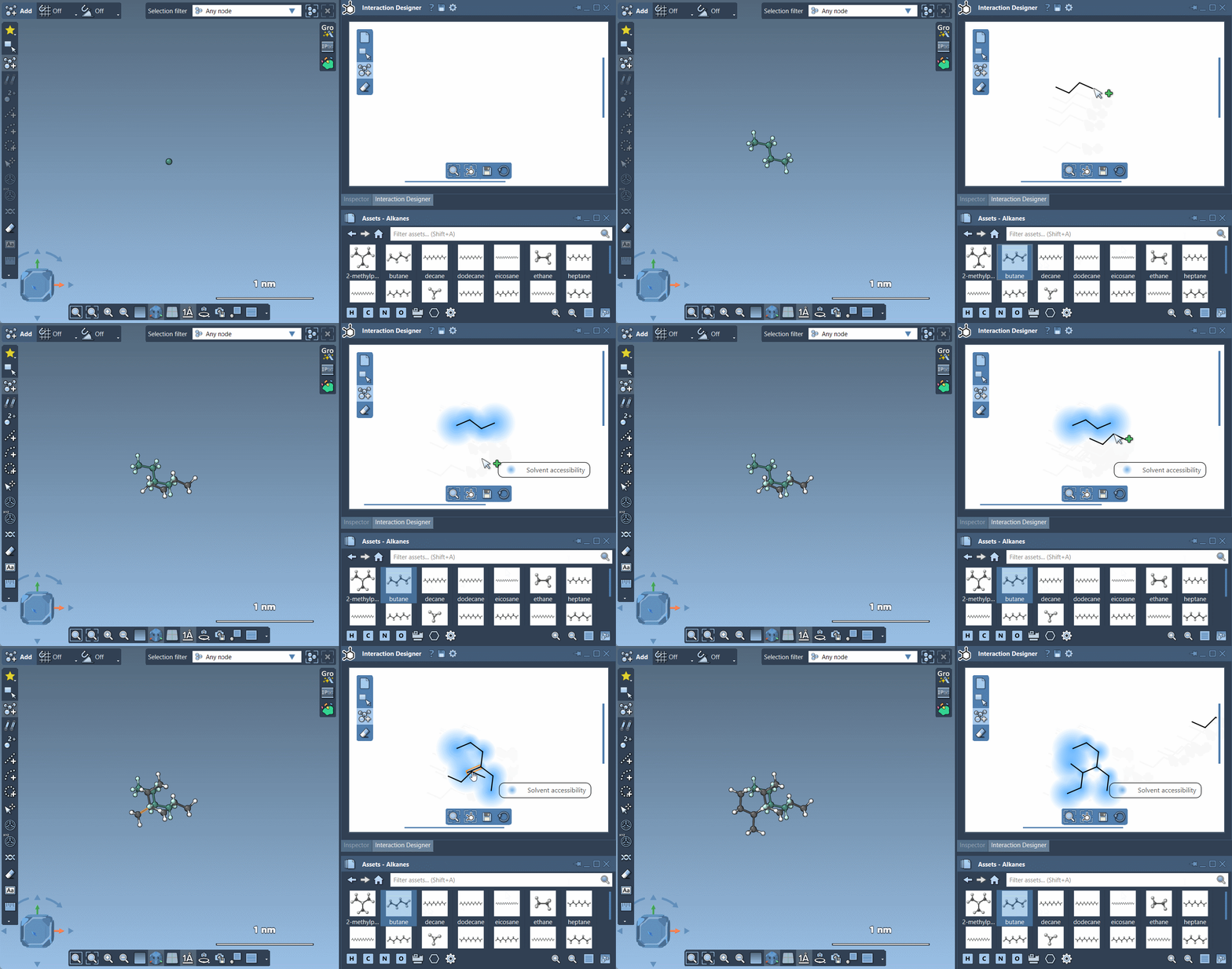
When designing more intricate molecules, saving time is crucial. The Interaction Designer lets you integrate pre-defined fragments into your design via the Assets Browser. Incorporating these fragments into your molecule is as simple as selecting and placing them. Alternatively, you can modify the pivot atom of a fragment during placement by holding Ctrl/Cmd and selecting your preferred pivot point.
Erasing Made Simple
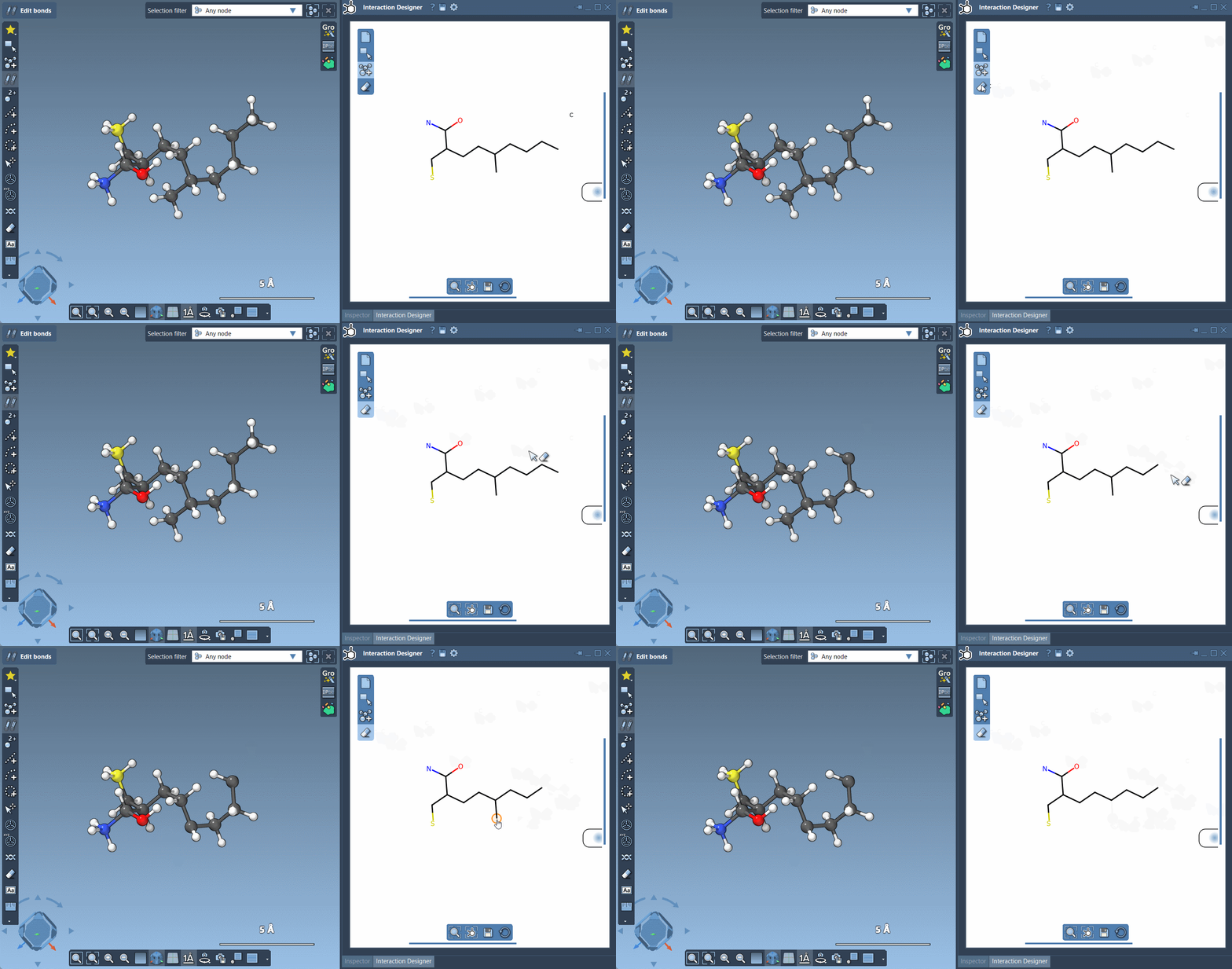
Mistakes happen, but Interaction Designer ensures they don’t interrupt your workflow. By selecting the Erase tool, atoms can be removed directly from your structure with a single click. No complicated undo steps—just intuitive, efficient editing!
Export Your Work
Once your diagram is ready, exporting it is just as straightforward. You can save 2D designs and interaction diagrams in various image formats, such as PNG, JPG, BMP, and SVG. This makes it easy to include your work in presentations, publications, or reports.
Why the Interaction Designer?
One standout feature of SAMSON’s Interaction Designer is its synchronization between 2D and 3D views. Changes made in 2D are instantly reflected in 3D and vice versa. This pairing eliminates errors and ensures clarity as you design, adjust, and analyze molecular structures.
Learn More
The official Interaction Designer documentation provides additional tips and tricks to accelerate your molecular modeling projects.
SAMSON and all SAMSON Extensions are free for non-commercial use. You can get SAMSON here.