



Creating carbon nanotube (CNT) models can often feel like a tedious process, especially when you’re just trying to quickly sketch out a prototype for molecular transport, a nanodevice, or a simulation test. What if you could bypass all menu hunting and scripting, and literally draw your nanotube right into your molecular modeling environment?
With the Nanotube Creator Extension in SAMSON, you can rapidly build CNT structures by simply dragging your mouse in the viewport. This blog post walks you through this tool’s interactive mode, which allows you to sketch single- or multi-walled nanotubes directly into your 3D workspace—instantly visualizing chiral parameters in real-time.
Why Use Interactive Mode?
If you’re experimenting with different CNT geometries, testing configurations, or just want to bypass tedious dialog windows, the interactive mode offers an efficient way to build and modify nanotubes on the fly. You even get live feedback on chiral parameters as you draw.
Step-by-Step: Creating a Nanotube with Your Mouse
- Activate the Nanotube Creator:
Either through the left toolbar in SAMSON under Materials > Nanotube Creator, or by pressing Shift + E and searching for “Nanotube Creator”. - Step 1 – Define the Axis and Length:
Press and hold the left mouse button in the viewport, then drag to define the tube’s axis. This movement sets thenparameter, which influences the structure’s length and orientation.

- Observe Real-time Feedback:
As you drag, the status bar at the bottom shows live updates of the axis and current tube length—helpful for ensuring precision.

- Step 2 – Set the Radius:
Release the mouse button, then move your mouse horizontally or vertically to adjust the tube’s radius (themparameter). Once satisfied, click again to lock it in.
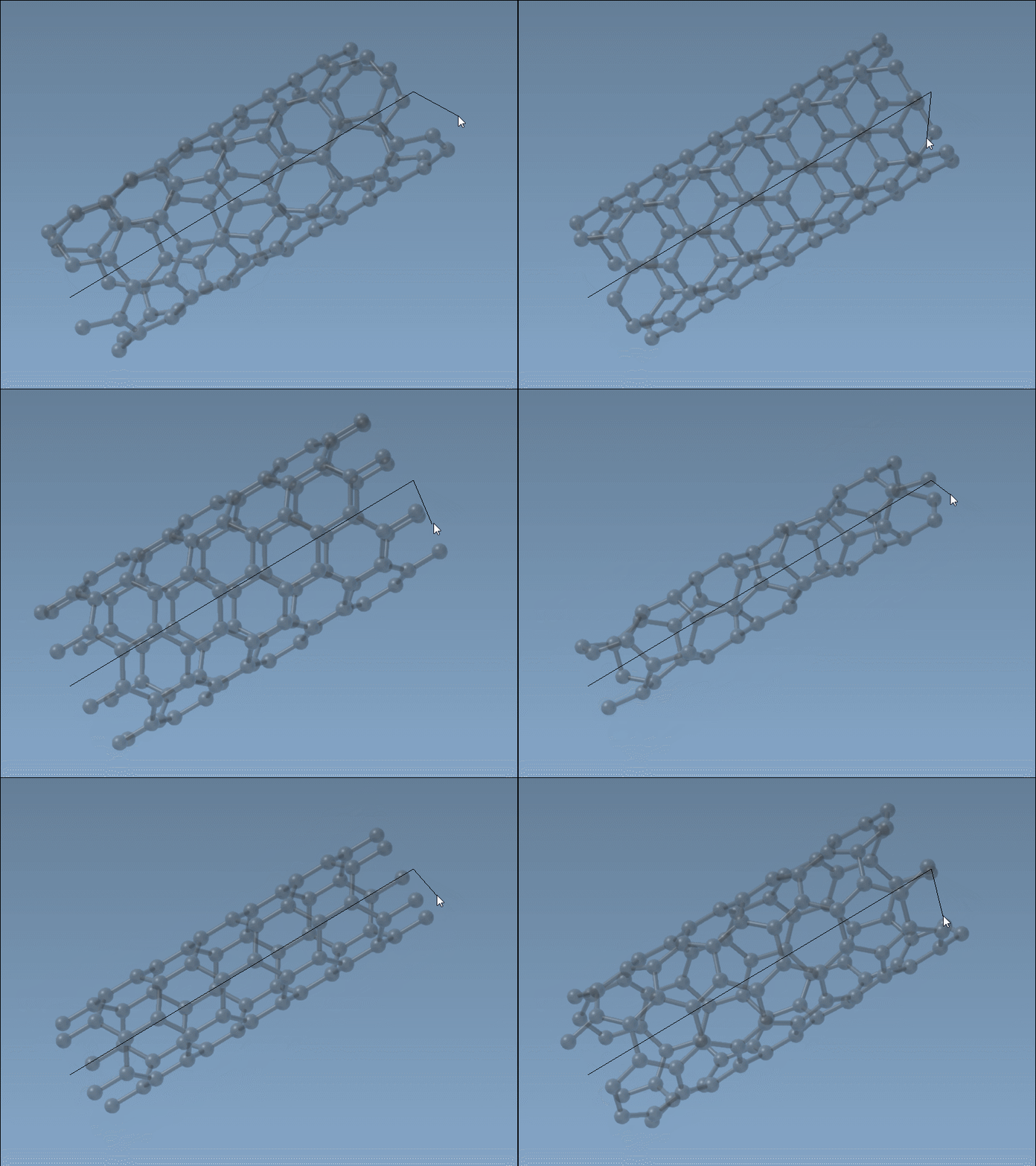
Why This Matters
This two-step process simplifies exploratory modeling significantly. Want to compare different chiralities within seconds? Just draw out two versions right next to each other. Need to visually demo a concept in a classroom or meeting? This tool offers an intuitive way to do just that.
It’s also useful for molecular simulations, since you can rapidly prototype CNTs to integrate into larger systems, test molecular interactions, or explore membrane behavior using visual composition instead of number-heavy menus.
Need More Control?
If exact values are important for your work, you can switch over to the graphical interface. But don’t underestimate the power of quickly sketching a (6,6) armchair CNT or a (10,0) zigzag just by moving your mouse and keeping an eye on the live feedback.
To learn more about interactive building and other nanotube modeling techniques in SAMSON, visit the full documentation: https://documentation.samson-connect.net/tutorials/nanotubes/building-nanotubes-models/
SAMSON and all SAMSON Extensions are free for non-commercial use. You can download SAMSON at https://www.samson-connect.net.