



Molecular modeling can quickly become complex when dealing with intricate structures, such as large biomolecules, ligands, or combinations of molecules like proteins and water molecules. A common challenge for researchers and modelers is keeping track of different selections and toggling between regions of interest. SAMSON’s Quick Groups feature offers a practical and efficient solution for managing these challenges, allowing you to save and recall multiple selections with ease.
What Are Quick Groups?
Quick Groups act as temporary, unnamed selection containers that let you rapidly switch between different molecular selections in the context of your current modeling document. They enable seamless toggling between areas of interest, saving time and improving your workflow when designing or analyzing complex systems.
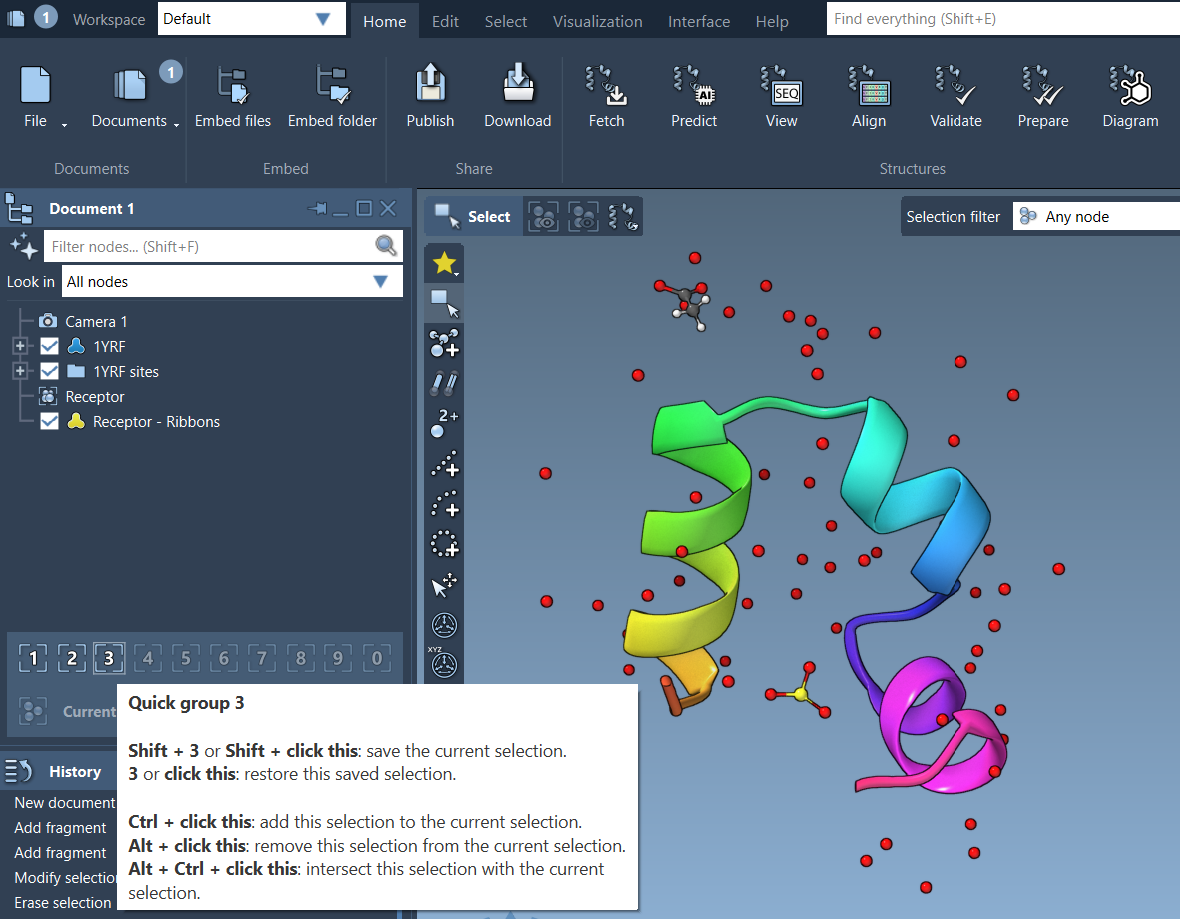
Quick Groups are indexed (1–10) and can be used to recall or adjust selections through simple shortcuts. They are perfect for iterating through different parts of your system, such as ligands, protein residues, or solvents, for purposes like modeling, visualization, or comparative analysis.
How to Assign Quick Groups
Assigning a selection to a Quick Group is straightforward and can be done via mouse or keyboard:
- Make your selection on the molecular structure (e.g., atoms or residues).
- Using the mouse: Hover over a Quick Group slot in the Document view and press Shift + click.
- Using the keyboard: Press Shift + the group number (e.g., Shift+2) to assign the selection to Quick Group 2.
You can create up to 10 Quick Groups in any document. Additionally, Quick Groups can be cleared or redefined anytime, making them highly versatile, especially for workflows requiring multiple iterations.
Switching and Navigating Between Quick Groups
Once your Quick Groups are set, navigating through them is effortless:
- Press the group’s dedicated number key (e.g., 1, 2) to switch your selection.
- Click directly on the Quick Group icons in the Document view.
- Zoom to a group’s selection: Double-press its corresponding number key (e.g., 1 1).
This functionality allows you to quickly shift focus between regions, making it ideal for operations like applying visualizations to specific components or conducting comparative structural analysis.
Example Workflow
Let’s look at a typical molecular modeling workflow that benefits from Quick Groups:
- Start by selecting your ligand and assign it to Quick Group 1.
- Select the receptor and assign it to Quick Group 2.
- Next, select water molecules and assign them to Quick Group 3.
- Now, toggle between these groups using the number keys (1, 2, 3). This simplifies tasks like visualizing interactions between the ligand and receptor or isolating solvent components.
With this approach, you can save time, improve precision, and streamline your workflow.
Try It Yourself
Quick Groups are a simple yet powerful tool that complements SAMSON’s advanced selection options. To learn more about Quick Groups or to explore additional tools for molecular modeling, refer to the full documentation on selection in SAMSON.
Note: SAMSON and all SAMSON Extensions are free for non-commercial use. You can get SAMSON at https://www.samson-connect.net.