



For molecular modelers, one of the persistent challenges lies in quickly exploring potential modifications to molecules and evaluating their impact on properties such as binding affinity. A highly effective way to achieve this is by using SAMSON’s SMILES Manager to replace or attach specific patterns in molecular structures. In this post, we’ll explore how you can perform this task in a streamlined manner, helping you speed up your molecular design efforts.
Why is Pattern Replacement Important?
When designing molecular analogs, modelers need to systematically explore changes to specific parts of a molecule. This could involve replacing a functional group or atom within the structure or attaching new ones. These modifications often influence interactions with target proteins, and evaluating these changes is essential for drug development and related research.
How to Replace or Attach Molecular Patterns in SAMSON
The SMILES Manager makes pattern replacement intuitive. Here’s how you can approach this task:
Step 1: Identify the Pattern to Modify
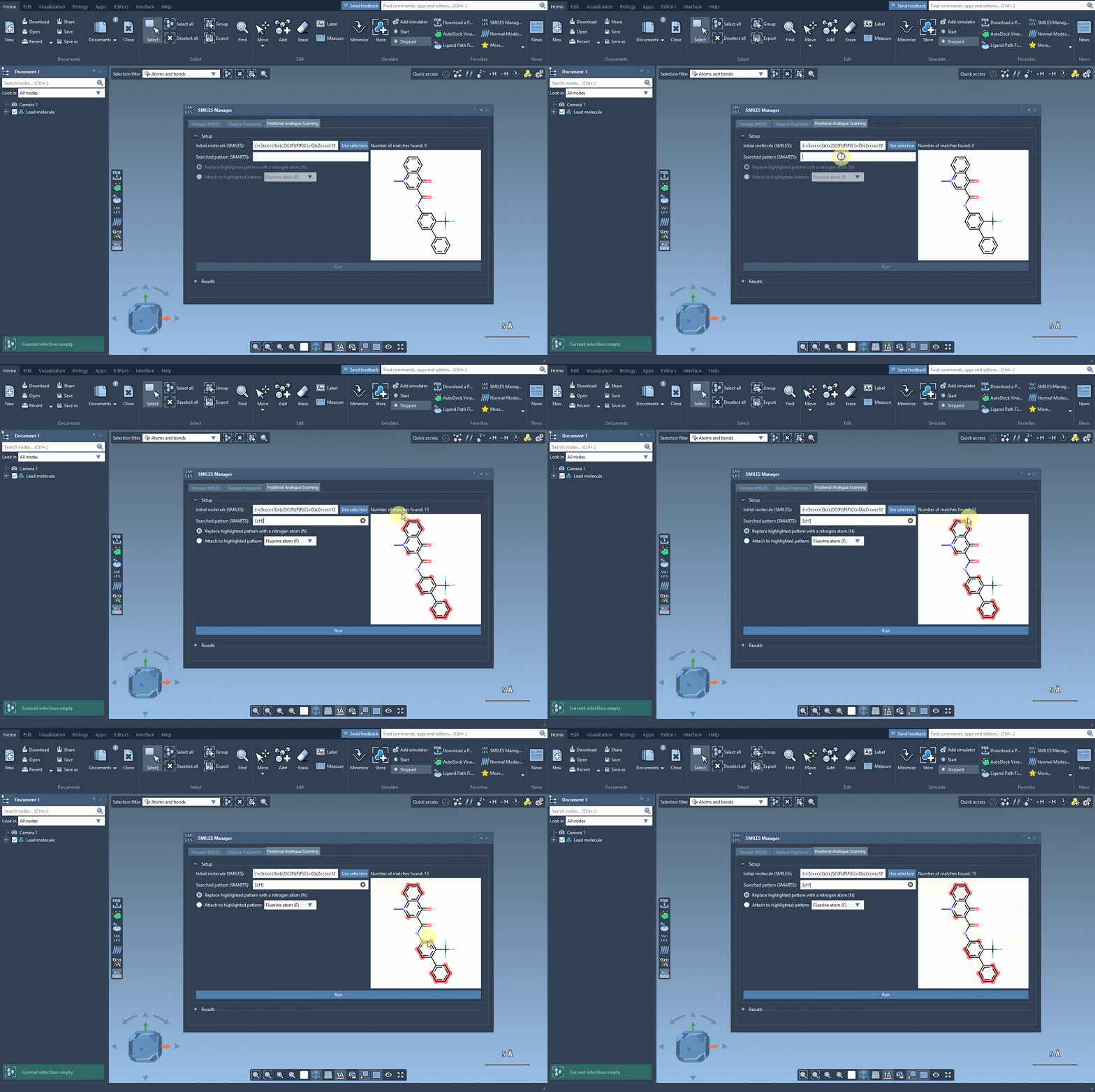
First, define the part of the molecule you want to modify. For instance, in the example outlined in SAMSON’s documentation, aromatic carbon atoms are chosen as the pattern to be scanned. By entering the SMARTS code [cH], aromatic carbon atoms in the structure are automatically located and highlighted.
Step 2: Replace or Attach
Once the pattern is identified, you can choose to either replace it with another atom, such as nitrogen (N), or attach a new group, like fluorine (F) or a methyl group (CH3). Simply make your selection, and then click on the Run button to generate analogs.
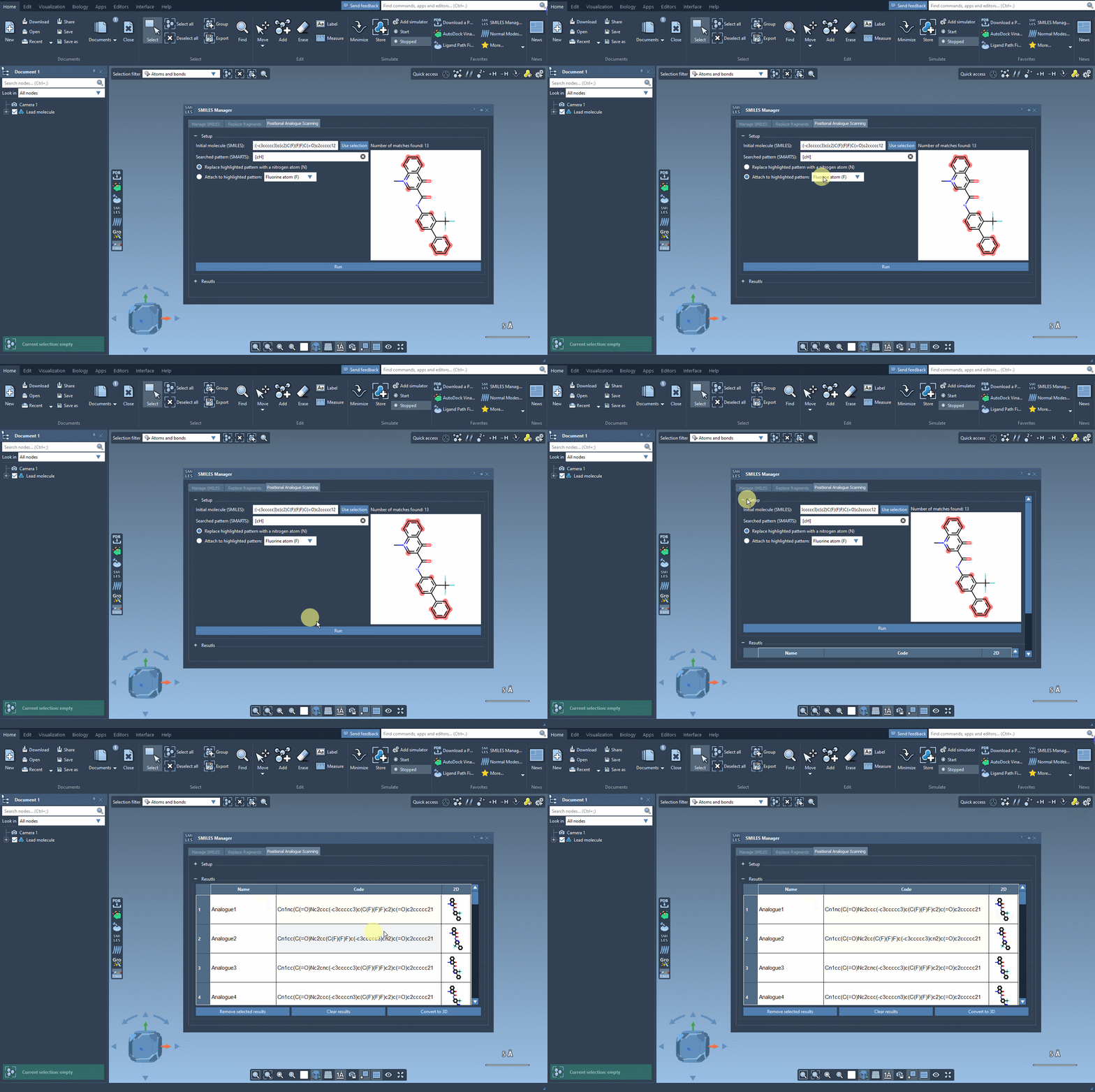
The SMILES Manager will generate the SMILES codes for these analogs along with their 2D depictions, allowing you to visually inspect the modifications at a glance.
Take Control of Your Results
Once the analogs are generated, SAMSON provides multiple ways to further refine or analyze the results:
- Modify Analog Details: Rename or edit the SMILES code of an analog directly in the results table.
- Examine 2D Structures: Open a larger view of the 2D depiction by double-clicking on the image or right-clicking to access additional options.
- Generate 3D Models: For more advanced studies, such as docking, right-click on an analog’s image and select the option to generate its 3D structure.
Why SAMSON Makes This Process Simple
The ability to identify patterns, make substitutions, and analyze analogs in a single platform eliminates the need to rely on multiple specialized tools. Coupled with visualization and further analysis features, such as docking simulations, SAMSON ensures that you can focus on molecular design without being bogged down by technical inefficiencies.
Start Modifying Patterns Today
The SMILES Manager’s simplicity and functionality make it a valuable tool for molecular modifications. To get started or delve deeper into its capabilities, check out SAMSON’s tutorial on pattern replacement workflow.
Note: SAMSON and all SAMSON Extensions are free for non-commercial use. You can access SAMSON here.