



Molecular modelers often require a precise way to analyze atomic motion, be it for reaction coordinate studies, free energy profiling, or understanding ligand pathways in complex systems. Exporting atom trajectories along well-defined paths becomes essential in these scenarios, yet many struggle to find a streamlined solution. SAMSON’s Export Along Paths Extension serves exactly this purpose, allowing users to export atomic coordinates with ease and flexibility.
Why Export Atom Trajectories?
Whether you’re studying ligand exit routes, generating reaction coordinate data, or preparing intermediate states for visualization, having access to accurate atomic data along a pathway is invaluable. But it’s not just about exporting raw data. Often, modelers want the ability to:
- Focus on specific atoms (e.g., ligands, binding sites).
- Export intermediate frames for better visualization or downstream analysis.
- Generate data in formats compatible with popular molecular simulation tools.
SAMSON’s Export Along Paths functionality saves time and frustration by offering an intuitive interface designed specifically for the needs of molecular modelers.
Getting Started with Export Along Paths
First, ensure you’ve installed the Export Along Paths Extension from SAMSON Connect. Once installed and after restarting SAMSON, the app is ready to use. It’s found via Home > Apps > All > Export Along Paths.

How Does It Work?
The process is straightforward but adapts to different modeling needs:
Option 1 – Export All Atoms
If you want to export all the atoms along a given path:
- Select the desired path(s) in the Document view.
- Choose the export mode:
- All frames in a single PDB file.
- Each frame as a separate PDB file.
- Click Export atoms along paths to PDB files. Choose a destination folder and file prefix.
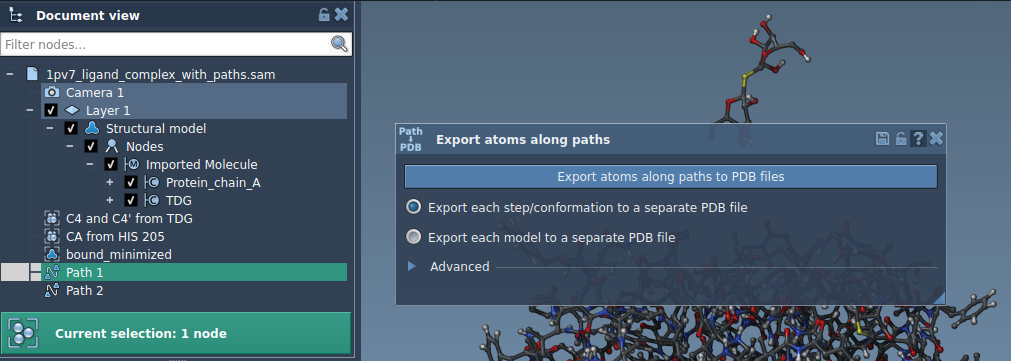
Optional adjustments like frame export intervals can be configured in the Advanced settings.
Option 2 – Export a Subset of Atoms
Sometimes, exporting every atom isn’t necessary. To focus on a particular subset (e.g., a ligand):
- Open the Advanced section.
- Select your subset of atoms, such as
TDG, in the Document view by using SAMSON’s selection tools. - Click Add to include this subset as a model for export.
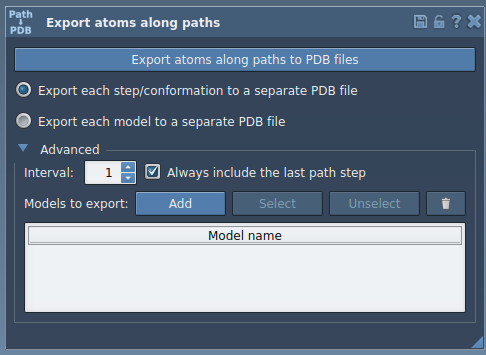
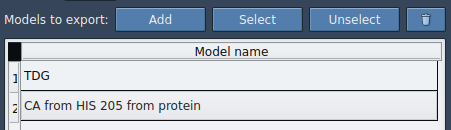
Once your list of subsets (models) is configured, you can:
- Rename models for clarity.
- Add multiple sets of atoms if needed.
- Highlight included atoms, reset selections, and more through a simple interface.
Finally, select paths and click Export atoms along paths to PDB files.
Applications in Molecular Modeling
- Generate reaction coordinate files for free energy profiling.
- Export trajectories of ligands for enhanced sampling or pathway analysis.
- Produce intermediate structures for better visualization in downstream tools.
- Track only specific atomic subsets for targeted studies (e.g., ligand, backbone).
Additional Support
For more guidance and details, refer to the Export Along Paths tutorial. You’ll also find related resources, such as the Ligand Path Finder guide, helpful for generating and optimizing pathways before exporting data.
*Note: SAMSON and all SAMSON Extensions are free for non-commercial use. You can get SAMSON at https://www.samson-connect.net.