



Carbon nanotubes (CNTs) are a cornerstone of modern nanotechnology, with applications ranging from creating nanodevices and sensors to simulations of material properties or drug delivery systems. However, building accurate models of single-walled or multi-walled CNTs can be a time-consuming challenge for molecular modelers. Thankfully, SAMSON’s Nanotube Creator Extension provides an efficient and interactive way to generate high-quality CNT models for your molecular design needs.
In this blog post, we break down the process to help you set up your simulations quickly and accurately, whether you’re designing nanoscale devices or studying mechanical properties of carbon nanotubes.
Why Use the Nanotube Creator?
Traditional techniques for building carbon nanotubes can demand considerable effort and expertise. SAMSON’s Nanotube Creator simplifies this process, offering two highly effective methods for generating CNTs: interactive creation in the viewport and using a graphical interface (GUI).
Here’s how these methods can add value to your workflow:
- Interactive Design: Use mouse controls to visually define the tube’s axis, length, and radius in real-time, while receiving precise feedback in the status bar.
- Graphical Interface (GUI): Access a more controlled environment to input and adjust parameters manually for detailed modeling.
Building Nanotubes Made Easy
Method 1 – Interactive Creation
To build CNTs directly in the viewport:
- Define the nanotube axis and length: Press and drag the left mouse button to set the axis and specify the tube’s length in Ångströms. The status bar provides live feedback to ensure accuracy!

- Adjust the radius: Release the mouse button, move the mouse to set the desired radius, and click again to confirm.
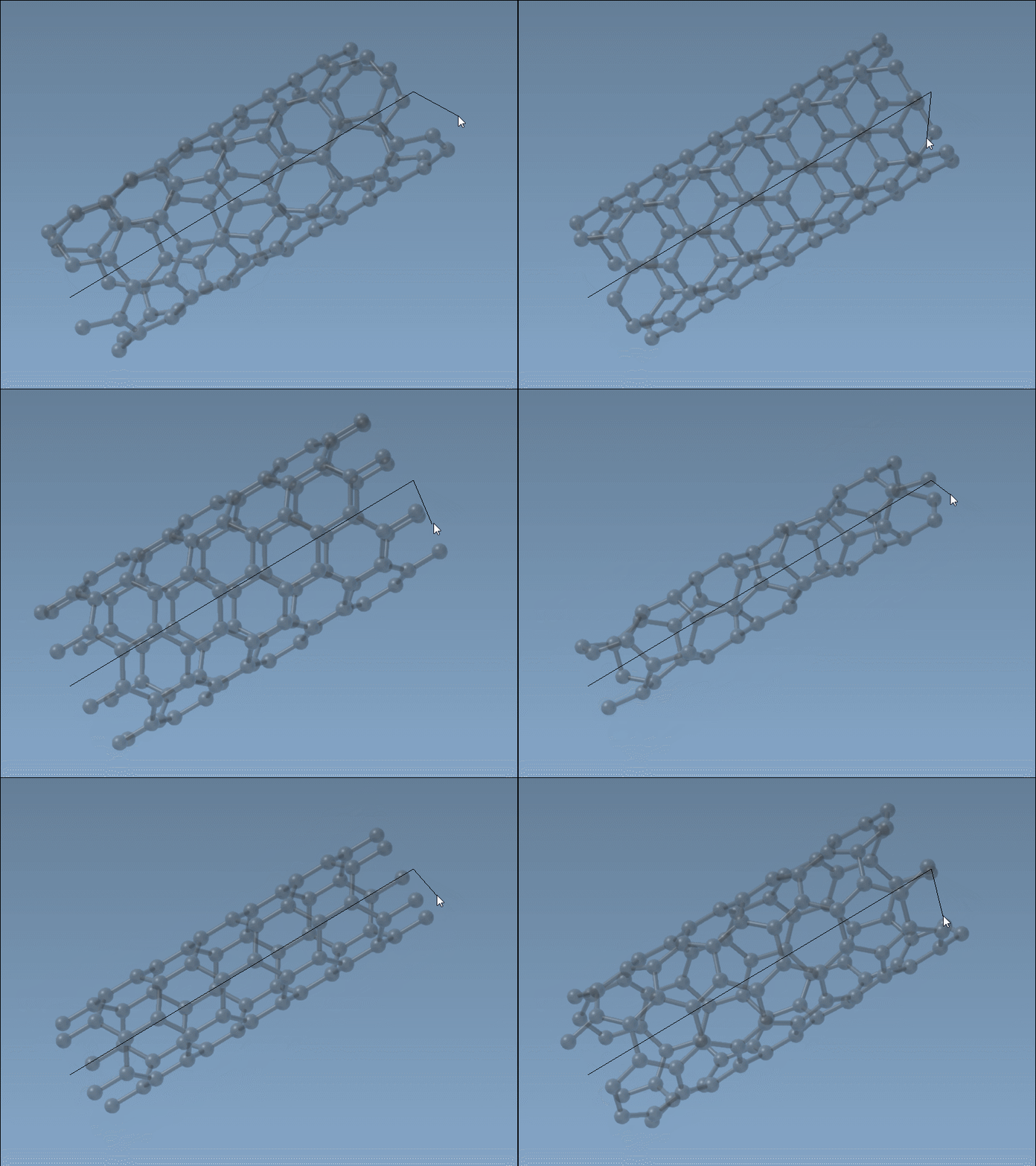
Using this method, parameters like n (defining the tube axis and length) and m (defining the radius) can be fine-tuned intuitively.
Method 2 – Using the Graphical Interface
Prefer a more structured approach? Open the Nanotube Creator’s GUI to define parameters precisely:
- Set start and end positions: Your CNT’s axis and length values are based on these coordinates.
- Control
nandmvalues: Define the chiral structure and radius with absolute precision.
Below is an example of the graphical interface in action:
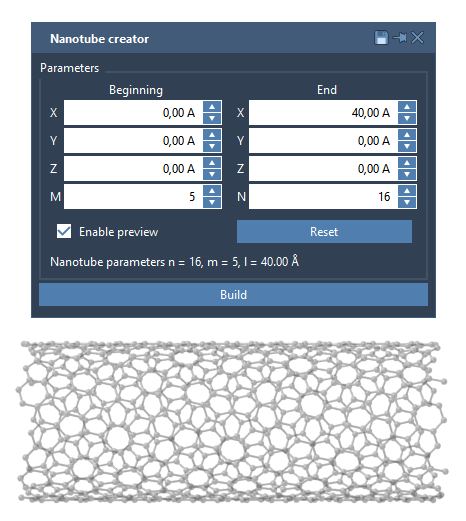
The GUI also allows for the creation of multi-walled nanotubes by defining additional n and m values for concentric CNT layers.
Example: Creating a Multi-Walled Nanotube
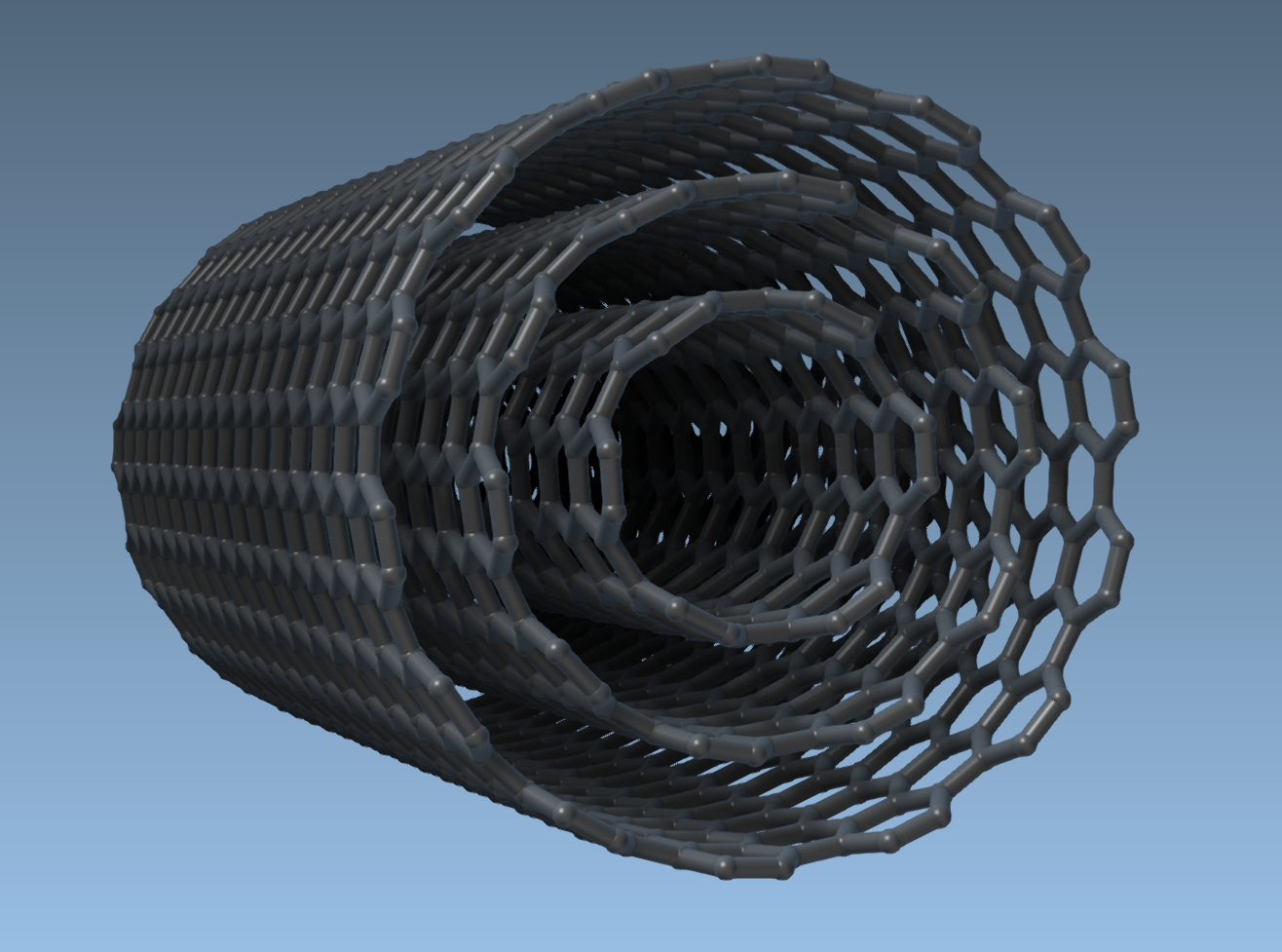
To illustrate the power of the Nanotube Creator, let’s create three concentric CNTs:
- Define start and end positions:
(0, 0, 0)to(40, 0, 0), creating a 40 Å tube along the x-axis. - First layer: Set
n = 6,m = 6and click Build. - Second layer: Set
n = 10,m = 10and click Build. - Third layer: Set
n = 14,m = 14and click Build.
The result will be a multi-walled nanotube, as shown below:
Next Steps
Once you’ve generated your carbon nanotube models, you can visualize them, run simulations, or combine them with other structures for hybrid designs. The possibilities are endless!
For more detailed instructions, visit the official documentation page: Building Carbon Nanotube Models.
Note: SAMSON and all SAMSON Extensions are free for non-commercial use. Download it today to explore its powerful molecular modeling capabilities!