



Designing carbon nanotube (CNT) models can often feel like a daunting task, especially when precision and efficiency are paramount. Whether you’re exploring nanodevices, molecular transport, or advanced material simulations, you need tools that simplify this highly technical work. This is where the Nanotube Creator Extension in SAMSON comes in—offering an intuitive way to generate single-walled and multi-walled CNTs in no time.
Why Carbon Nanotube Modeling Matters
For researchers and molecular modelers, CNTs open the door to understanding nanoscale phenomena. They’re the building blocks for numerous applications ranging from drug delivery systems to nanoelectromechanical systems (NEMS). However, constructing accurate CNT models—while simultaneously tweaking parameters like axis orientation, length, and radius—can quickly become a tedious process without the right tools.
How the Nanotube Creator Simplifies CNT Design
Using the Nanotube Creator in SAMSON is refreshingly straightforward, thanks to its interactive capabilities and customizable graphical interface. You can choose to either build CNTs manually in the viewport (ideal for rapid prototyping) or use the editor interface (for more control). Here’s how it works:
Building CNT Models with Interactive Mode
If you prefer simplicity and a visual approach, you can create CNTs interactively:
-
Step 1: Define the nanotube axis and length. Using the left mouse button, click and drag in the viewport to set these parameters. The status bar provides continuous feedback on the axis orientation and tube length to help you achieve the desired structure precisely.

-
Step 2: Adjust the nanotube radius. Once the axis and length are set, release the mouse button and move the cursor to tweak the radius. To confirm, click the left mouse button again.
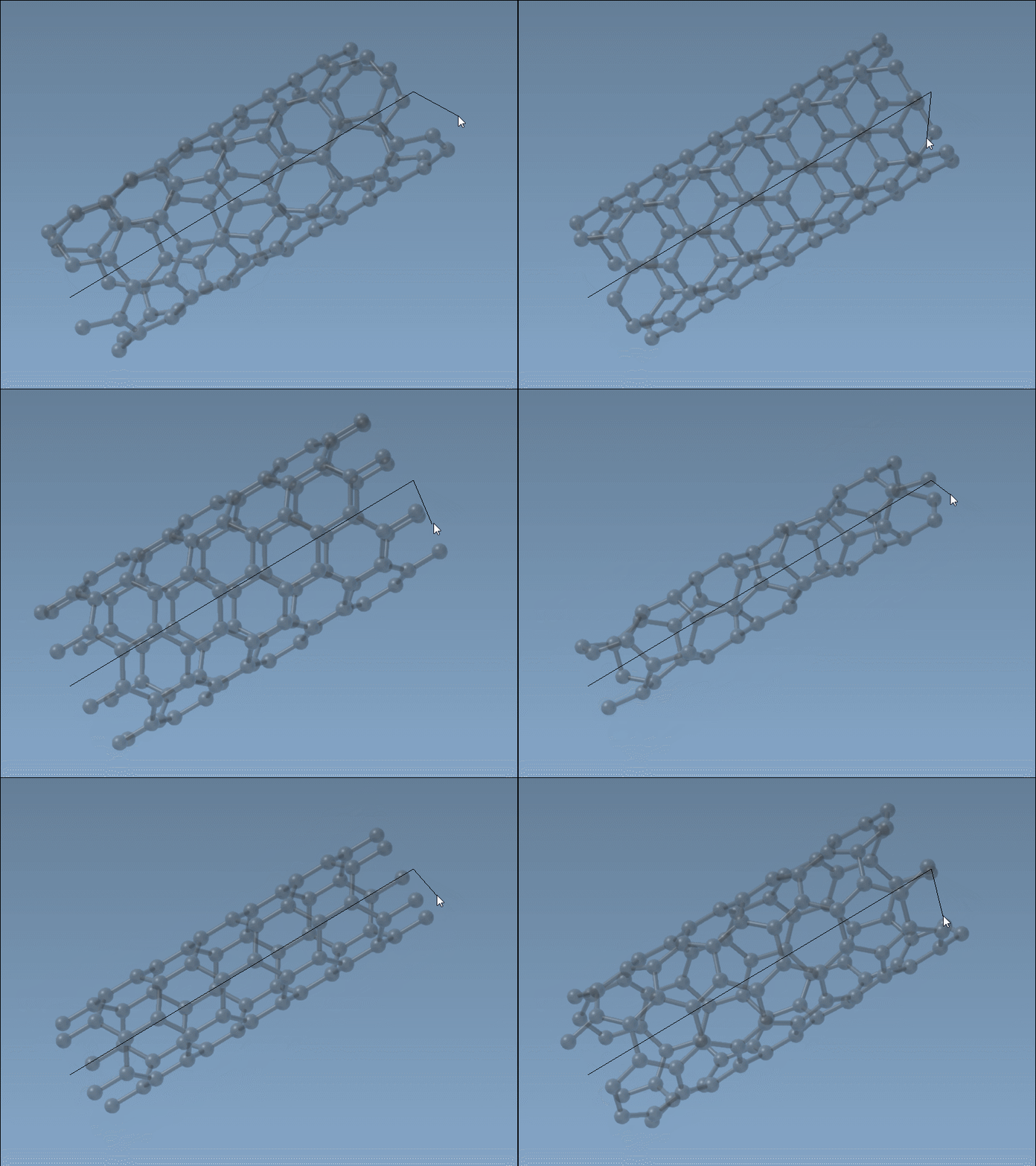
This interactive method is particularly useful for users who need quick, adjustable prototypes.
Achieving Precision with the Graphical Interface
For those who require maximum control over their models, the Nanotube Creator’s graphical interface is the way to go. Activating the editor opens a clean and detailed interface where parameters like start/end positions, n and m values (chiral vector), and structure types can be defined with precision.
Here’s a practical example of what’s possible:
- Set start and end positions to
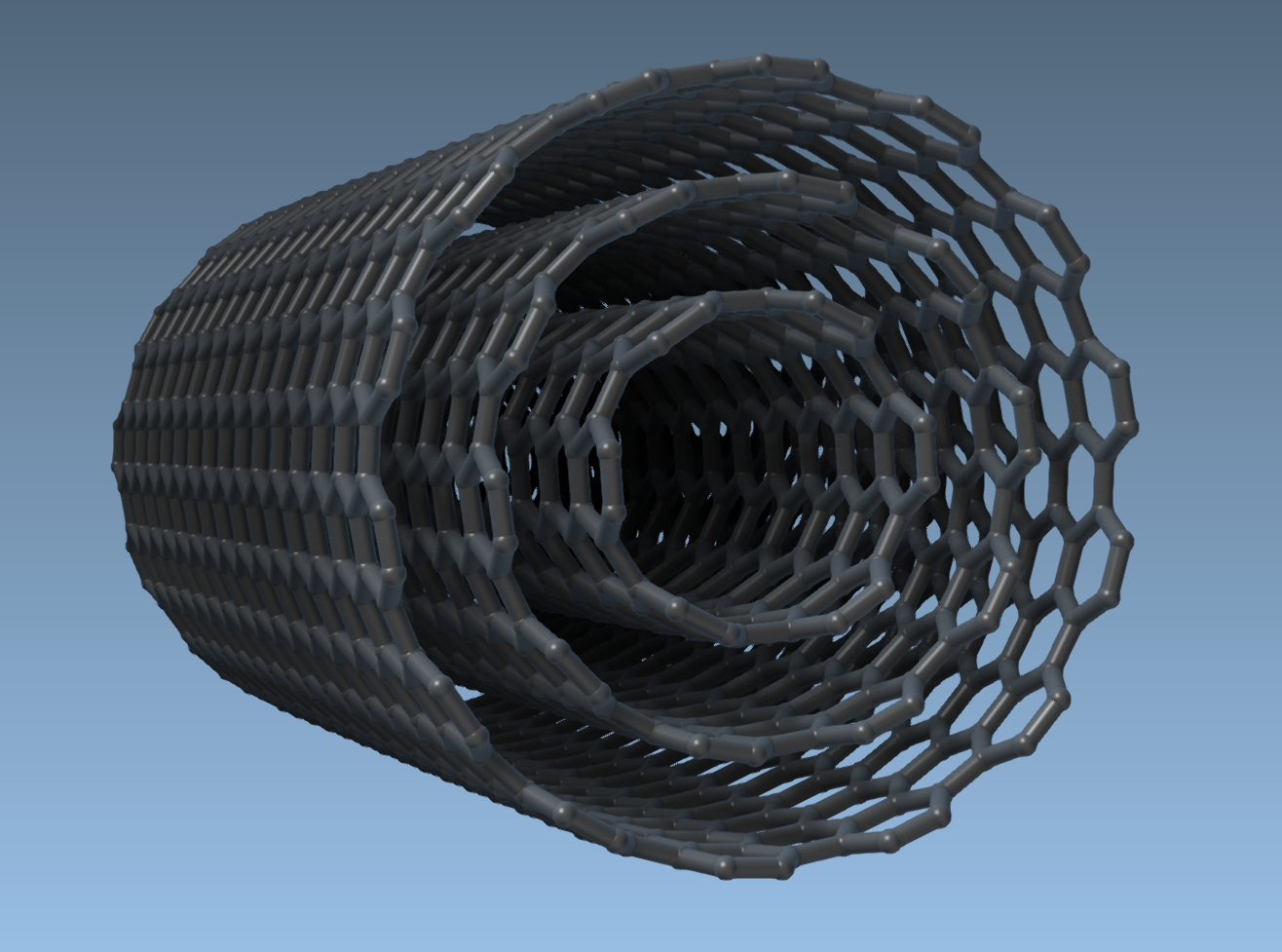
(0, 0, 0)and(40, 0, 0), creating a CNT 40 Å long along the x-axis. - Generate concentric CNTs by defining their
nandmvalues (e.g.,n = 6, m = 6for the first layer,n = 10, m = 10for the second, etc.). - Click “Build” to finalize the structure.
The graphical interface is particularly effective for building multi-walled CNTs, as it allows controlled creation of multiple layers within a single session:
More Than Just Building
The Nanotube Creator doesn’t just stop at generating CNTs. Once your models are created, you can easily integrate them into simulations, study their mechanical properties, explore electronic behavior, or combine them with other molecules to form hybrid systems. This versatility makes it ideal for molecular design, nanotechnology, and computational material science workflows.
Where to Begin
Getting started with the Nanotube Creator is simple:
- Log in to SAMSON Connect and add the Nanotube Creator Extension to your workspace.
- Decide between interactive or graphical mode to suit your project’s needs.
- Start building your CNT models immediately without complex configurations.
Learn more about using the Nanotube Creator Extension by visiting the official documentation page. With tools like this at your disposal, CNT modeling becomes less of a chore and more of a creative endeavor.
Note: SAMSON and all SAMSON Extensions are free for non-commercial use. You can download SAMSON at SAMSON Connect.