



For molecular modelers, understanding how proteins are symmetrically arranged in their crystal structures or biological assemblies is often key to unraveling their function or designing new molecular complexes. Yet, visualizing and recreating such symmetry can feel like an intricate and manual task. That’s where SAMSON’s Symmetry Mate Editor comes in. This tool allows you to generate and explore symmetric replicas of proteins using transformation data from PDB files. In this post, we’ll guide you through exploring symmetry mates interactively and unveil how this capability can be a game-changer for molecular modeling workflows.
Why does symmetry matter?
Proteins are often organized into complex shapes or assemblies that play a role in their biological function. For instance, biological assemblies can reveal how proteins interact or bind to one another, while crystal structures can inform simulations or quaternary structure reconstructions. Symmetry mates are essential for:
- Visualizing biological assemblies starting from crystallographic units.
- Discovering protein-protein interfaces and potential binding sites.
- Reconstructing quaternary structures for design and simulations.
- Creating symmetric protein complexes or nanostructures as part of molecular design pipelines.
Visualizing these symmetries directly within SAMSON saves significant time and opens new possibilities in workflows.
How Interactive Exploration Works
The Symmetry Mate Editor goes beyond static visualizations by allowing real-time exploration of symmetrical protein replicas. Once activated, control nodes appear in your viewport, representing possible symmetry transformations. By interacting with these nodes, you can dynamically create and inspect structural arrangements. For example, you can:
- Preview replicas: Hover over a control node to preview a symmetry mate before generating it.
- Generate individual replicas: Left-click on a node to permanently create a specific replica.
- Create all replicas at once: Hold Ctrl/Cmd, hover over a control node, and left-click to generate all symmetry mates.
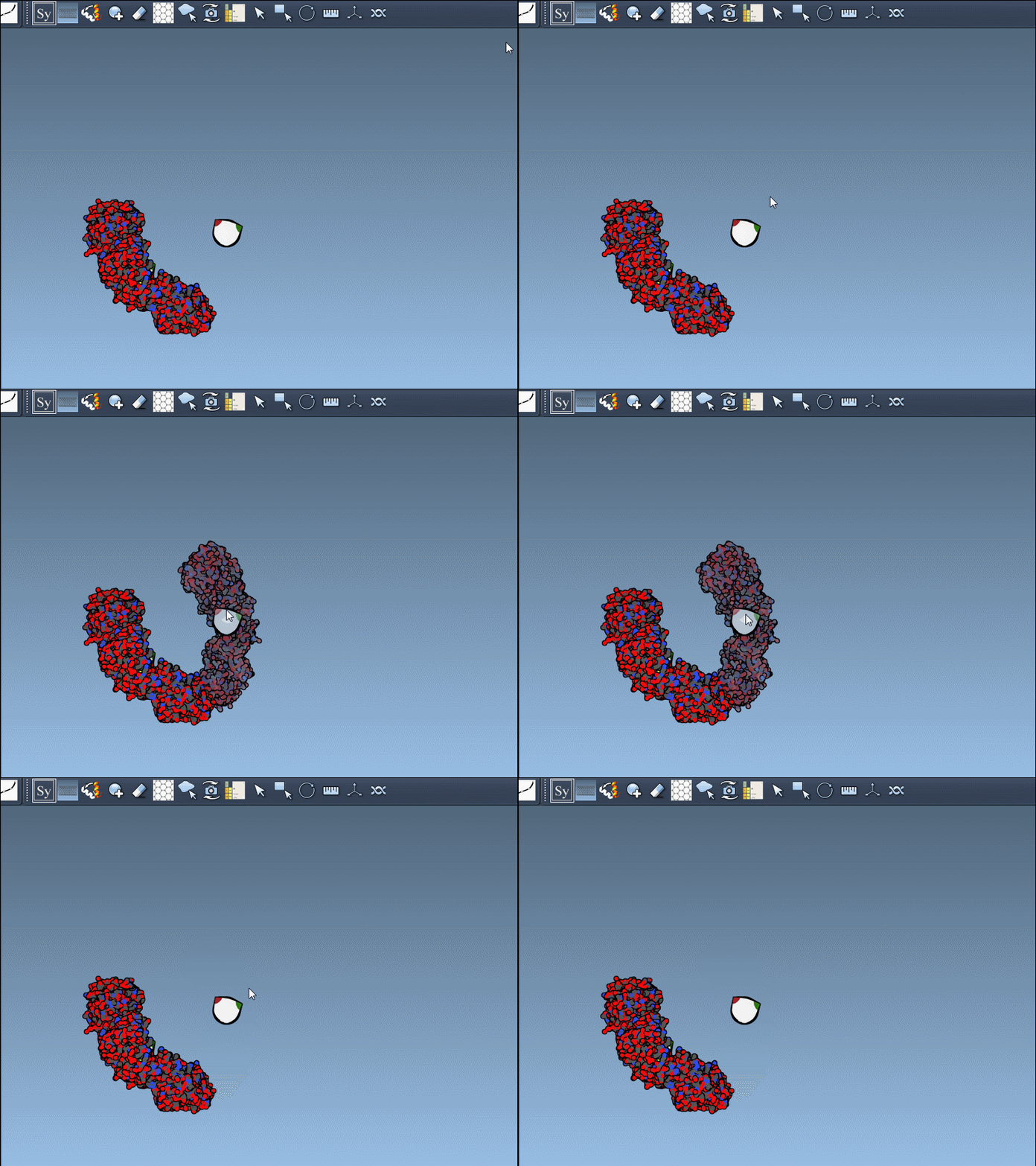
These features make the process of generating and optimizing symmetrical assemblies intuitive and efficient—even for complex structures. Want to scale the number of visible control nodes? Simply use Ctrl/Cmd + mouse wheel.
CRYST1 vs. BIOMT: Toggling Between Symmetry Sources
An added advantage of the Symmetry Mate Editor is the ability to toggle between two common symmetry data sources found in PDB files:
- CRYST1: Represents symmetry derived from the crystal lattice.
- BIOMT: Contains symmetry information related to biological assemblies.
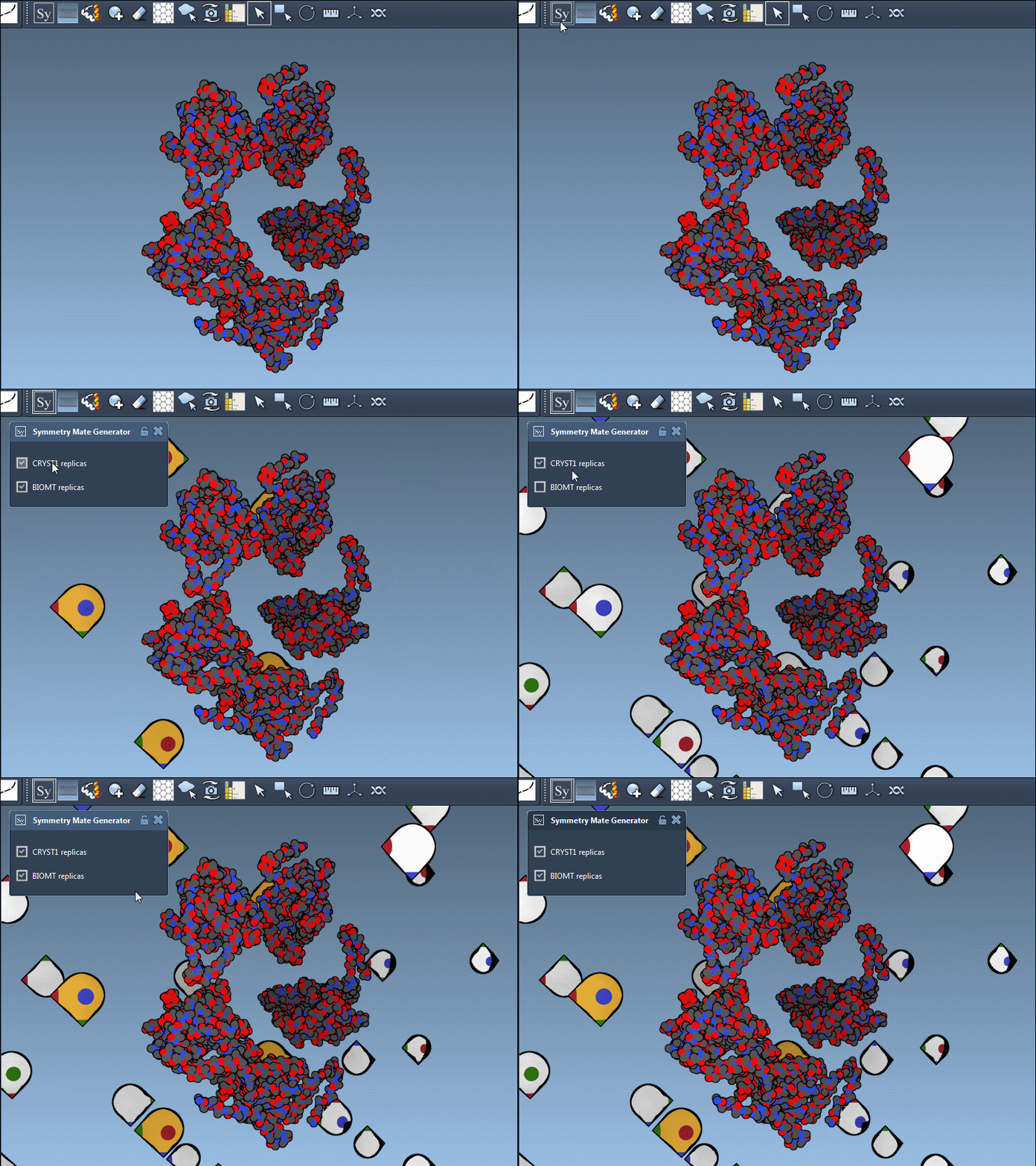
These two data types offer unique insights depending on your objectives. For example, CRYST1 helps with reconstructing crystal packing, while BIOMT is essential for visualizing natural biological complexes. The editor visually distinguishes between these symmetry types (CRYST1 nodes are white, BIOMT nodes are yellow). Here’s a side-by-side example using PDB file 1B5S:
Why Choose SAMSON for Symmetry Visualizations?
The interactivity provided by the Symmetry Mate Editor not only accelerates symmetry reconstruction but also ensures precision. Hover previews save you from having to undo unwanted replicas, while simple gestures enable the reconstruction of complete assemblies with ease. Whether you’re simulating interactions, designing protein cages, or exploring binding sites across repeats, SAMSON simplifies your tasks.
Getting Started
Start by ensuring the Symmetry Mate Editor is installed. Load a PDB file that contains symmetry data (like 1BRE or 1B5S), activate the editor, and let the exploration begin. By combining it with visualization models (e.g., Ribbons) or additional analysis tools like symmetry detection, you can dive even deeper into molecular insights.
To delve further into this tool and explore its potential applications in your research, visit the official documentation page.
SAMSON and all SAMSON Extensions are free for non-commercial use. Get SAMSON today at samson-connect.net.