



One common challenge in molecular modeling and drug design is efficiently exploring how small changes in the structure of a molecule can influence its properties and interactions. This is where positional analogue scanning can make a significant difference. In this post, we’ll dive into how you can use the SMILES Manager in SAMSON to generate analogue series and analyze them, helping you streamline your molecular design projects.
The Problem: Too Many Possibilities
When working with molecules, one can often identify regions that are ripe for modification. While some changes might slightly shift molecular properties, others can drastically alter interactions with a target. Without the right tools, generating and analyzing a series of molecular analogues based on these changes can become tedious and time-consuming. Wouldn’t it be better to automate this process?
The Solution: Positional Analogue Scanning
Positional analogue scanning in SAMSON allows you to systematically create analogue molecules by modifying specific patterns in a starting structure. This feature is highly useful for testing substitutions, comparing properties, or preparing variations for further studies like docking simulations.
Step-By-Step Guide
Here’s how you can quickly perform positional analogue scanning:
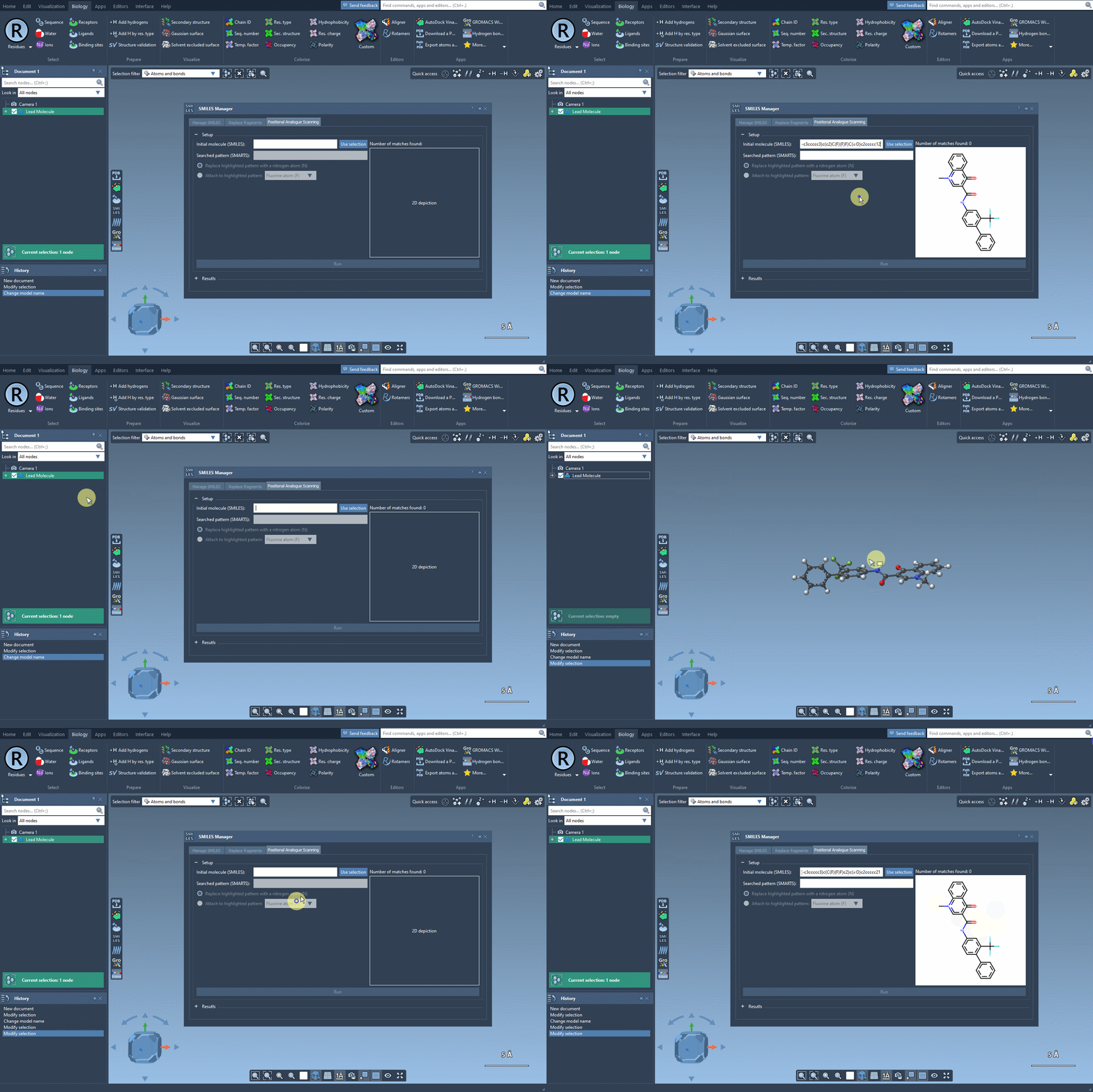
1. Define Your Starting Molecule
Start by initializing the molecule you want to work on. You can either enter its SMILES code or select it directly from the current SAMSON document and click on the Use selection button. Watch the process in action:
2. Pinpoint the Pattern
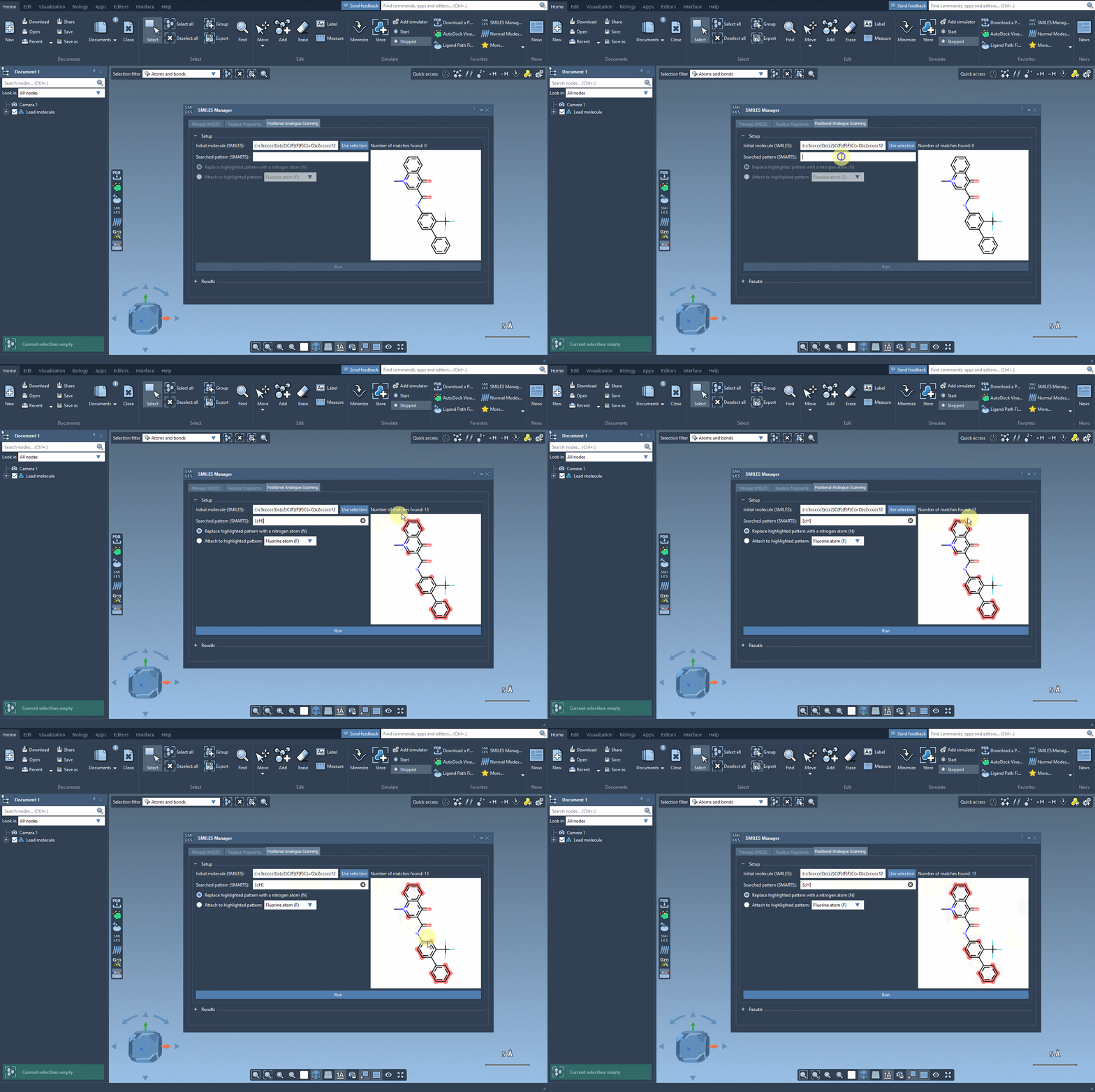
Specify the part of the molecule you wish to modify using a SMARTS pattern. For example, if you are working on aromatic carbons, you can use the SMARTS code [cH]. Once entered, SAMSON will highlight all instances of this pattern in your molecule. Take a look:
3. Replace or Add Groups
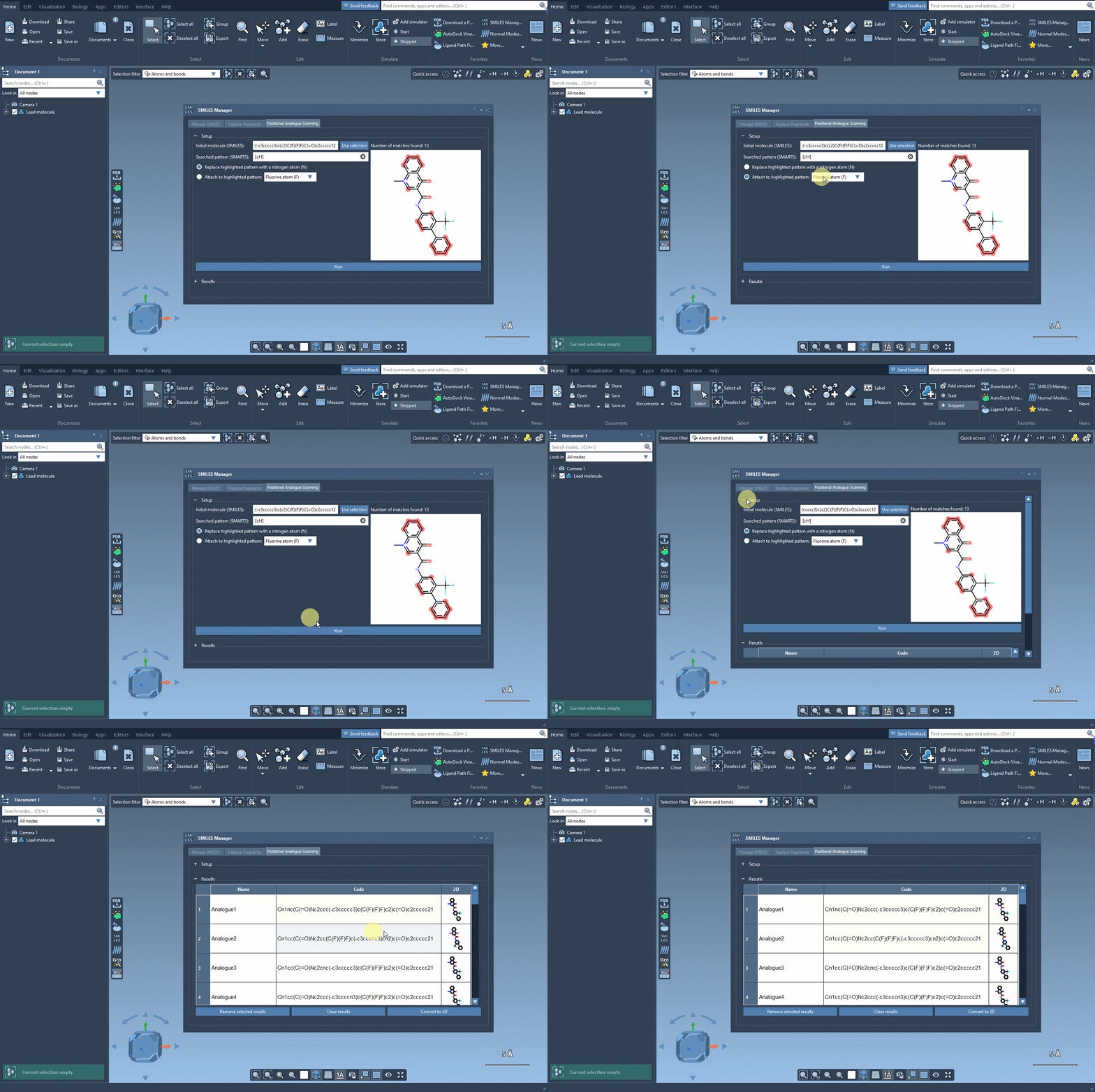
With the targeted site defined, you can decide how to modify it. For instance, you might replace the pattern with a nitrogen atom (N) or attach a fluorine atom (F) or methyl group (CH3). Clicking the Run button will generate the analogues, showing the newly created SMILES codes and their 2D depictions. Here’s how it works:
4. Fine-Tune Your Results
The results table lets you refine your analogues further:
- Edit names or SMILES codes by double-clicking on cells in the results table.
- View a larger version of a 2D depiction by double-clicking on it.
- Hide or show 2D images using table controls.
- Generate 3D structures by right-clicking on a result’s image and selecting the corresponding option.
- Remove selected analogues or clear the entire table for a fresh start.
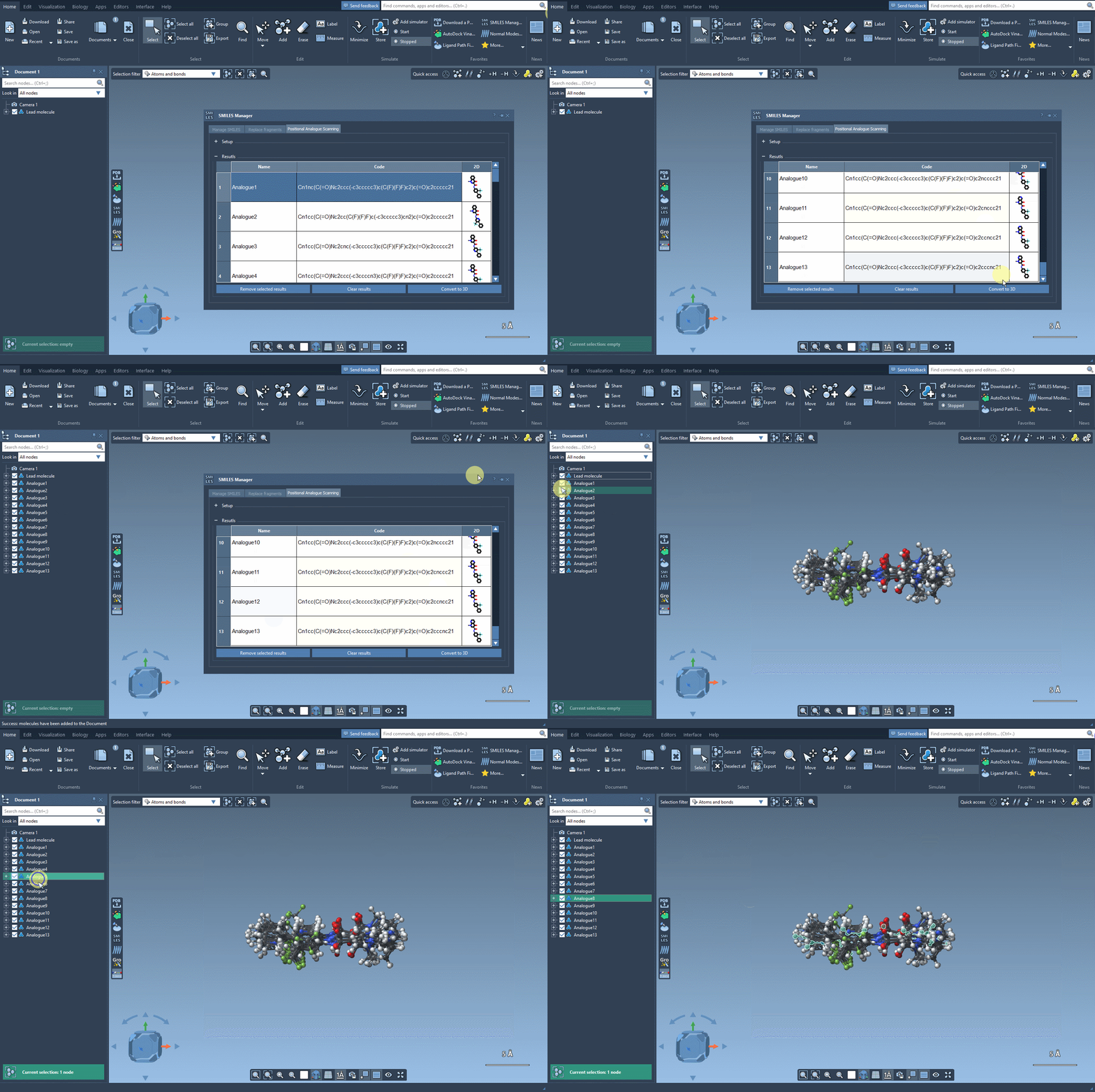
5. Generate 3D Structures
Finally, if you’re interested in 3D modeling, SAMSON allows you to convert your analogues to 3D structures with a simple click. These structures are ready for further analyses such as docking simulations, interaction studies, or conformational exploration.
Why It Matters
This workflow saves time and simplifies the process of exploring molecular substitutions. Whether you are a computational chemist or a drug designer, positional analogue scanning enables you to efficiently focus on changes that could make the greatest impact on your target molecule’s behavior.
To learn more about positional analogue scanning in SAMSON, visit the original documentation page.
Note: SAMSON and all SAMSON Extensions are free for non-commercial use. You can get SAMSON here.